step at a time, and using visual methods adjust the focus to your robot setup and/or application
(skill) needs.
Microphone Settings
Your robot has an on board stereo microphone setup, however it also ships with a USB
connected microphone array. and supports the use of additional USB microphones if you desire.
We recommend the use of the included USB connected microphone to fulfill the audio
performance requirements of the speech recognition features. The included USB microphone
also enables advanced FurhatOS features such as assigning speech to specific users in the
robots interaction space / situation model.
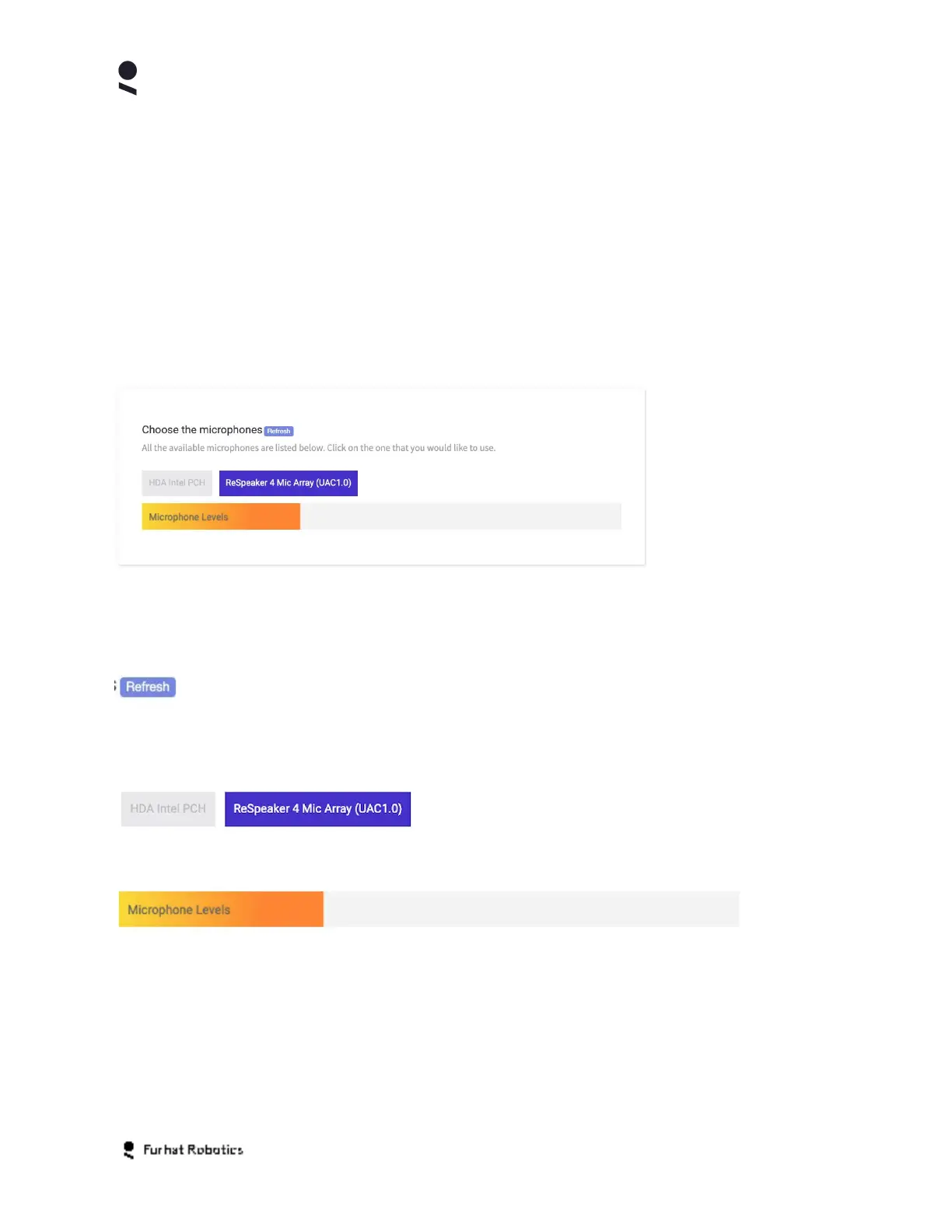
The Choose Microphones Panel allows you to view the list of connected microphone devices, to
refresh the list of microphone devices, to select the active microphone, and to check the audio
levels picked up by the selected microphone.
If you have connected or disconnected a USB microphone from your robot, use the Refresh
button in order to refresh the list of connected devices. The connected microphone devices are
shown using their own distinct buttons.
In order to select the active microphone, click on the respective button. The active microphone
will be highlighted and the passive microphones will be grayed out.
The Microphone Levels bar indicates the volume and sensitivity of the active microphone on a
high level.
Recognizer Settings
Your robot comes with built-in support for advanced speech recognition using the Google Cloud
Speech
and the Microsoft Azure Cognitive Services Speech-to-Tex
t cloud services.
Copyright Furhat Robotics AB © 2020 - Commercial In Confidence


 To Next Page