● Connect An external screen, and login to the Web-Console using the screen, then use the
Web-Console to configure the robot network settings.
Verifying Internet Connection
In order to verify that your connection is working, simply follow these steps:
● Enter the on-face menu by clicking on the center button of the rotary controller. The on-face
menu should display an IP address at the top of the menu.
● Log in to the robots Web-Console and use the Test The Speech Recognizer Panel on
the Home Tab. The speech recognition features require a working internet connection.
Using An External Screen With Your Robot
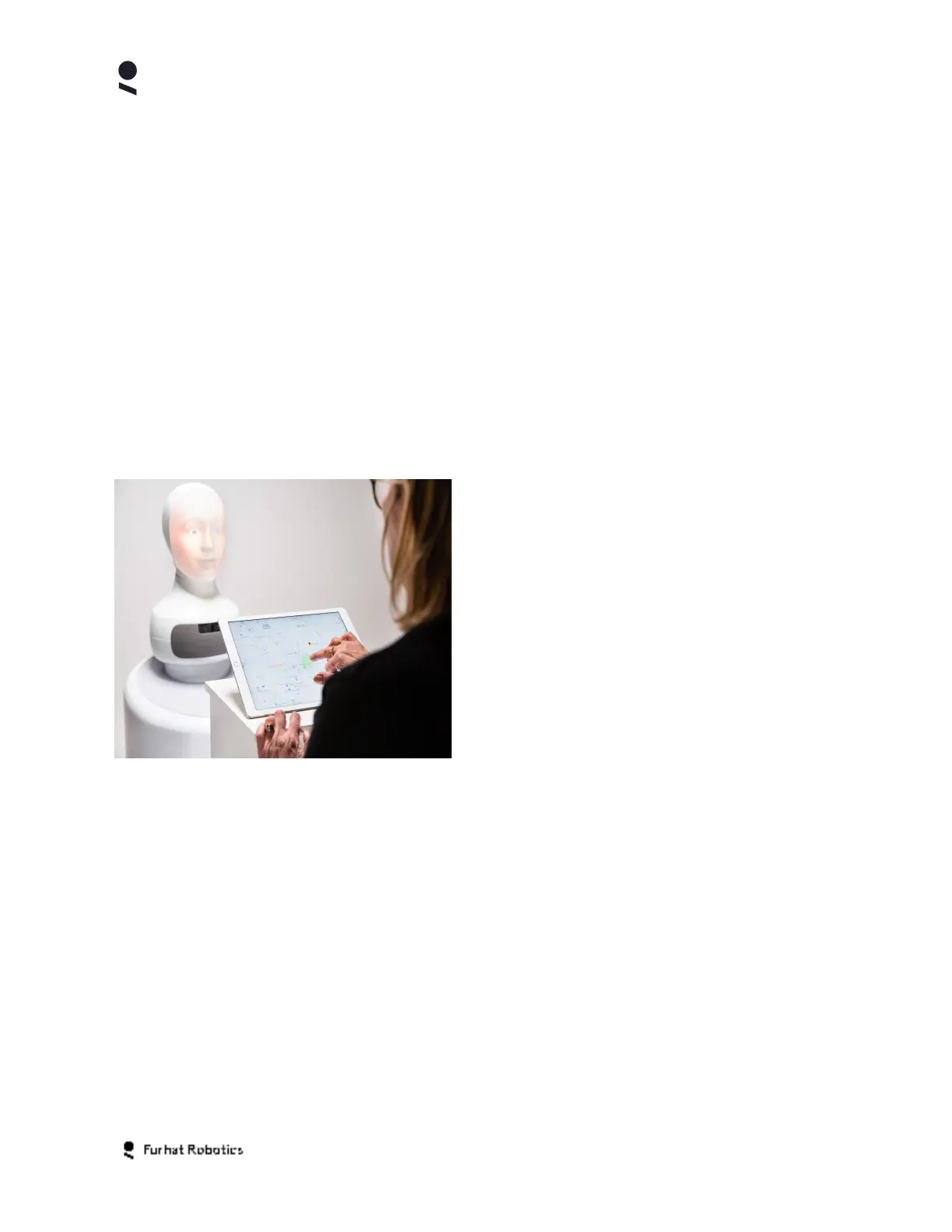
You can connect an external screen/touch panel
to your robot via using the robot's USB ports.
This screen/touch panel can be used to access
the robots Web-Console and also enable data
entry via touch and on screen/panel virtual
keyboard.
An external screen can also be used by Skills to
extend their user interactions beyond the robot to
GUI based interactions on the screen.
Setting Up External Screen
Always observe the instructions that come with your external screen in relation to its operation
and connections, as a large variety of screens and connectivity options exist. With your robot
switched off, connect the screen to your robot as follows:
● Some screens support video, power and touch via single USB-C cable. For such screens,
simply connect the screen to the robots USB-C port using the single USB cable.
● For screens that use HDMI, connect the screen’s HDMI port to your robot USB-C port (using
an appropriate USB-C/HDMI adapter)
Copyright Furhat Robotics AB © 2020 - Commercial In Confidence


 To Next Page