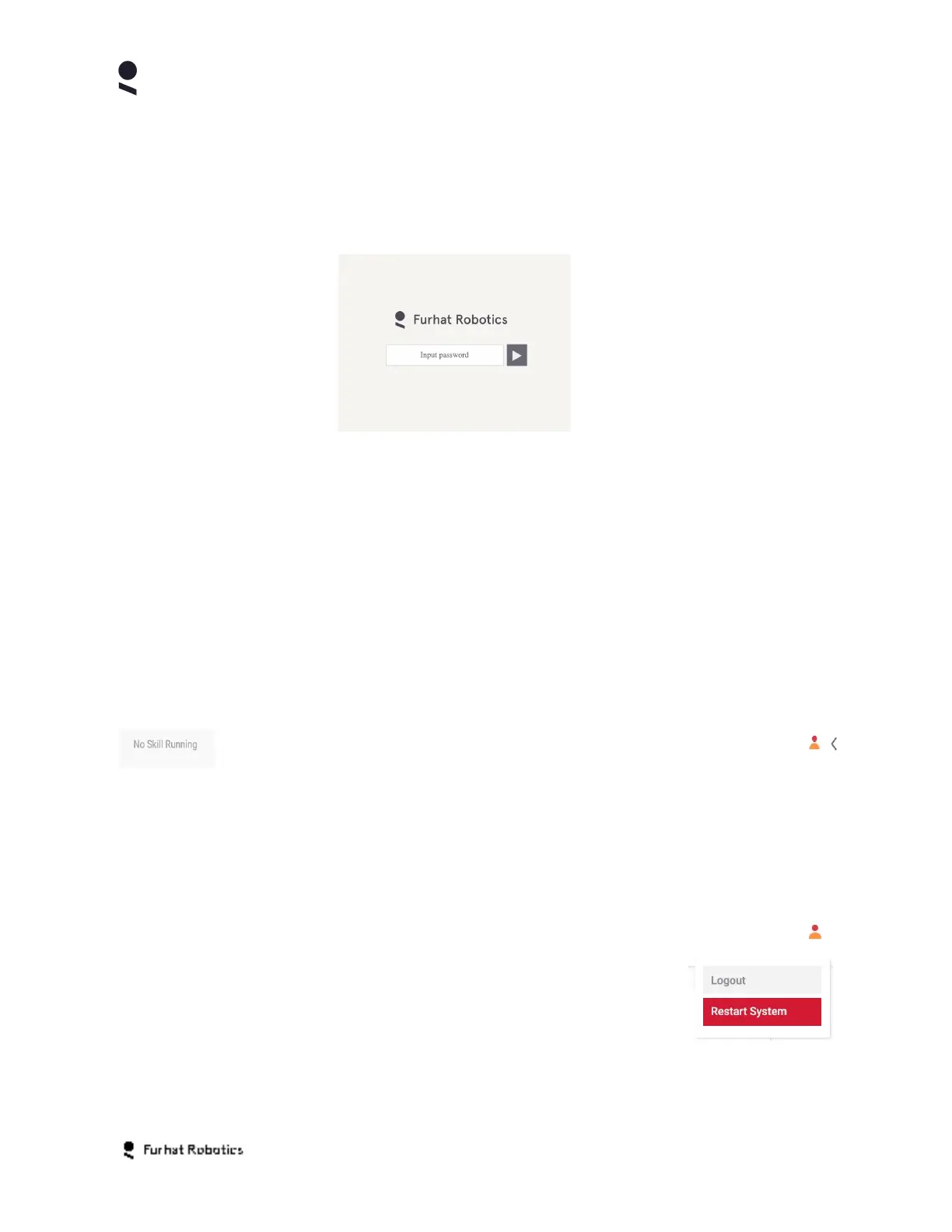
Note that some browsers or devices do not support the use of the robot host name as shorthand
in the browser URL, and may require you to enter the IP address (see on-face menu) and http://
prefix in order to access the Web-Console.
Once on the Web-Console login page you can use the default password admin to login.
You can change the default password to a password of your choosing using the on-face menu
or the security settings page of the Web-Console itself.
Home Tab
The Home Tab provides access to basic remote control features for your robot, as well as
enabling a few of the most high level configuration options.
At the top of the home panel you can see information on which skill is running on your robot, as
well as the user account icon and the console log icon.
Selecting the user account icon reveals the options to Logout the current user which will
return to the Web-Console login page. Selecting the Restart System menu item will restart
FurhatOS, note that selecting restart will also result in you being logged off the Web-Console
requiring you to login again once the system has completed its restart.
Selecting the console log icon will expand the console log view within
the page. The console shows important log messages from your robot,
and is especially useful when developing Skills or assessing the
performance and actions of the system
Copyright Furhat Robotics AB © 2020 - Commercial In Confidence


 To Next Page