2. SYSTEM MENU
2-2
How to change the user color
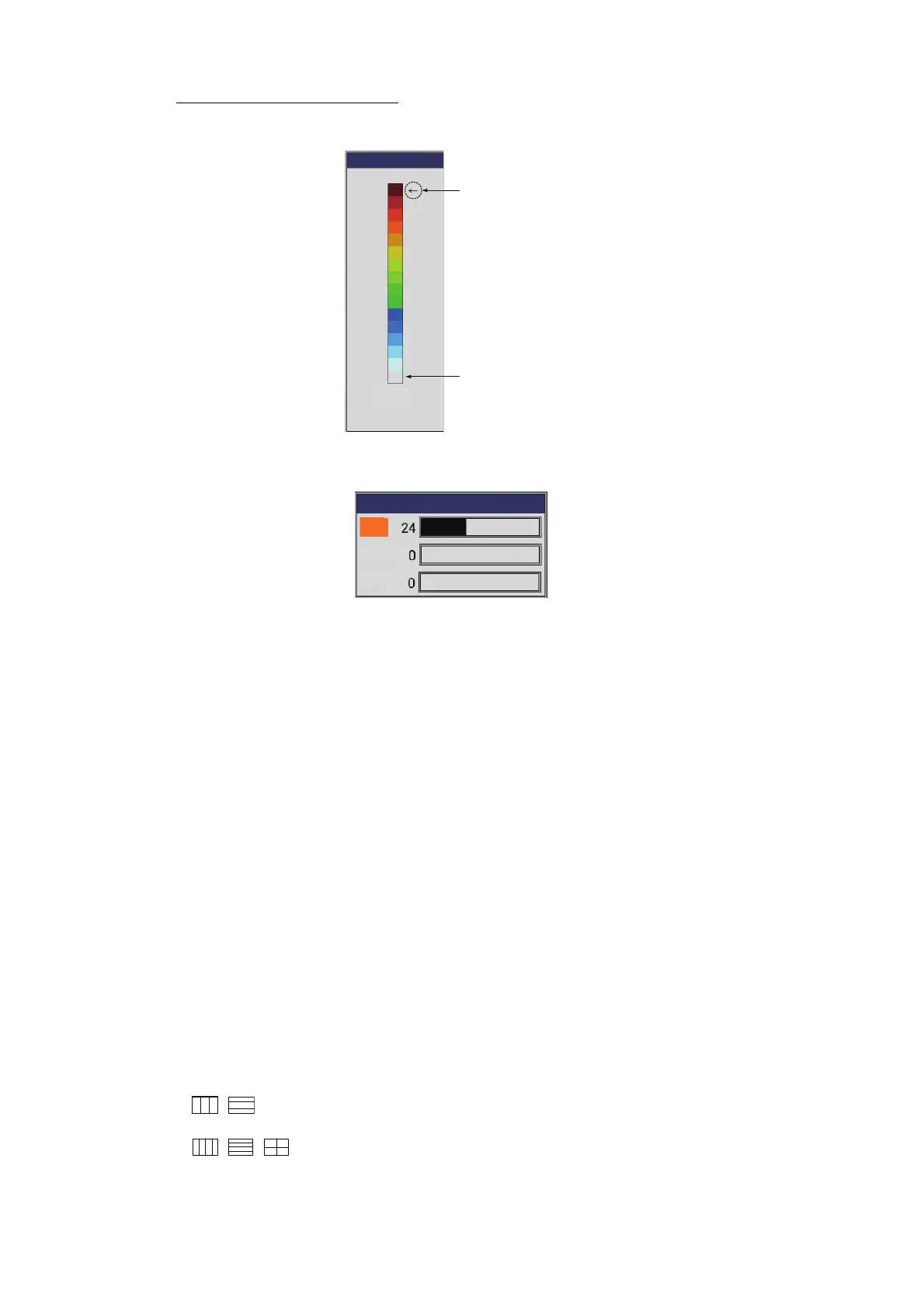
1) Select [User Color] and press the ENTER knob to show the user color bar.
2) Rotate the ENTER knob to select the color to adjust, then press the knob.
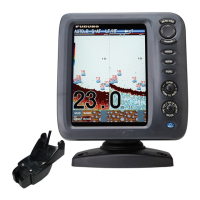
The [RGB] adjustment window appears.
3) Rotate the ENTER knob to select the color ([Red], [Green], or [Blue]) to adjust,
then press the knob.
4) Rotate the ENTER knob to adjust color, then press the knob.
The color of the color bar on the [User Color] window changes.
5) Repeat step 3 and step 4 for the three [Red], [Green] and [Blue] colors.
6) Press the MENU/ESC key.
7) If you want to change other color, repeat step 2 to step 6.
8) Select [Custom], then push the ENTER knob to apply the customized user color.
9) Select [Yes], then push the ENTER knob.
The setting for [Hue] on the [Display] menu changes to [Custom]. In this time,
[Back Ground] is inoperative.
10)Press the MENU/ESC key to close the window.
Note: To restore the default user color bar, select [Default] on the [User Color] win-
dow, then push the ENTER knob. Secondly, select [Yes] and push the ENTER knob.
[Screen Layout] (User1/User2): Select the screen layout for the user mode display.
[Display Mode] (User1/User2): Select the displays to show on the user mode display.
According to the setting for [Screen Layout], the setting range changes. For details of
the layout for each display, see Appendix 2 "SCREEN LAYOUT".
[LF+HZm+HF], [LZm+LF+HF], [LF+HF+MIX], [HE+LF+HF]*,
[LE+LF+HF]*, [HT+LF+HF]*, [LT+LF+HF]*
[LZm+LF+HZm+HF], [LF+HF1+HF2+MIX], [LE+HE+LF+HF]*,
[LT+HT+LF+HF]*, [LT+LF+HF1+HF2]*, [HT+LF+HF1+HF2]*,
[LT+LF+HF+MIX]*, [HT+LF+HF+MIX]*
*: Requires external fish finder or telesounder.
User Color
Default
Custom
Color currently
selected
Background
color
,


 To Next Page