14
Stream source
Users may choose primary recording source from either first stream or second stream. If it is a
single stream, the second stream option is unavailable.
Manual recording (Instant recording)
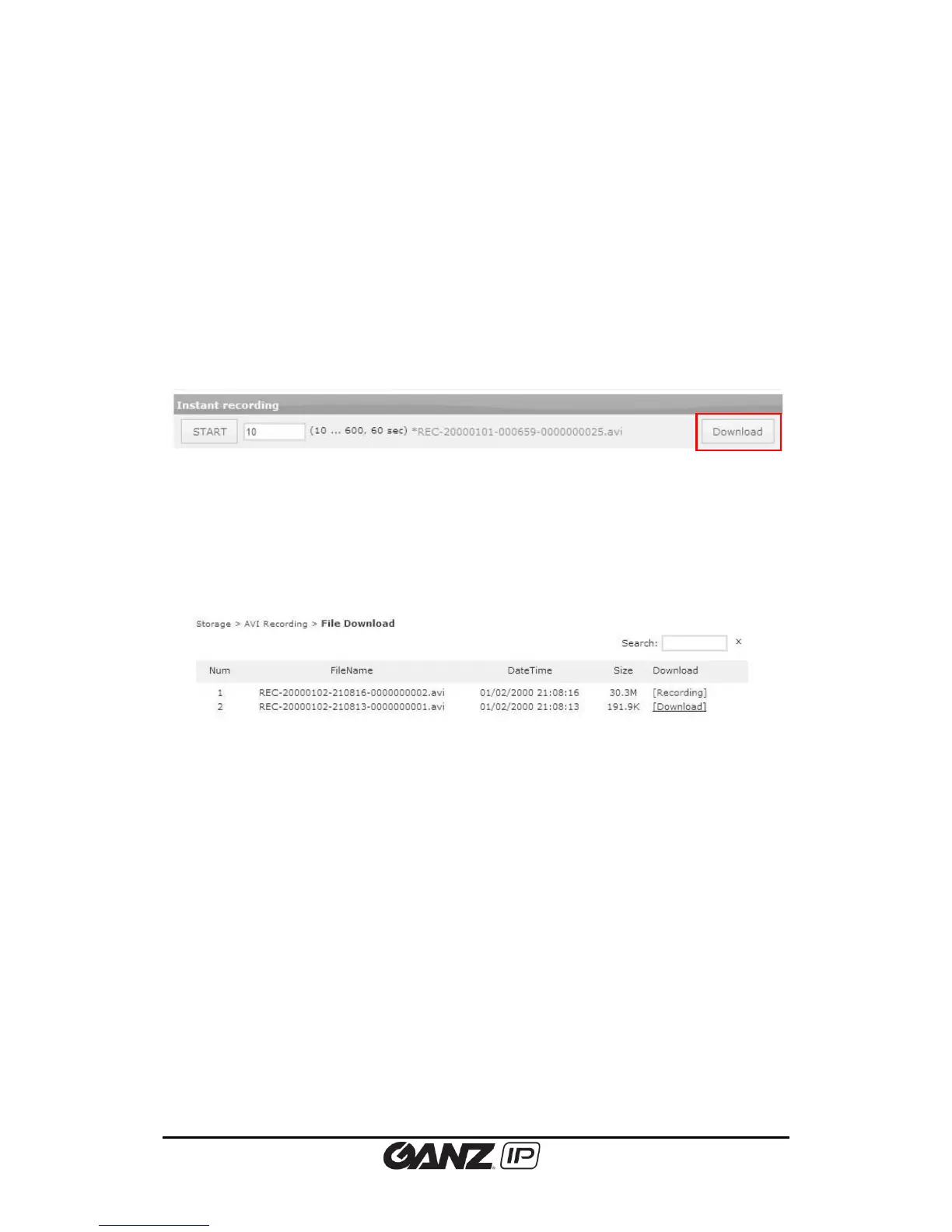
If the Start button is pushed, the recording will be started immediately. Before pressing the
start button, type desired recording time (seconds) in the box next to the start button. The
system default is 60 seconds, and available recording time is from 10 to 600 seconds. (10
minutes) While the recording is in progress, the button label changes from “Start” to “Stop”;
Users can manually stop the recording whenever it is desired.
When the recording is complete, click ‘download’ button appears on far right; Click the button
to download the recording as a file.
4.3. AVI File Download
To view and download the recorded files, click Storage > AVI Recording > File Download.
All of the recorded files are listed on the File Download page. Currently recording file is
displayed as [Recording] on the Download column. Users can select the desired file from the
list or search it by date. To list up the files which are recorded on a specific date only, click on
the Search box. A calendar appears from the search box and select the desirable date. To go
back to the original list, click the ‘x’ button next to the Search box.
To download a file, click [Download]. Then, the pop up window appears for the file download.



 To Next Page