15
5. SETUP
To configure the setting values of the device, click Setup on the main page. To access the Setup
page, ID and passwords are required.
5.1. Basic Configuration
The Basic Configuration provides the menus required for the basic settings that a user must
configure after the camera installation.
5.1.1. Users
To create/remove/modify a user group, go to Setup > Basic Configuration > Users.
How to add a user
To add a user for the webpage,
1. Go to Setup > Basic Configuration > Users.
2. Click the Add button below the User List.
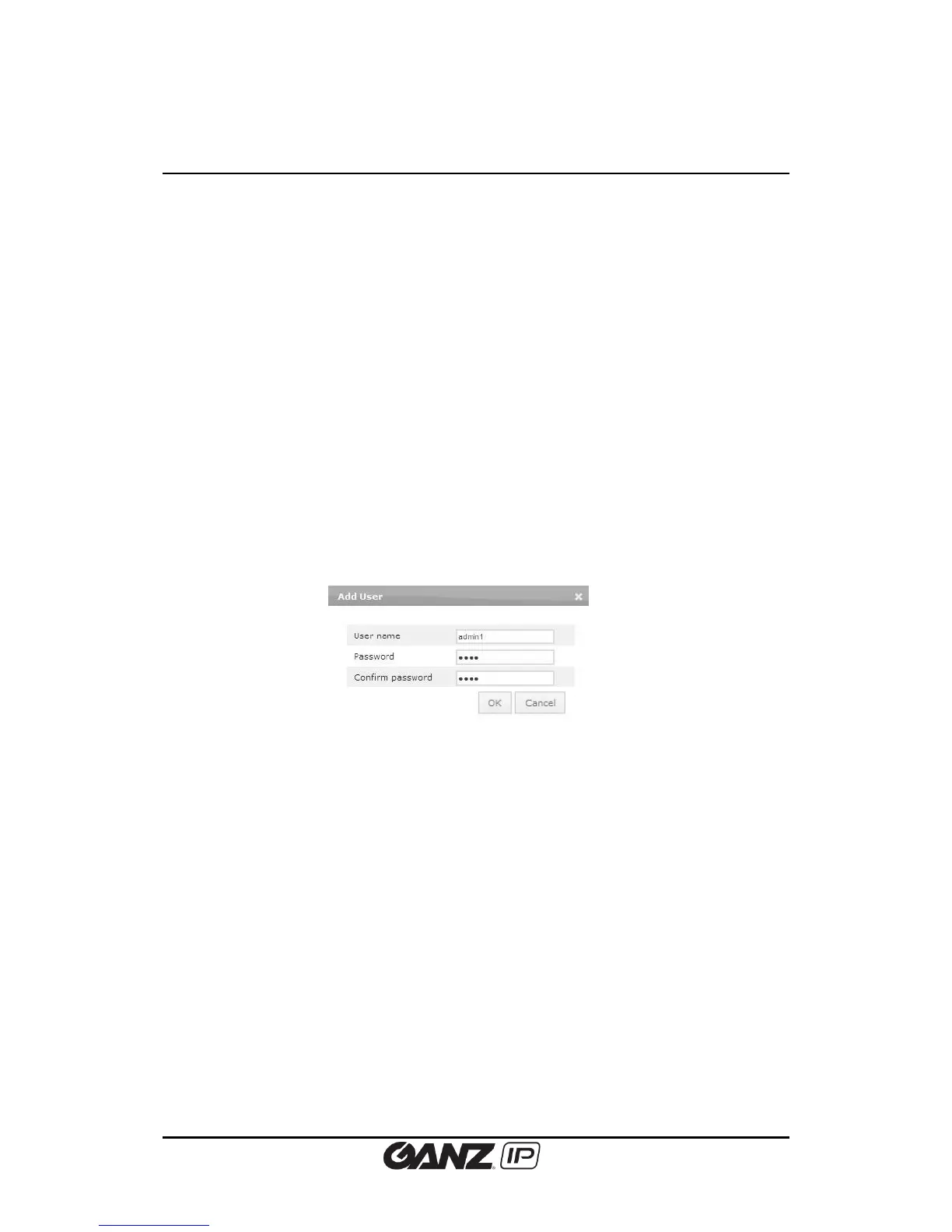
3. When the pop-up window appears, type a user name and password.
Limitation on user name
The user name can consist of alphabets from “a” through “z”, numbers from 0 to 9, and
underscore symbol; the user name must begin with an alphabet letter.
Length: The length of user name must be between 3 and 32.
Character range: All upper or lower case letters, numbers from 0 to 9, and underscore
Limitation on password
A password can contain from 1 to 8 characters with a combination of alphabet and numbers.
Length: The length of password must be between 4 and 32.
Character range: All upper or lower case letters and numbers from 0 to 9
4. Click the OK button to save the changes.
5. Check if the user name is added to the list.



 To Next Page