223 Sample Changer User’s Guide 4-5
Maintenance
4
Check Position Alignment
Check Position Alignment
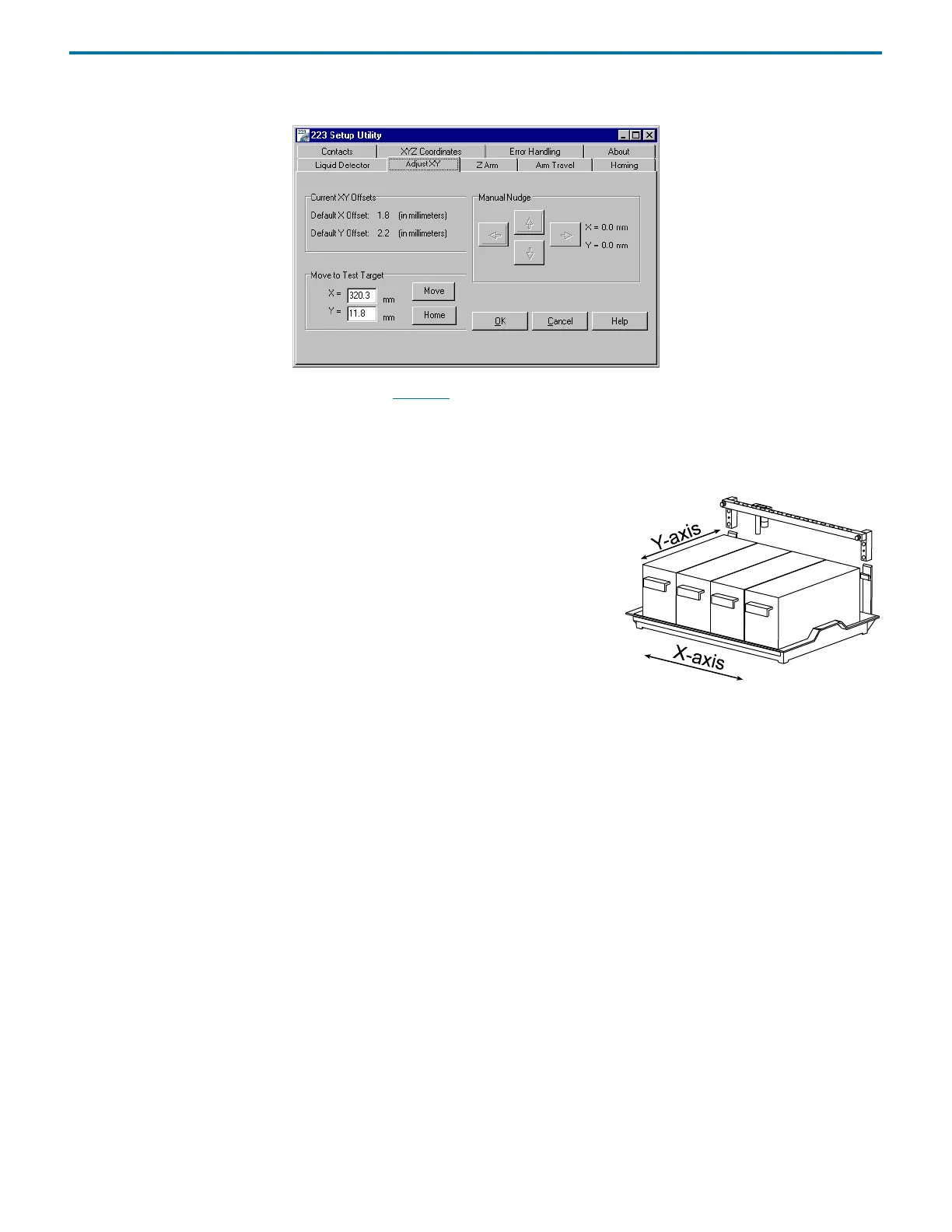
The 223 Setup Utility (Adjust XY tab), described on page 3-4, allows you to test whether the instrument is properly adjusted and
to make minor adjustments to the X- and Y-axis offsets if needed. You may need to use the options under this tab if the probe
is not accessing the transfer port, filler port, or the vessels in the installed racks.
The X offset and Y offset text boxes display the current offsets stored in the instrument’s memory.
To determine if the probe needs to be adjusted in the X or Y direction:
1 Select a test point.
2Click Move. When the probe reaches the target site, the software relaxes the
vertical arm so you can manually raise and lower the probe for visual alignment
confirmation on the target site.
3 If the probe is not aligned over the target location, use the Manual Nudge arrow
buttons to move the probe in the appropriate X or Y direction.
4 To store changes to the X and Y offsets, click OK.
Or, to display the X and Y offsets currently set in the instrument’s memory, click Cancel.
5Click Home to home the instrument.



 To Next Page