53
If you want your videotapes to play automatically when you insert
them, turn on Auto Play.
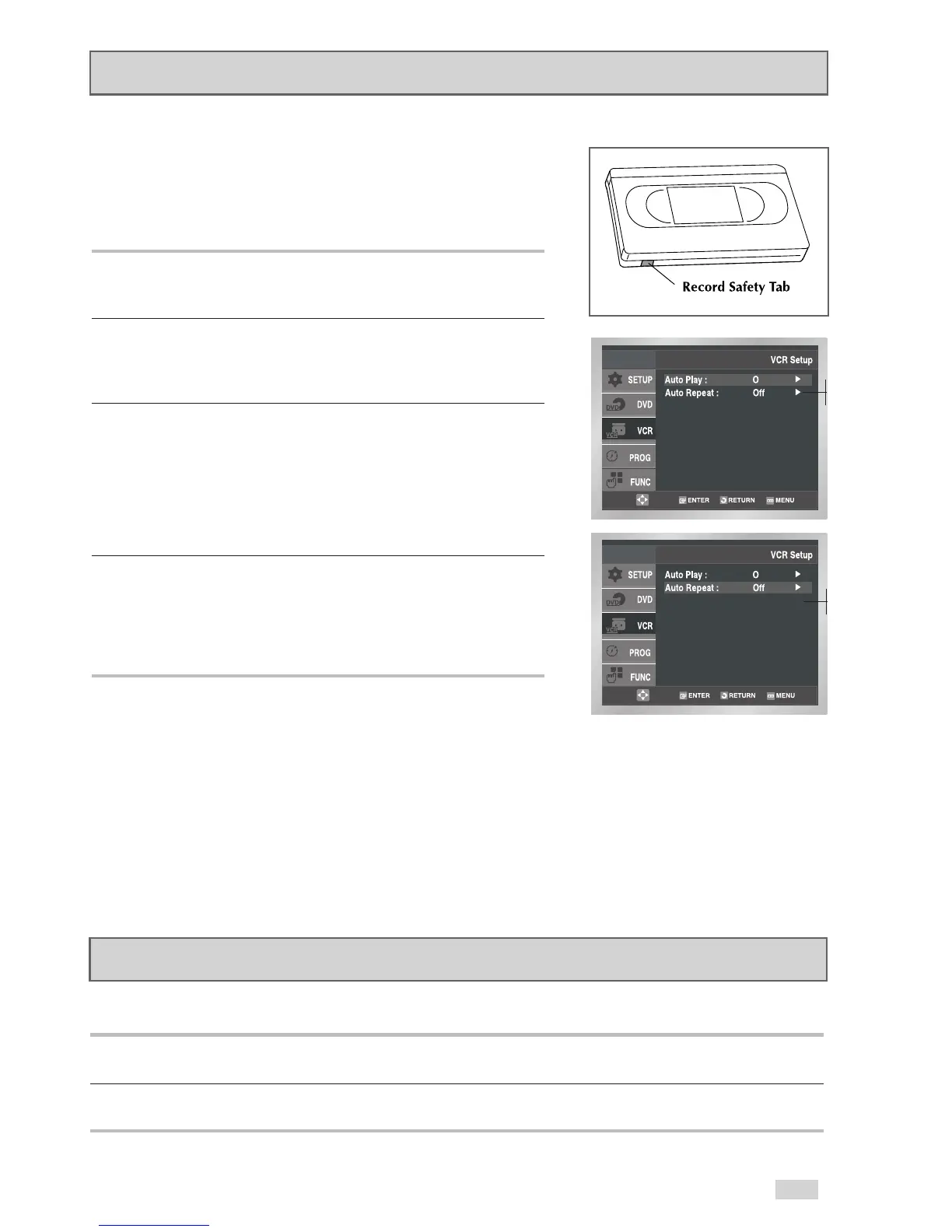
NOTE: Only tapes that are missing the Record Safety Tab will
play automatically when inserted.
1Open “Initial Setup” menu
With the DVD in Stop or Play mode, press the SETUP button.
2 Select “VCR”
Use the
/
buttons to highlight “VCR”, then press ENTER to
select.
3 Select “Auto Play”
Use the
/
buttons to highlight “Auto Play”, then press the
button to select from the following options:
• On - The VCR will automatically begin playing a videotape
when it is inserted, as long as the record safety tab has
been removed.
• Off - Auto Play is disabled.
4 Select “Auto Repeat”
Use the
/
buttons to highlight “Auto Repeat”, then press
the
button to select. Choose “On” if you want the VCR to
play tapes repeatedly (unless a playback control button is pressed,
such as STOP, FF or REW).
Auto Play
S-VHS Playback
The DVD+VCR allows you to playback high quality S-VHS tapes.
1 Insert a S-VHS Tape
Insert an S-VHS tape into the VCR deck.
2 Start Playback
Press PLAY/PAUSE on the remote control to begin playback of the S-VHS tape.


 To Next Page