Troubleshooting
333587B 53
Troubleshooting
1. Perform the Pressure Relief Procedure on page
46.
2. Turn off the yellow and red Disconnect Switch (AZ).
See Power Disconnect on page 7.
View Errors
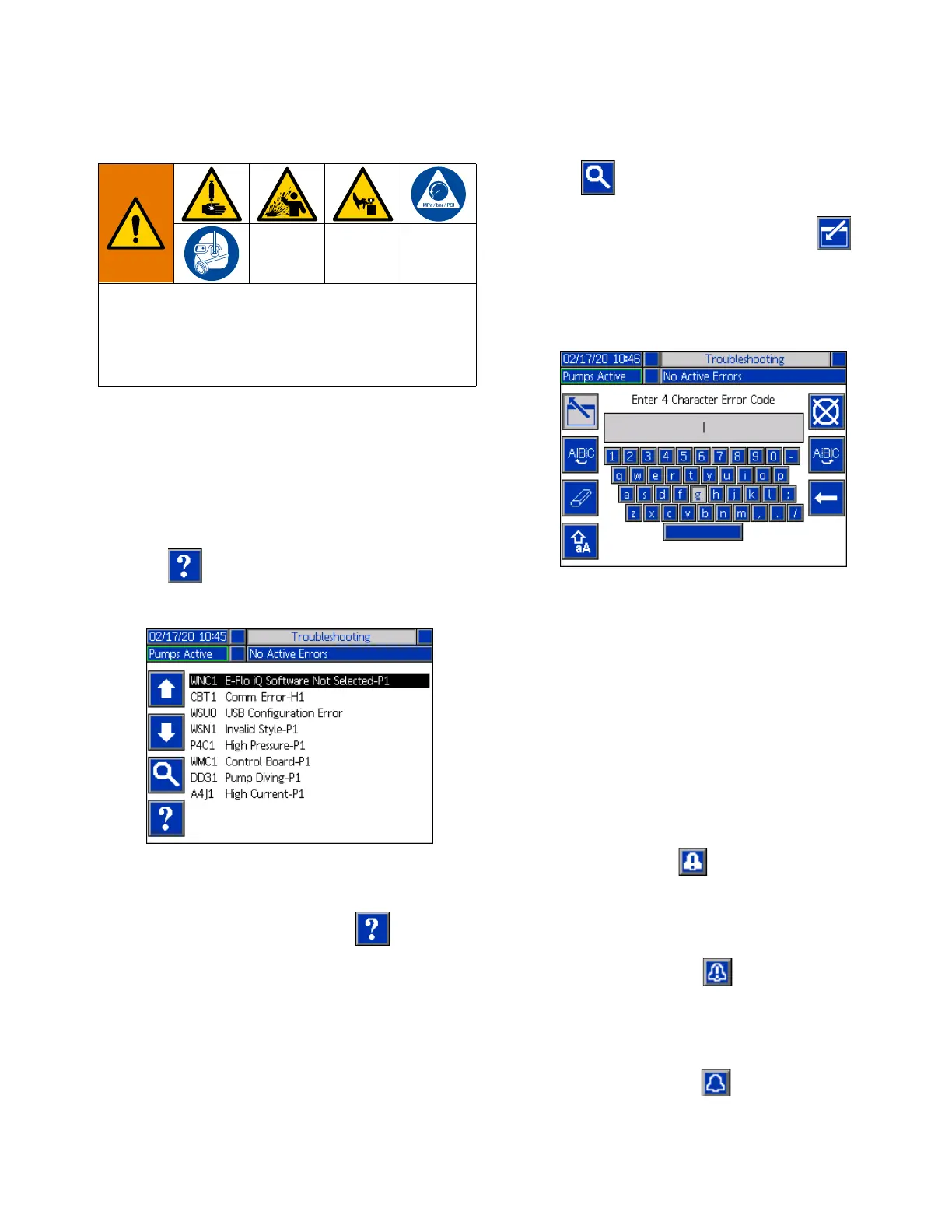
Press the soft key at iQ Menu screen 1 to access
the Troubleshooting screen.
This screen shows the list of errors with error codes and
descriptions. Use the arrow soft keys to scroll through
the list and select an error. Press the soft key to
advance to the QR Code screen for the selected error.
See Troubleshoot Errors on this page.
Press the soft key to advance to a keyboard
screen that allows you to search for an error by error
code. Type in the error code, then press the soft
key to advance to advance to the QR Code screen.
See Style Definitions on page 24 for additional
information about using the keyboard.
Troubleshoot Errors
When an error occurs, the error information screen
displays the active error code and description.
The error code, alarm bell, and active errors will scroll in
the status bar. Error codes are stored in the error log
and displayed on the Error and Troubleshooting screens
on the ADM.
There are three types of errors that can occur. Errors
are indicated on the display as well as by the light tower
(optional).
Alarms are indicated by . This condition indicates a
a parameter critical to the process has reached a level
requiring the system to stop. The alarm needs to be
addressed immediately.
Deviations are indicated by . This condition
indicates a parameter critical to the process has
reached a level requiring attention, but not sufficient
enough to stop the system at this time.
Advisories are indicated by . This condition
indicates a parameter that is not immediately critical to
the process. The advisory needs attention to prevent
more serious issues in the future.
REMOTE SYSTEM ACTIVATION HAZARD
To avoid injury due to remote machine operation,
perform the steps below before troubleshooting. This
will prevent commands sent from the fieldbus or
display module from actuating the driver/pump.


 To Next Page