7-6 2. Troubleshooting
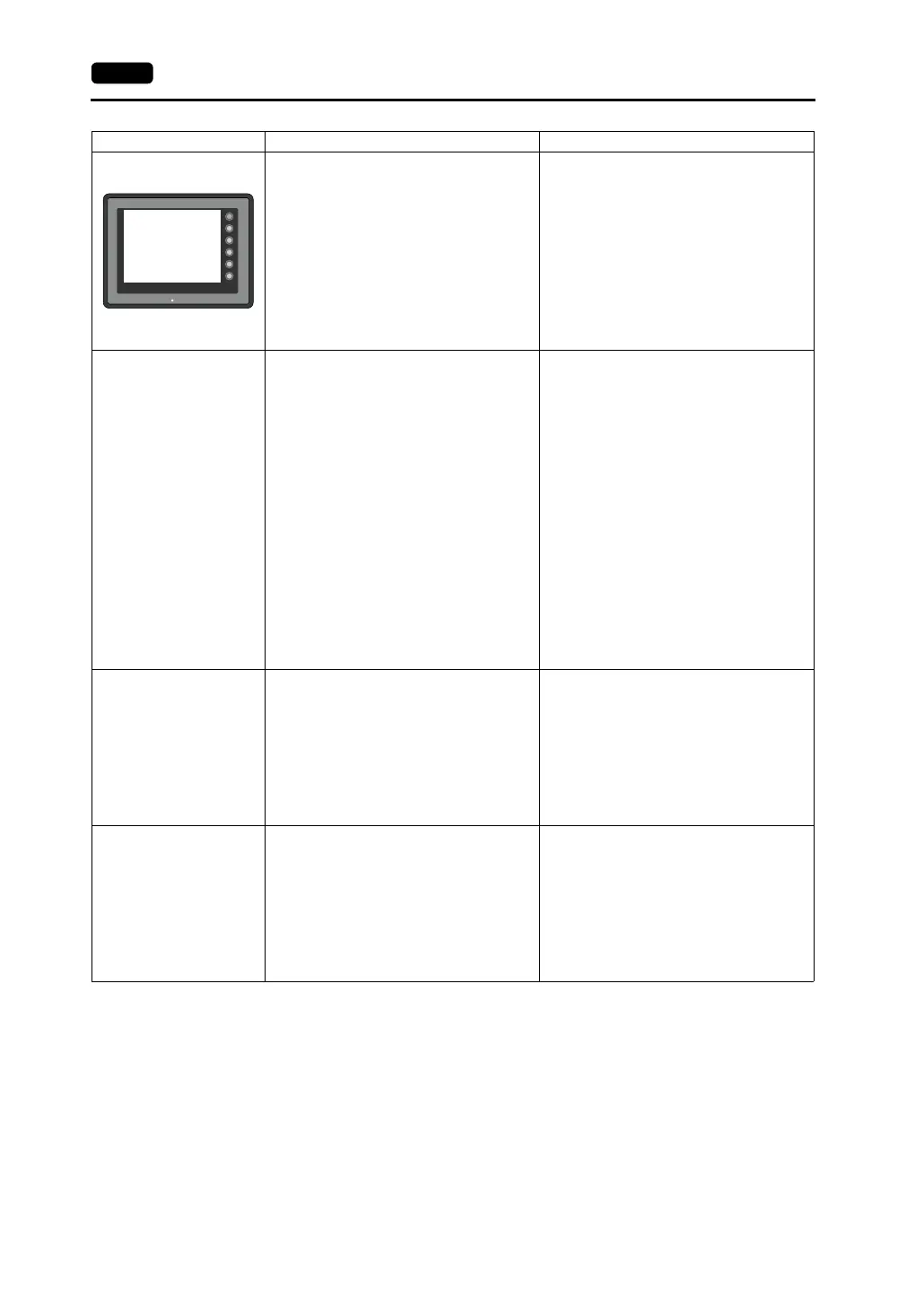
“SYSTEM ERROR: xx”
occurs.
The following causes are probable, depending
on the symptoms.
1) Turning the power off and back on corrects
the error.
↓
Communication failed because of improper
timing.
1) If communication is stable after turning the
power on again, continue and observe
operation.
2) Turning the power off and back on does not
correct the error.
↓
A certain condition always causes the error.
Or the MONITOUCH is faulty.
2) Make a note of the information on error
number, etc. displayed on the screen and
contact your local distributor.
Switches do not work. 1) Switches do not work in the RUN mode. A
beep sounds.
↓
Is the switch interlock enabled?
1) Check the settings of switch functions, etc.
on the V-SFT editor.
2) Switch activation position is wrong.
On the “I/O Test” screen displayed from the
Main Menu screen, press the [Switch
Check] switch. On the touch switch test
screen, a position different from the
pressed position is activated.
↓
The switch activation position may be
misaligned.
2) Perform a touch switch adjustment (page
6-9).
3) Switches do not work even in the STOP
mode.
On the “I/O Test” screen displayed from the
Main Menu screen, press the [Switch
Check] switch. When the touch switch test
screen is pressed, nowhere is activated.
↓
MONITOUCH switches may be faulty.
3) Return the MONITOUCH to your local
distributor.
The screen becomes dark or
black.
1) Touching the screen restores it to the
previous illuminated state.
↓
The backlight operates automatically as
preset.
1) The time for turning off the backlight can be
changed on the V-SFT editor.
2) Touching the screen does not restore it.
However, the POWER lamp is lit.
↓
The backlight may be at the end of its life.
Or the MONITOUCH may be faulty.
2) Return the MONITOUCH to your local
distributor.
Screen data cannot be
transferred.
1) Screen data transfer has never succeeded.
↓
There may be some errors in the settings
on the computer.
1) In the [Transfer] dialog box on the V-SFT
editor, decrease the baud rate by one level.
Also check that the correct COM port is
selected.
2) Screen data transfer was possible, but is
disabled now.
↓
The MONITOUCH may be faulty. Or, there
may be some errors in settings.
2) Check if the modem connection mode is
selected. (“Modem Connect Mode”
displayed at the bottom of the Main Menu
screen denotes the mode)
Also perform an RS-232C self-loop test
(page 6-5).
Symptom Cause Solution
SYSTEM
F2
F3
F4
F5
F1
POWER
SYSTEM ERROR : 32
TEA : XXXXXXXX
SSR : XXXXXXXX
R0 : XXXXXXXX
R2 : XXXXXXXX
R4 : XXXXXXXX
R6 : XXXXXXXX
R8 : XXXXXXXX
R10 : XXXXXXXX
R12 : XXXXXXXX
R14 : XXXXXXXX
EXPEVT : XXXXXXXX
SPC : XXXXXXXX
R1 : XXXXXXXX
R3 : XXXXXXXX
R5 : XXXXXXXX
R7 : XXXXXXXX
R9 : XXXXXXXX
R11 : XXXXXXXX
R13 : XXXXXXXX
R15 : XXXXXXXX


 To Next Page