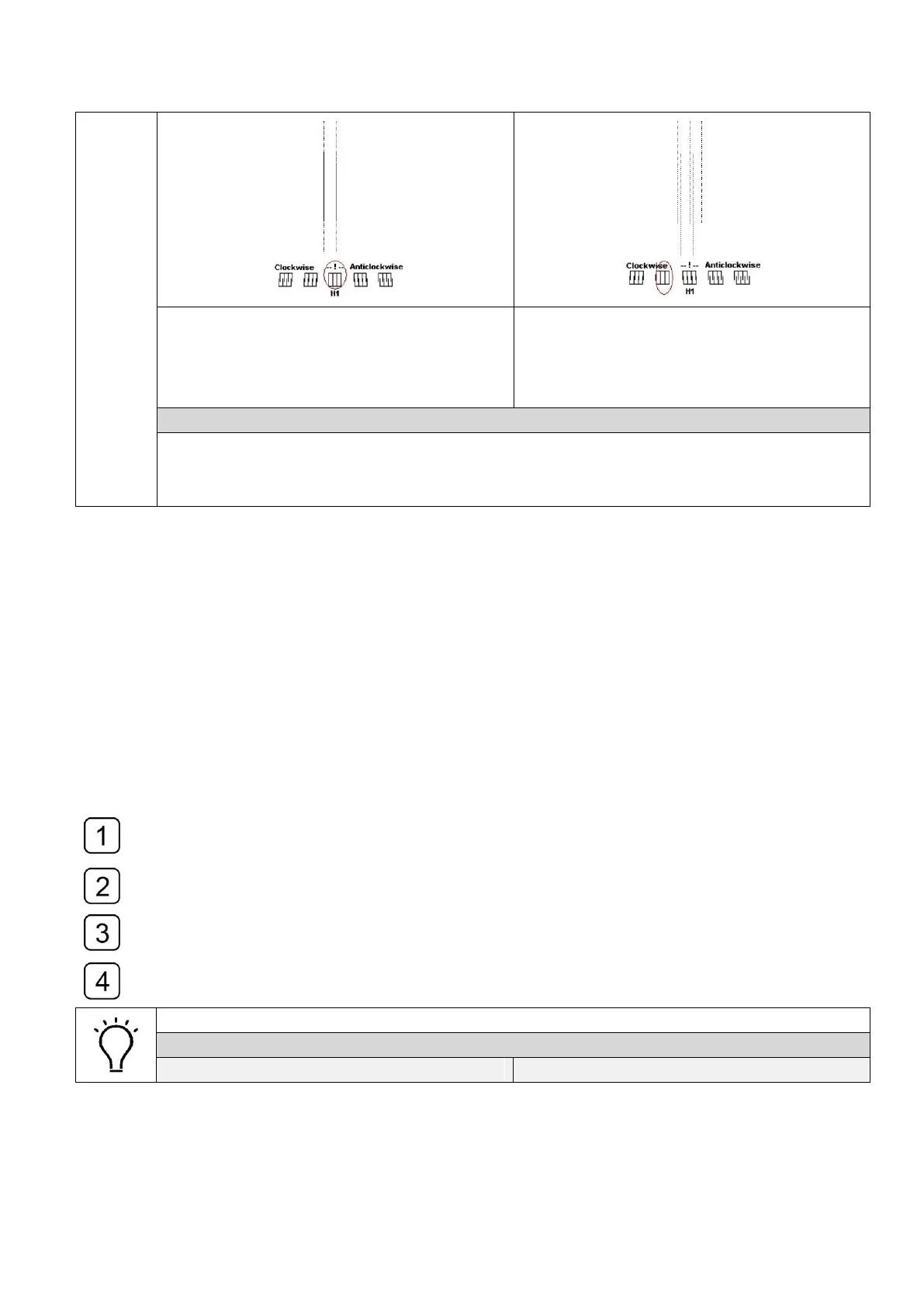
The lines of the two parts printed are
completely overlapped.
Vertical calibration is good.
There is one icon in the clockwise side.
Adjust the screw clockwise to make it
aligned to the middle position with the
exclamation mark
How to adjust the Vertical Adjusting Screw
1. Loosen the Head Fixing Screw
2. Adjust the Vertical Adjusting Screw according to the Vertical calibration print.
3. Fasten the Head Fixing Screw when the vertical alignment accomplished.
4.11.2 Horizontal alignment
Select the horizontal checking in the drop-down-list of the alignment checking and run
printing. The printing result is shown as below.
Use the magnifier to observe the left and right parts of the small iron printed and sees
whether the two parts merge into a complete one.
Adjusting the Horizontal Adjusting Screw of the printhead base according to the
“Nozzle alignment” calibration print and check the alignment again.
Repeat Step2 and Step3 until they were aligned.
The horizontal alignment takes the first printhead of the black color as reference.
How to read the Horizontal Calibration print
Picture C Horizontal calibration (Good)
Picture D Horizontal calibration (Bad)


 To Next Page