E.5 Recovery partition creation
To create/restore the recovery partition, a USB disk/stick with a back-up copy
of
the recovery partition is required. If this back-up copy has not been made or
is lost, a copy can be ordered from HBM service.
E.5.1 Using the Integrated System Recovery USB Disk
1 Power off the mainframe.
2 Connect the mouse and keyboard.
3 Insert the USB disk in one of the USB 2.0 ports (The USB3.0 ports will not
allow the restore process to finish correctly).
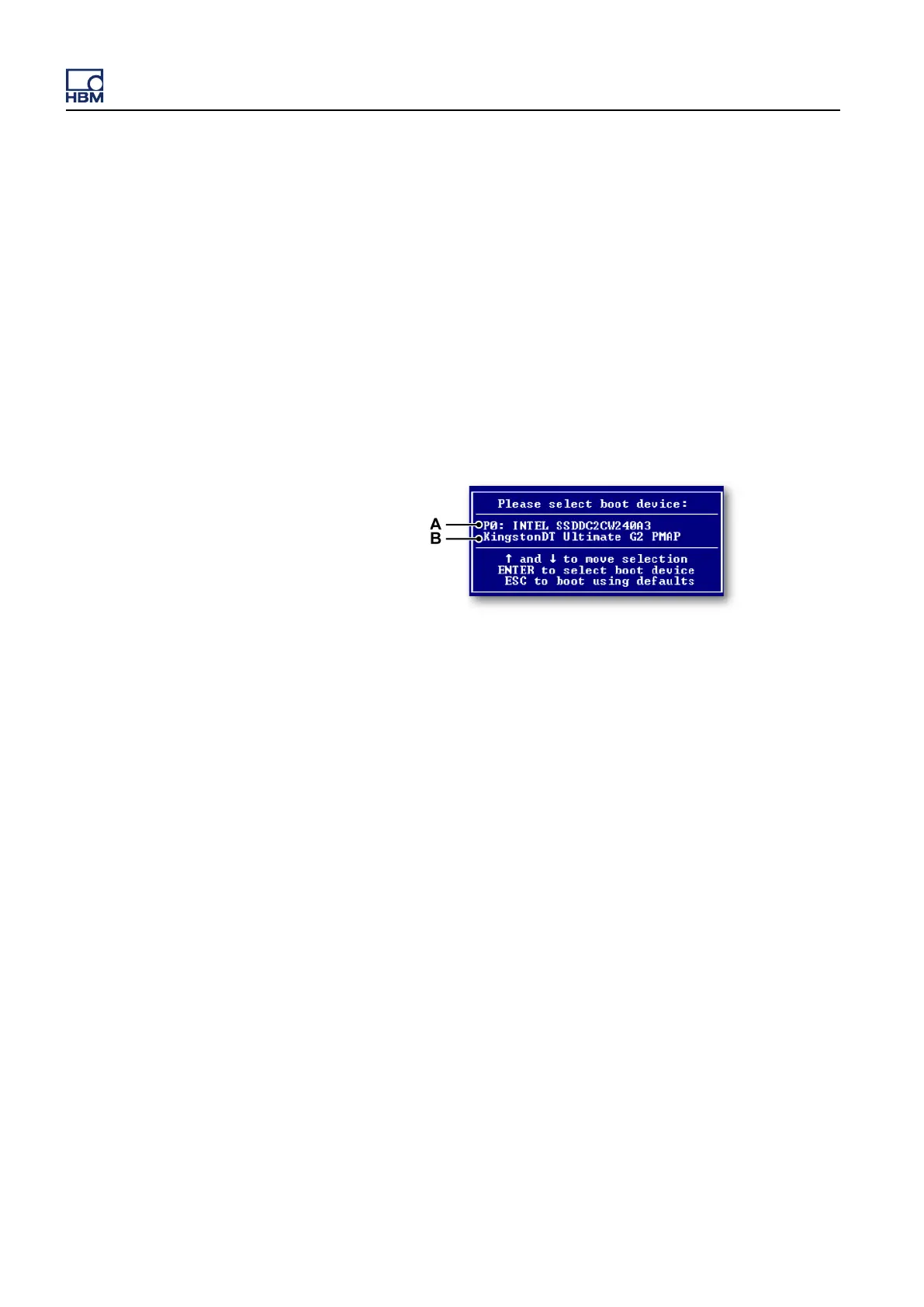
4 Power on the system and keep the F7 function key pressed until the
following dialog appears.
Figure E.40: Listed boot devices
A Name of installed Solid State Drive
B Name of USB disk/stick attached to your system
If
the attached USB disk/stick does not appear, it was installed the system
was powered on or the USB disk/stick is not bootable. Correct the issue,
power off the system and restart from the beginning.
Use the arrow keys to select the USB disk/stick in the list of boot devices
and press enter. The system will boot the recovery partition creation.
A disk partition inspection is started.
l If a recovery partition is detected, the Recovery Partition Restore is
started. For more information, please refer to "Starting recovery partition
restore" on page 858.
l If the Recovery partition is not detected, the Recovery Partition
Creation is started. For more information, please refer to "Starting recovery
partition creation" on page 857.
GEN3i
856 I3763-3.1 en HBM: public


 To Next Page