12
(4.2) Menu Screen
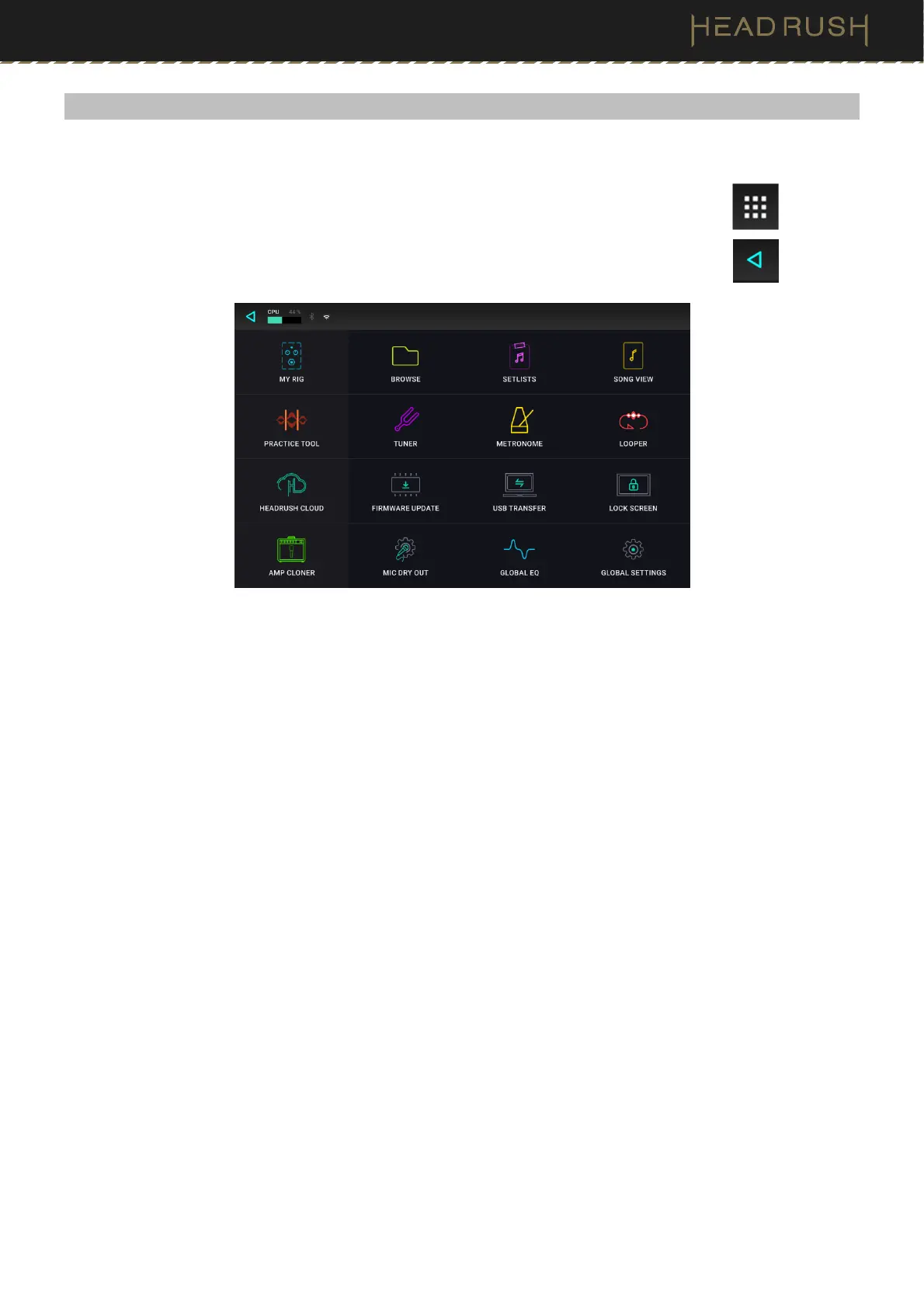
Most of the key features of HeadRush Prime are accessible from the Menu Screen.
To access the menu screen, tap the Menu icon in the upper left corner of the Main screen.
To return to the Main screen, tap the icon in the upper left corner of the Menu screen.
The following screens can be accessed from the Menu screen:
• My Rig: See (4.1.1) Main Screen > Overview and (4.3) Rigs to learn more about this screen.
• Browse: See (4.8) File Browser to learn more about this screen.
• Setlists: See (4.9) Setlists to learn more about this screen.
• Song View: See (4.10) Song View to learn more about this screen.
• Practice Tool: See (4.11) Practice Tool to learn more about this screen.
• Tuner: See (4.12) Tuner to learn more about this screen.
• Metronome: See (4.13) Metronome to learn more about this screen.
• Looper: See (4.14) Looper to learn more about this screen.
• HeadRush Cloud: See (4.15) HeadRush Cloud to learn more about this screen.
• Firmware Update: Tap here to enter Firmware Update mode. This will allow you to update HeadRush Prime
when new firmware is available, using either a USB connection to your computer or over-the-air via Wi-Fi.
• USB Transfer: See
(4.16.1) USB > Transferring Files & Settings to learn more about this screen.
• Lock Screen: See (4.17) Lock Screen to learn more about this screen.
• Amp Cloner: See (4.18) Amp Cloner to learn more about this screen.
• Mic Dry Out: See (4.19) Mic Dry Out to learn more about this screen.
• Global EQ: See (4.20) Global EQ to learn more about this screen.
• Global Settings: See (4.21) Global Settings to learn more about this screen.


 To Next Page