13
(4.3) Rigs
When you are using HeadRush Prime, a rig is a preset: the combination of assigned models—the amps, cabs, IRs,
clones, and effects—and the parameter settings of each of them. You can create, edit, save, and load rigs, making
it easy to recall the perfect sound for each part of your performance.
Each rig has 14 slots, each of which can have one model (amp, cab, or effect) assigned to it. An exception is when
a slot is using an amp, cab, or IR in a dual configuration (when the 2X button next to it is enabled).
Assigned slots will show graphical representations of the models, and empty slots will show a symbol.
(4.3.1) Creating a New Rig
To create a new rig, tap the button in the upper-right corner of the main screen,
and then tap New Rig.
To assign a block (amp, cab, IR, clone, or effect) to an empty slot:
1. Tap the empty slot ().
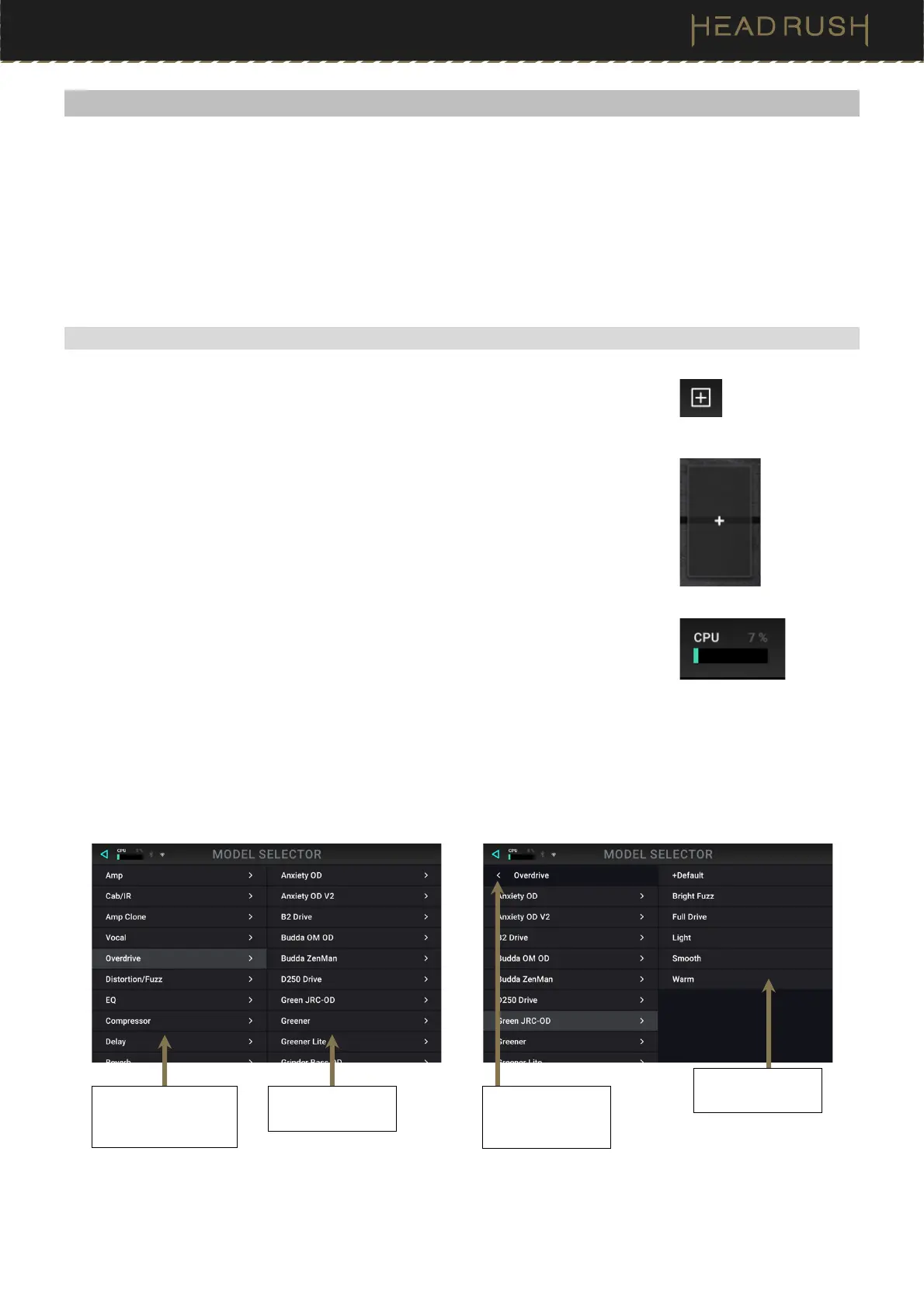
2. In the list that appears, tap the type of block you want to assign.
3. In the list that appears, tap the specific block you want to assign.
4. In the next list that appears, tap the preset you want to load for that model.
As you add blocks, you will notice the CPU meter in the top left screen fill up. There is
no limit to the number of the same type of blocks you can add; however, if this CPU
meter reaches 100%, you may experience some unwanted tonal side effects (popping,
clicks, etc.).
If you are loading an impulse response (IR) file, you can select one that is truncated to 1024 samples, which are
less DSP-intensive, freeing up more resources to load and use additional models and/or IRs to your rigs.
To load a truncated IR, select the IR 1024 model instead of the normal setting (2048) when adding an IR to your
rig.
Available presets
for each block.
Available block types
(Amp, Cab, IR,
Clone, or Effects).
Available blocks
for each type.
Tap here to return
to the list of block
types.


 To Next Page