51
(4.19) Mic Dry Out
HeadRush Prime’s Mic Dry Out feature enables you to still use a microphone while using rigs that use guitar-centric
signal paths (Straight Path, Middle Split, Immediate Split) that typically do not allow adding FX to the microphone
input.
This can be useful for different performance situations such as:
• You require the full 14 blocks of your rig to attain a complex guitar sound, and while you do not need vocal
effects, you still need to sing simple backup vocals or talk to the audience between songs.
• You are livestreaming a performance or taking online lessons using your HeadRush Prime as an audio
interface and you still need a way to talk to your viewers or instructor.
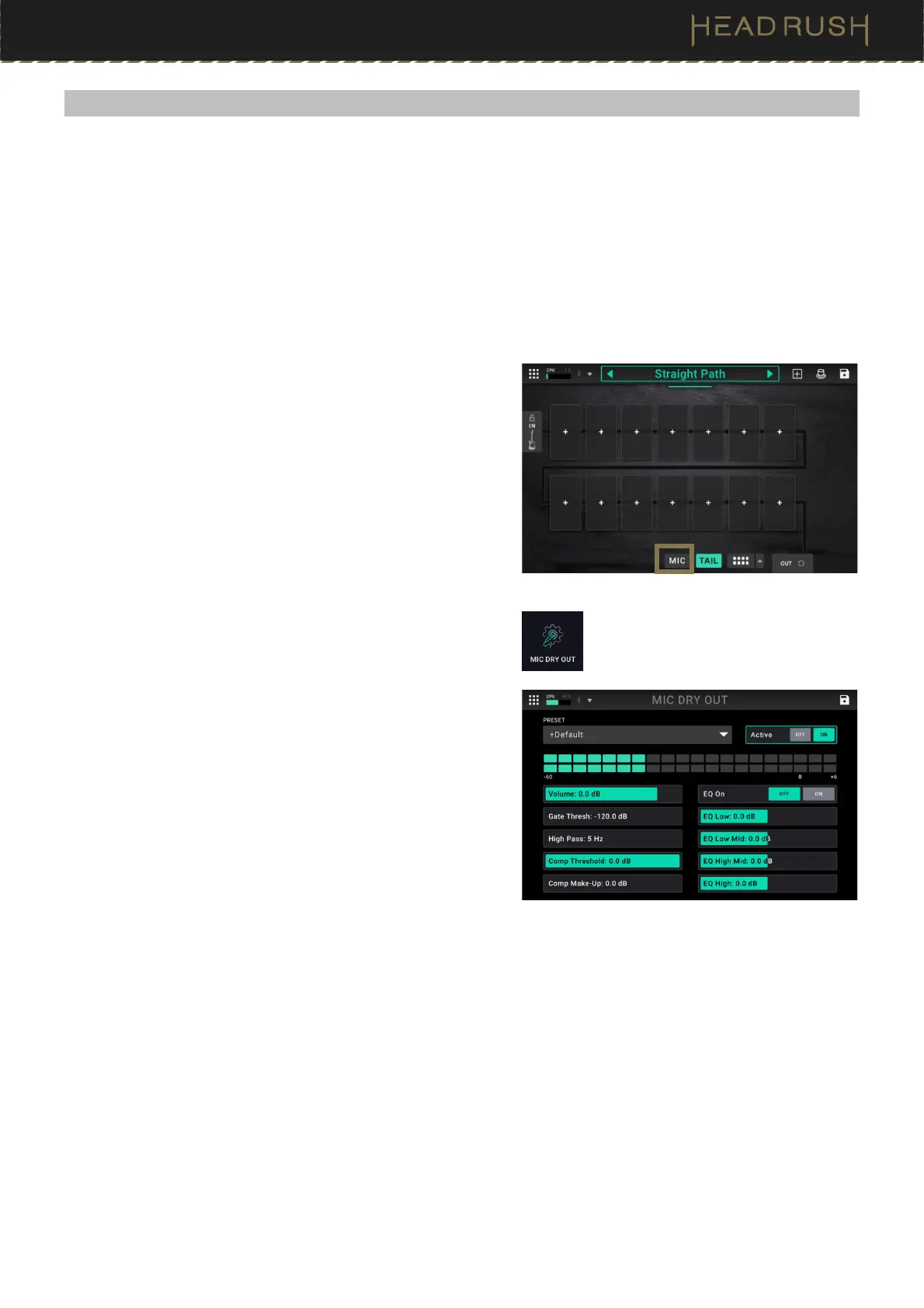
To enable or bypass the Mic Dry Out signal on these types
of rigs, tap the Mic button located on bottom of the Main
screen next to the Tail and Signal Path buttons.
Although you are unable to add vocal effects to the microphone
signal to these types of rigs, the Mic Dry Out configuration
screen still enables you to enhance the Mic Dry Out signal with
a noise gate, compression, high pass filter, and simple EQ
settings.
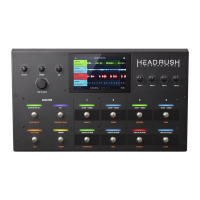
To access the Mic Dry Out configuration screen to further
configure this signal, tap the Menu icon in the top left of the
Main screen, and then tap Mic Dry Out. On this screen, you
can adjust the following settings:
Preset: Select from included presets with preconfigured
settings for various uses.
Active: Enables or disables the Mic Dry Out feature.
Volume: Sets the level of the incoming Mic signal. You can
monitor the level using the meter above.
Gate Thresh: This is the volume level below which noise
gate will be applied. Any sound at this level or higher will
pass through the gate. Any sound lower than this level
will be reduced.
High Pass: Adjusts the center frequency of the high pass
filter applied to the mic signal.
Comp Threshold: This is the volume level at which compression is applied. Any sound at this level or higher
will be compressed. Any sound at this level or lower will bypass the compressor.
Comp Make-Up: Adds additional gain to the compressed signal.
EQ On: Enables or disables equalization. When enabled, you can adjust these additional settings:
EQ Low: Attenuate or boost the gain of the low frequency EQ band.
EQ Low Mid: Attenuate or boost the gain of the low-mid frequency EQ band.
EQ High-Mid: Attenuate or boost the gain of the high-mid frequency EQ band.
EQ High: Attenuate or boost the gain of the high frequency EQ band.


 To Next Page