6
(3.0) Features
(3.1) Top Panel
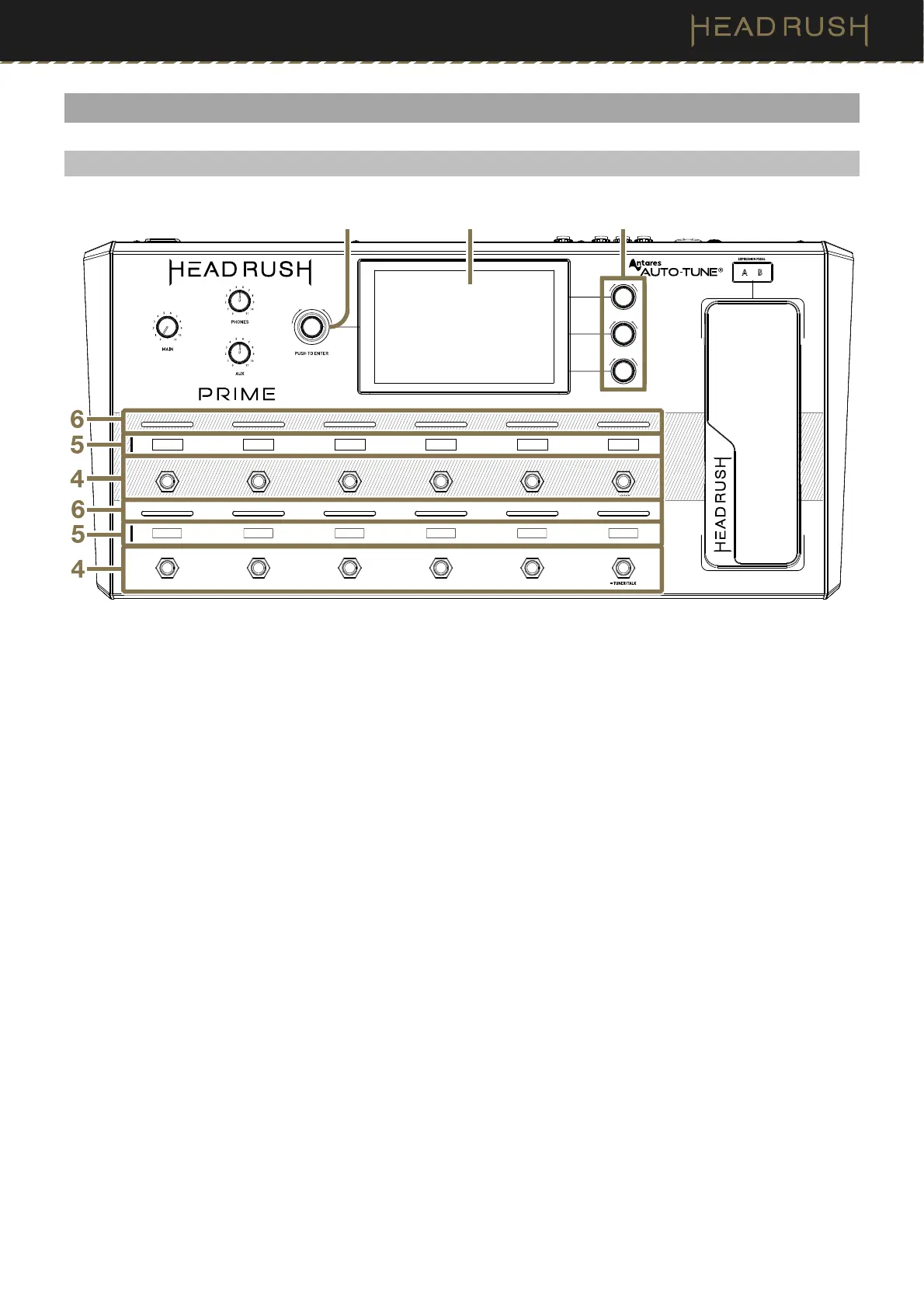
1. Main Display
This full-color multi-touch display shows information relevant to HeadRush Prime’s current operation. Touch
the display (and use the hardware controls) to control the interface. See (4.1) Main Screen to learn how it works.
2. Parameter Knobs
Turn these knobs to adjust the parameters or settings shown next to them in the main display.
3. Encoder
Turn this encoder to scroll through the available menu options or adjust the parameter values of the selected
field in the display. Push the encoder to confirm your selection.
4. Footswitches
Press these footswitches to activate or deactivate the assigned block or scene, or to load the
assigned rig. See
(4.5) Footswitch Modes for more information.
5. Footswitch Displays
These display strips indicate the block, rig, or scene assigned to each footswitch.
6. Footswitch Indicators
These lights indicate whether the block, rig, or scene assigned to each footswitch is on (brightly lit) or off (dimly
lit).
3 1 2


 To Next Page