17
(4.3.4) Saving a Rig
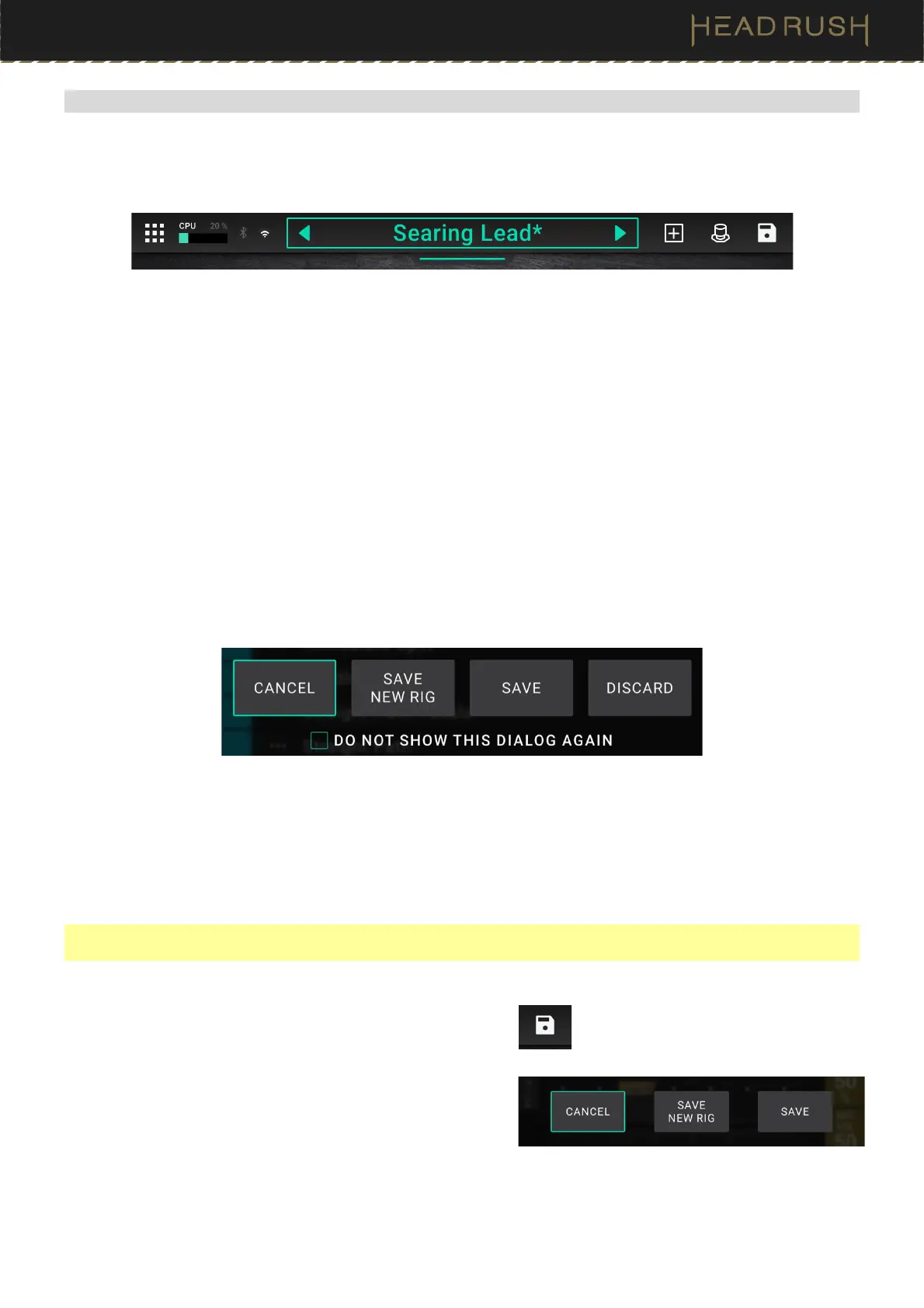
If you have made certain changes to a rig, you will see an asterisk () next to its name at the top of the screen,
indicating that you have changed the rig in some way and may want to save it.
You will see an asterisk if you have done any of the following:
• assigned a block to the rig.
• deleted a block from the rig.
• moved a block in the signal path.
• changed a block’s preset (see (4.4) Adjusting Settings to learn more).
• made any change in the Hardware Assign screen (see (4.6) Hardware Assign to learn more).
Activating or deactivating a block, using the parameter knobs on any screen, or using the expression pedal on any
screen will not cause the asterisk to appear. You can save these changes to this rig, save these changes as another
rig, or discard them altogether.
If the asterisk is shown and you try to load a different rig, you will be asked to select one of these options:
• Cancel: This option returns to the previous screen without saving the current rig or loading a new rig.
• Discard Changes: This option loads a new rig without saving any changes to the previous rig.
• Save as a New Rig: This option lets you save the current rig as a new rig. In the screen that appears, use the
keyboard that appears to enter a name, and then tap Save. That rig will be saved, and the new rig will load.
• Save Changes to Rig: This option saves any changes you made to the rig and then loads the new rig.
Note: Select Do not show this dialog again in the message to disable these confirmation messages. You can
re-enable them in the (4.21) Global Settings screen.
To save a rig while you are editing it, tap the Save icon in the
upper-right corner.
To save your changes to the current rig, tap Save.
To save your changes as a new rig, tap Save New Rig,
use the keyboard that appears to enter a name, and then
tap Save.
To return to the previous screen without saving, tap
Cancel at any time.


 To Next Page