53
(4.21) Global Settings
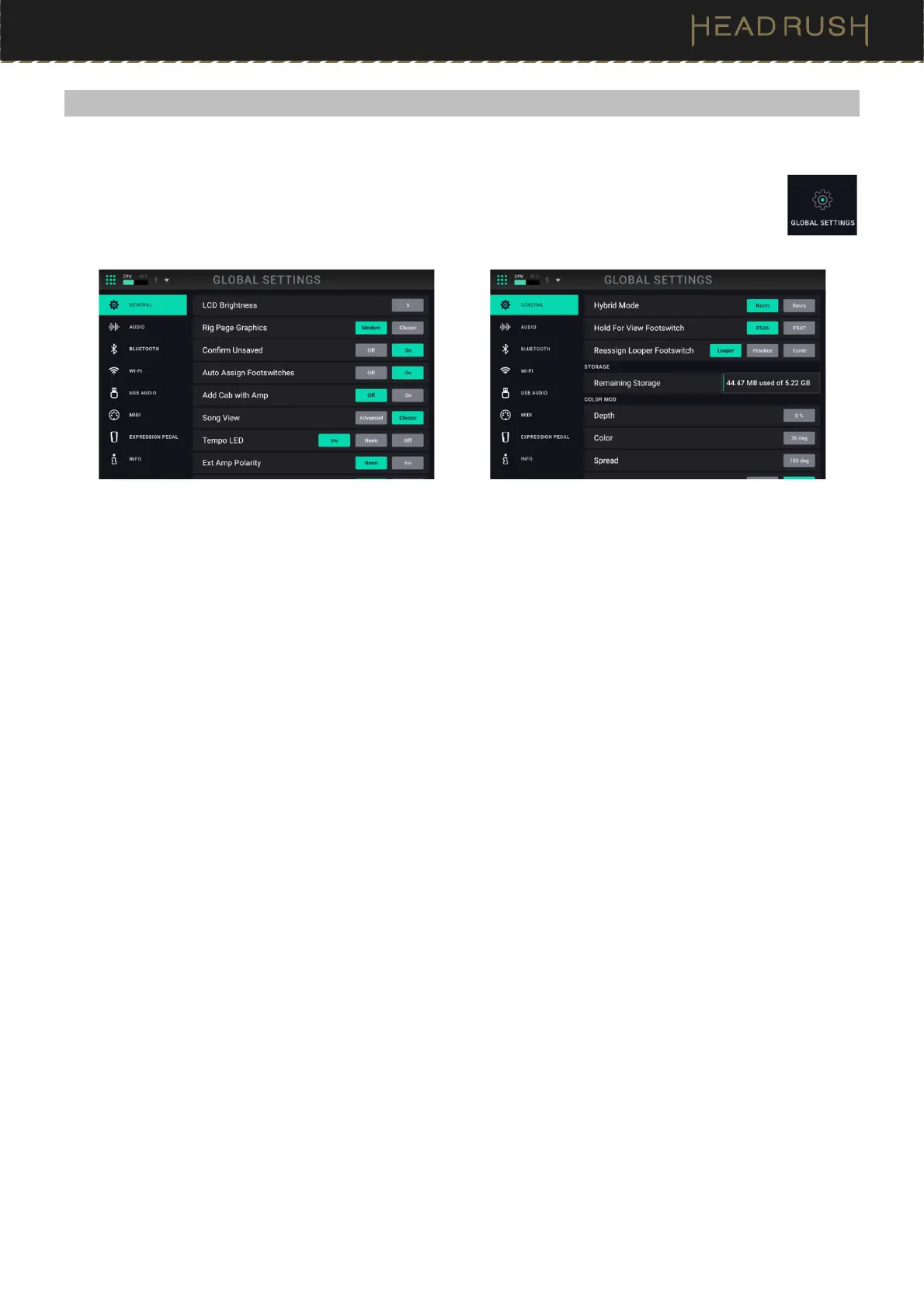
Use the global settings to configure HeadRush Prime’s overall operation.
To show the global settings, tap the Menu icon in the upper-right corner of the screen, and then
tap the Global Settings icon.
To switch through each tab of the global settings, tap the tabs along the left edge of the screen.
General Tab
LCD Brightness: This setting determines the brightness of the main display. Tap this field, turn the main
encoder to select 1 (dim) through 5 (bright), and then press the encoder.
Rig Page Graphics: Choose Modern if you would like the main screen to feature realistic looking graphics of
the gear being emulated. Choose Classic if you would like the main screen to feature less detailed graphics.
Confirm Unsaved: This setting determines whether you will see a confirmation message if you change the rig
while there are unsaved changes on the current one. Tap On to enable these messages or Off to disable them.
Auto Assign Footswitches: This setting determines how models are assigned to the switches. Tap On if you
want models to be automatically assigned to the next available switch when you load them. Tap Off if you want
models to load without being assigned to a switch; you will have to assign them manually in the Hardware
Assign screen.
Add Cab with Amp: This setting determines whether or not a specific cab and microphone are associated with
the amp when loaded. When this is set to Off, any cab and microphone used in the current rig will be
completely independent of the amp you select. When this is set to On, a specific cab and microphone
combination will be used if you change the amp’s Preset setting or if you load a new amp to the rig. You can
change the cab and microphone manually afterward by adjusting the parameters of the cab model.
Song View: This setting determines whether the Advanced or Classic screen is shown when using the Song
View feature. See (4.10) Song View to learn more about this setting.
Tempo LED: This setting determines whether the Tap Tempo footswitch’s LED blinks on the beat (Norm), on
the off beat (Inv), or whether the LED is turned off completely (Off).
Ext Amp Polarity: If it seems like your external amplifier is getting the opposite messages you intended, change
this parameter to invert the messages sent to the External Amp Footswitch Output. Select between Norm
(normal) and Inv (inverted).
Hybrid Mode: This setting determines whether the layout of footswitch functions in
Hybrid Mode will be normal
(rigs on top row, stomps on the bottom row) or reversed (stomps on the top row, rigs on the bottom row).
Select between NORM and REVRS to determine the layout.
Hold for View Footswitch: This setting determines whether the top right footswitch (FS#6) or the bottom left
footswitch (FS#7) can be held to change the Footswitch Mode.
Reassign Footswitch: This setting determines whether the top right footswitch (FS#6) can be pressed to enter
the Looper, Practice Tool, or Tuner.
Remaining Storage: This meter shows how much storage space is available in HeadRush Prime’s internal
memory. If you want to increase the available memory, you can back up files to your computer or USB storage
device and then delete the files from HeadRush Prime using the File Browser or the USB Transfer feature.


 To Next Page