41
To halve or double the speed of the looper, press the 1/2 Speed or 2X Speed footswitch, respectively. The loop’s
relative speed is shown in the Speed field.
Tip: Use this to create low bass lines or ultra-high guitar parts that you couldn’t ordinarily play.
To reverse looper playback, press the Reverse footswitch. The looper’s current playback direction is shown in
the Playback field.
Tip: Create eerie effects by recording layers in reverse then switching back to normal playback.
To mute or unmute the looper, press the Mute footswitch.
To set the looper’s location, turn the third parameter knob (Loc) to place it before (GUIT IN, MIC/GT2 IN) or
after (XLR OUT, 1/4”) the signal chain. Moving the looper to the GUIT IN or MIC/GT2 IN position enables you to
edit your rig without having to play the same riff over and over again.
Tip: Use this feature to create different effect configurations (adjust parameters, activate/deactivate models, etc.)
for each layer, creating a multi-textured performance. You can also switch rigs while using the looper and use a
different rig for each layer.
To create a new loop, tap the + icon in the top right corner and then tap NEW LOOP. Tap Yes to clear the current
loop and create a new one or No to return to the Looper screen.
To save a loop, tap the disk icon in the top right corner and then tap SAVE LOOP. Tap Yes to confirm or Cancel
to return to the Looper screen without saving.
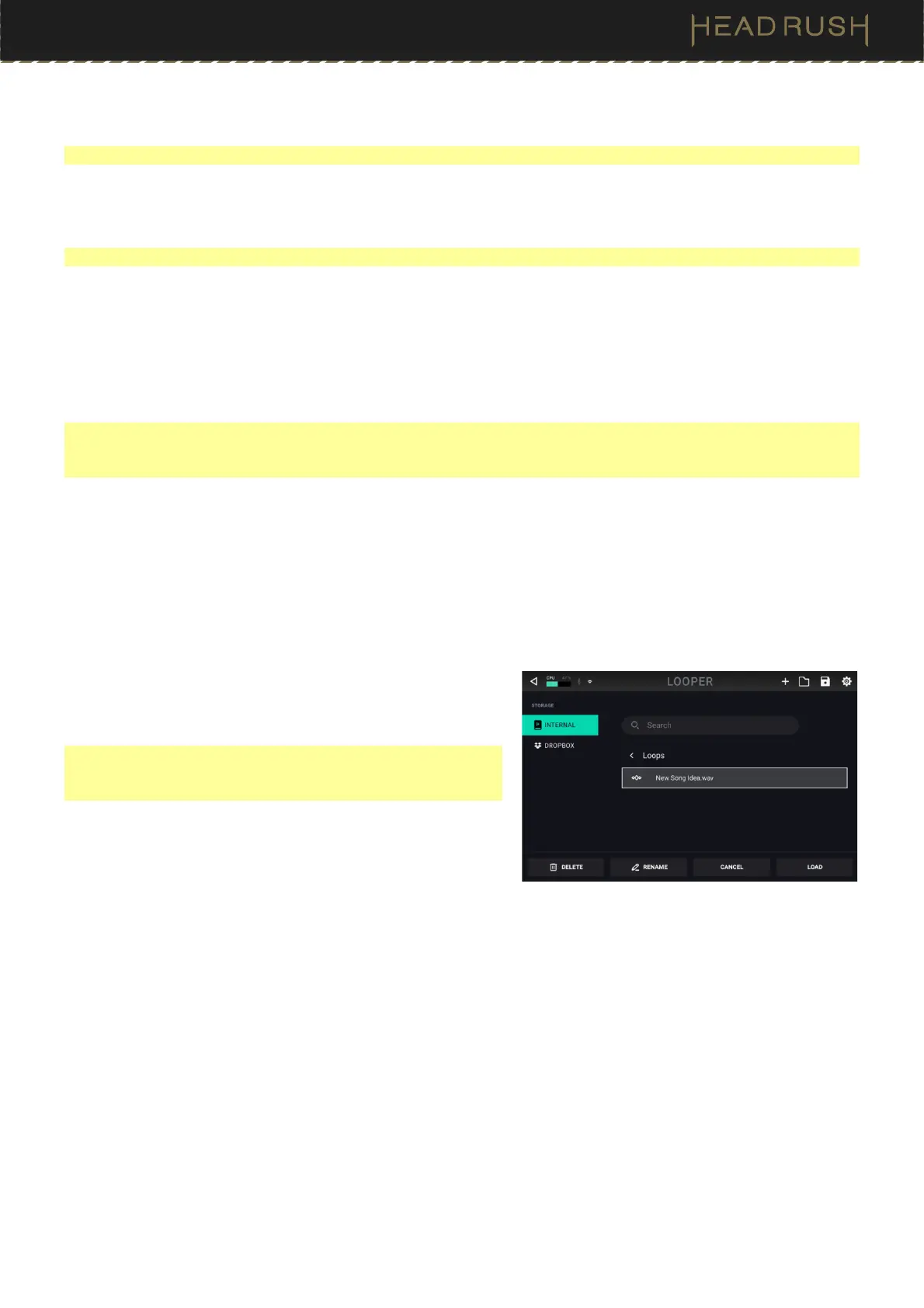
To load a loop, tap the folder icon in the top right corner and
then tap LOAD LOOP. When the file browser appears, select
the loop to load, and then tap Load to load the loop or
Cancel to return to the Looper screen.
Tip: While using the USB Transfer or Dropbox features, you can
import .WAV and .MP3 audio files for the Looper by placing the
files in HeadRush Primes’s /LOOPS/ directory.
To edit a loop’s name, tap the folder icon in the top right corner
to access the file browser, locate the loop, and then tap
RENAME. Use the virtual keyboard to type a new name, and
then tap OK to confirm the new name or Cancel to return to
the Looper screen.
To delete a loop, tap the folder icon in the top right corner to access the file browser, locate the loop, and then tap
DELETE. Tap Yes to confirm the deletion or No to return to the Looper screen without deleting.
To exit the looper and return to the main screen, press the Exit footswitch. If the looper is playing, playback will
continue. Press and hold the Looper footswitch for one second to stop looper playback without re-entering the
looper.
To re-enter the looper, press the Looper footswitch again.


 To Next Page