10
9
8
7
6
5
4
3
2
1
Appendix
Reference
Guides
Alarms and
Emergencies
Patient
Management
Surgical
Implant and
Explant
Monitor
Peripherals
and
Accessories
HVAD
®
Pump Overview
Introduction
136 HVAD® Instructions for Use
8.5 Multiple Alarms (continued)
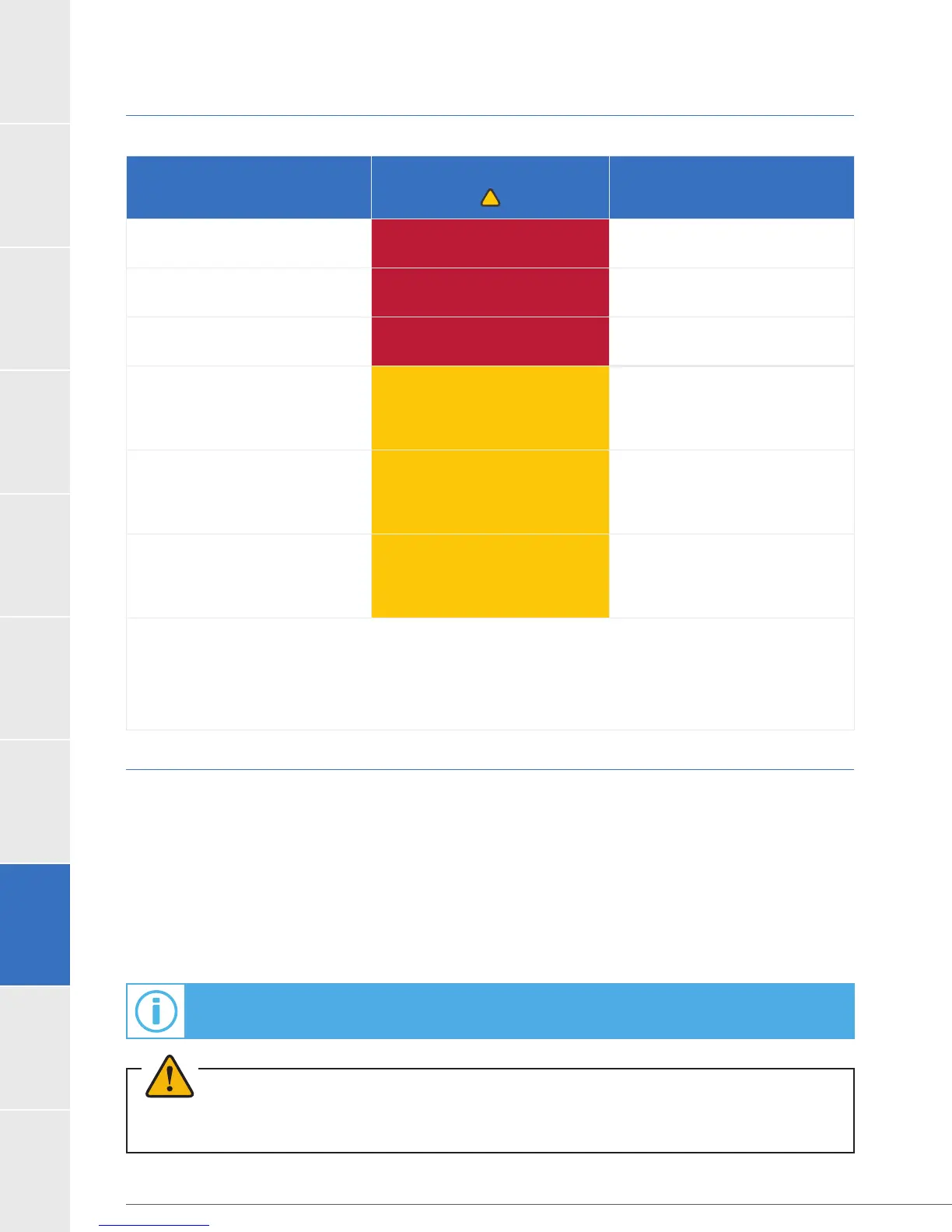
Table 32: Multiple Alarms
Multiple Alarm
Condition
Alarm Indicator
Alarm Sound
More than 2 High Alarms Flashing RED
Loud, continuous,
unable to mute
High and Medium Alarms Flashing RED
Loud, continuous,
unable to mute
High and Low Alarms Flashing RED
Loud, continuous,
unable to mute
More than 2 Medium Alarms Flashing YELLOW
Gradual increase
in volume
Medium and Low Alarms Flashing YELLOW
Gradual increase
in volume
More than 2 Low Alarms YELLOW
Gradual increase
in volume
NOTE: If an arrow is displayed on the right side of the alarm message, there are multiple active alarms. Use
the “Scroll” button to see all alarm conditions. Press the “Scroll” button to advance to the next alarm or to
controller automatically displays the most severe alarm on the Controller Display. If a new alarm occurs,
the Controller Display will show the new alarm.
8.6 How to Silence (Mute) Alarms
silenced for 5 minutes by pressing the “Alarm Mute” button.
Clinicians can also mute medium alarms for one hour by pressing and holding the “Alarm Mute”
button, then pressing and holding the “Scroll” button, followed by releasing the “Alarm Mute”
The alarm will sound again if a new alarm condition occurs during the mute interval. The
medium priority [Electrical Fault] alarm and [Controller Fault] alarm can be permanently
disabled by accessing the Alarm Settings in the monitor’s System Screen.
For additional information about the Alarm Settings Tab, see Section 5.3.
WARNING! ALWAYS investigate, and if possible, correct the cause of any alarm. Silencing an alarm
does not resolve the alarm condition.


 To Next Page