101Using the HeartWare® Monitor
10
9
8
7
6
5
4
3
2
1
Appendix
Reference
Guides
Alarms and
Emergencies
Patient
Management
Surgical
Implant and
Explant
Monitor
Peripherals
and
Accessories
HVAD
®
PumpOverviewIntroduction
5.4 Downloading Controller Log Files (continued)
A download complete message will appear when data download is complete. Press “OK”.
5.5 Updating Software on the HVAD
®
Controller
Software in the HVAD
®
Controller may be updated using the HeartWare
®
Monitor when new
versions of the software are available. When a new version of controller software is available
to perform the controller software update. The monitor will display a message that a software
update is available when a back-up controller not already updated is connected. Controller
software updates include software for the controller’s UIC (User Interface Controller) and PMC
(Pump Motor Controller). Controller software updates can only be performed on controllers that
are not connected to a running pump, such as the patient’s back-up controller.
To Identify if a Controller is Ready for an Upgrade:
1. Turn on the HeartWare
®
Monitor and connect the data cable from the monitor to the data
port on the back-up controller.
Flow (L/min)
Time (s)
Logout
8
6
4
2
0
Speed/
Control
Alarm
Settings
Controller
SW
Monitor
Controller
VAD
Spee
/
n
r
l
rm
Settin
s
n
r
e
W
M
n
r
n
r
e
VA
Patient
Setup
Patient ID:
Hematocrit
(%):
Implant
Date:
---- Log Files
----
----
----
----
----
L/min
RPM
Watts
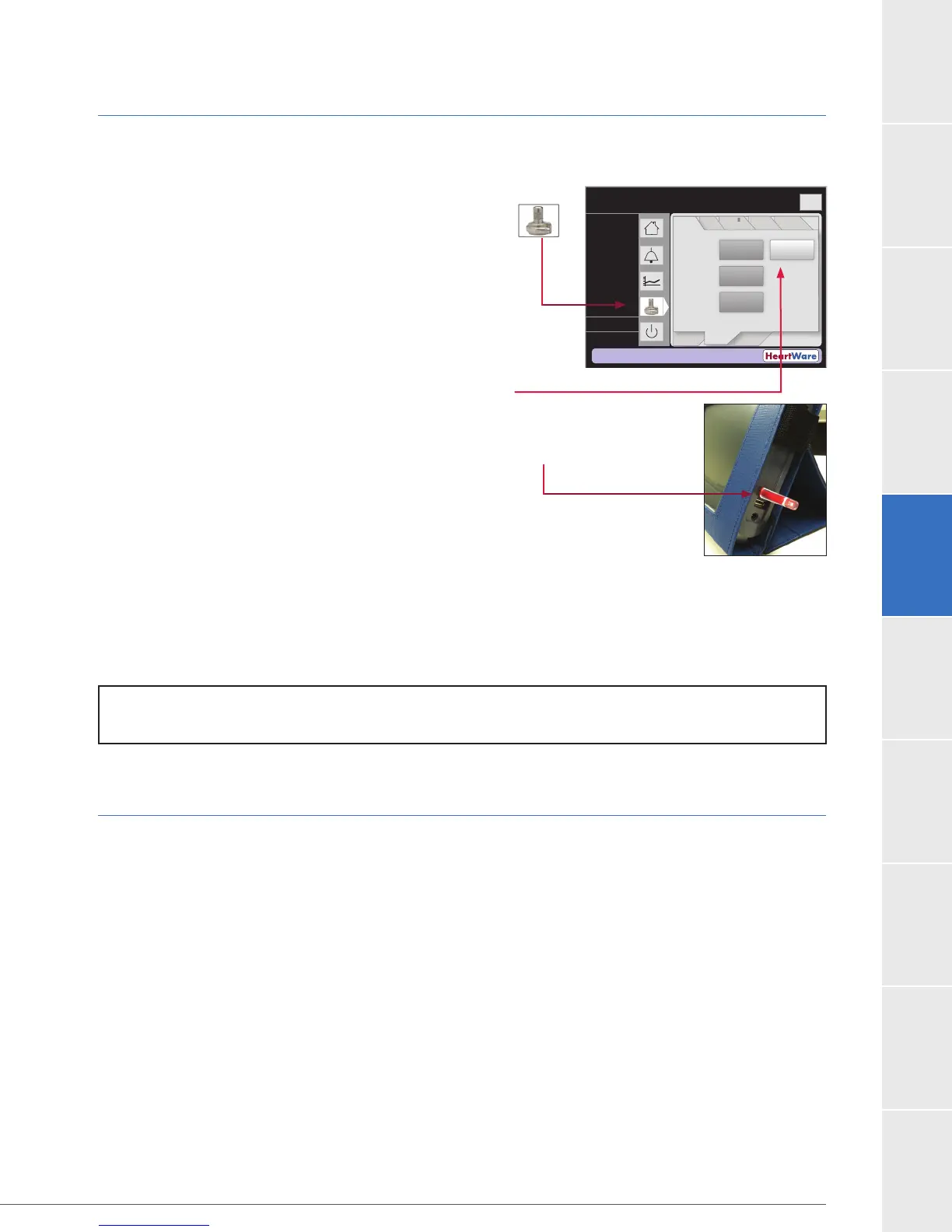
1. To get started press HeartWare
™
HVAD
™
System icon
on the monitor and enter password: 68773.
Press Setup tab.
Press Patient tab.
Press “Log Files” button (the “Log Files” button
will only appear if the data cable is disconnected).
2. Place a HeartWare
®
Monitor compatible USB memory stick
into the USB port on the monitor.
3.
How to download log les from the monitor to a USB ash drive:
NOTE: The maximum storage for each controller is 3000 entries, which equates to approximately
Figure 89
Figure 90


 To Next Page