10
9
8
7
6
5
4
3
2
1
Appendix
Reference
Guides
Alarms and
Emergencies
Patient
Management
Surgical
Implant and
Explant
Monitor
Peripherals
and
Accessories
HVAD
®
Pump Overview
Introduction
102 HVAD® Instructions for Use
5.5 Updating Software on the HVAD
®
Controller (continued)
2. Press the HeartWare
™
HVAD
™
System Icon on the monitor and enter password: 68773
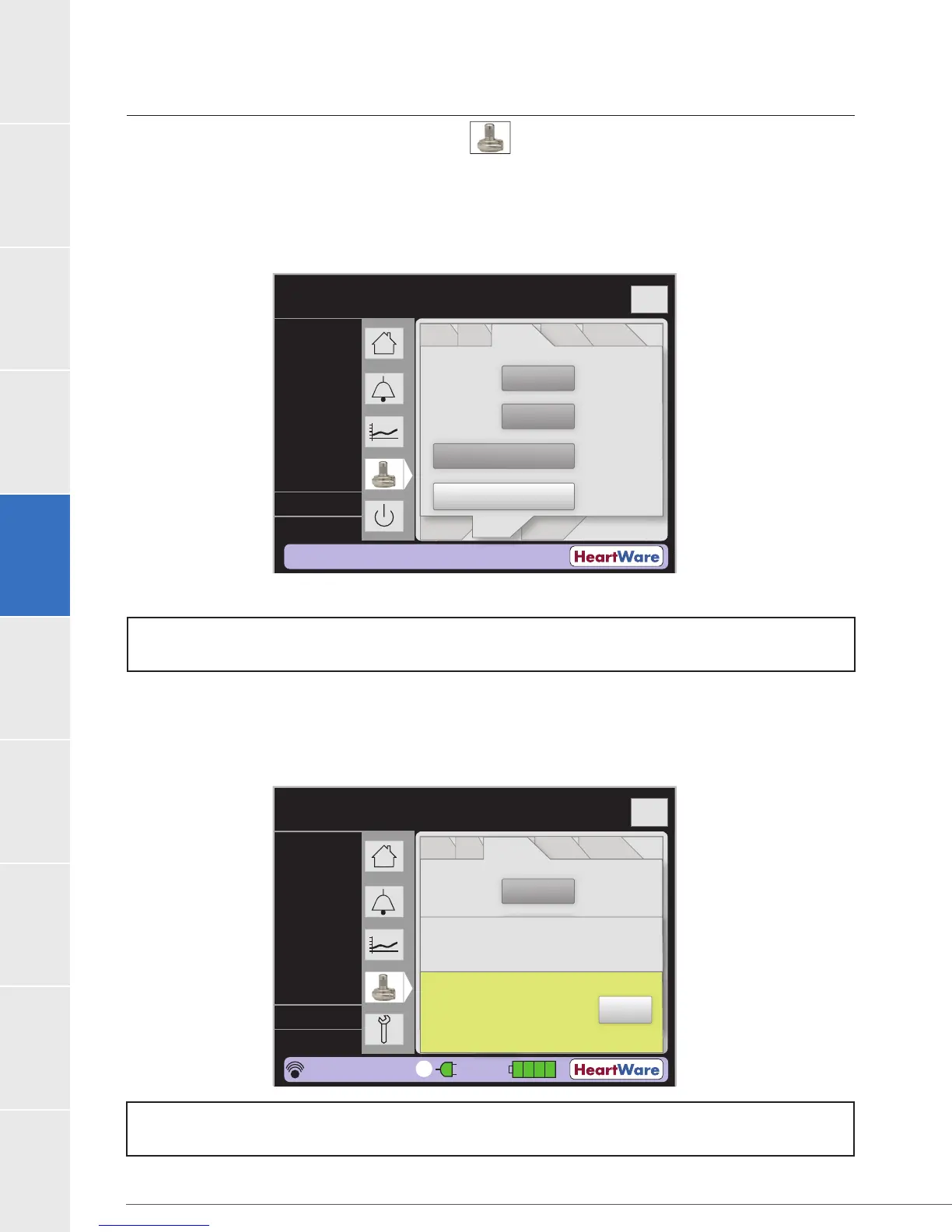
3. Disable “VAD Stop” alarm to prevent alarming (Figure 91)
a. Press Setup tab
b. Press Controller tab
c. Press ‘Disable “VAD Stop” Alarm’ button
Figure 91: ‘Disable “VAD Stop” Alarm’
4. Connect controller to two power sources.
5. (Figure 92) if a controller software
update is available. To proceed with update, press “OK”.
6.
Figure 92: Controller Software Update Available
NOTE:
If connected to only one power source, there will be a [Power Disconnect] alarm during
the procedure.
Flow (L/min)
Time (s)
Logout
8
6
4
2
0
Controller
Date:
Controller
Time:
Set Defaults
Disable “VAD Stop”
Alarm
02.06
06.03.16
PatientVAD
Controller Controller
SW
Monitor
Speed
Control
Alarm
Settings
Setup
VAD OFF
2
0.0
0
0.0
L/min
RPM
Watts
Fixed
Sx Off
----
POD: ----
21:34:11
1
Sending data to the controller...
A new controller software
version is available.
OK
NOTE:
settings.
Flow (L/min)
Time (s)
Logout
8
6
4
2
0
Controller
Date:
Controller
Time:
Set Defaults
Disable “VAD Stop”
Alarm
02.06
06.03.16
PatientVAD
Controller Controller
SW
Monitor
Speed/
Control
Alarm
Settings
Setup
----
----
----
L/min
RPM
Watts


 To Next Page