27
•
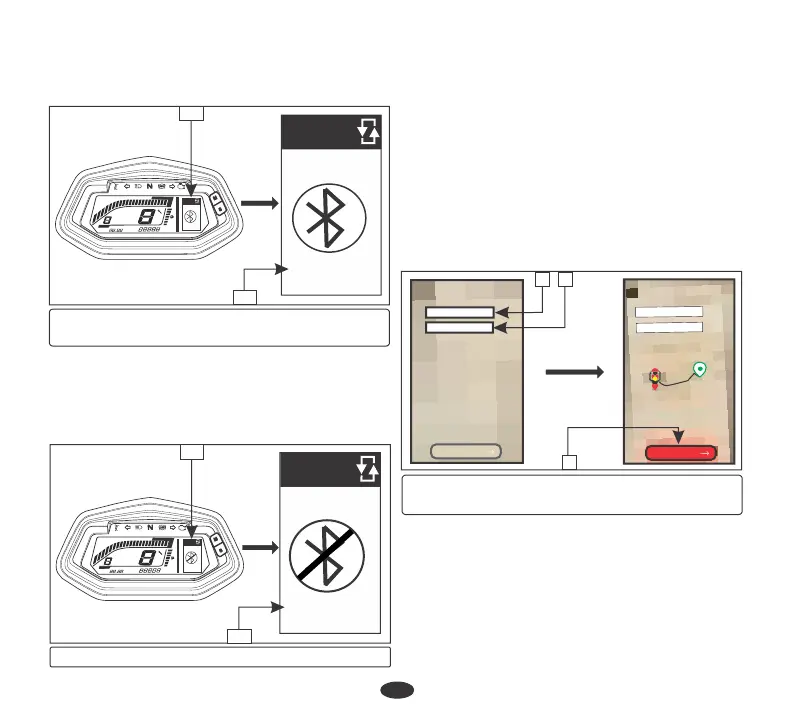
If any error occurs during the course of pairing
process, then meter console will display “Not
found” (14) below bluetooth symbol. Repeat
the above steps and keep your smartphone
closer to the vehicle to reconnect.
x 000I
F
FF
E
EE
km/h
RPM
Gear
ODO
ODOODO
km
0
00
I
II
2
22
3
33
4
44
5
55
6
66
7
77
8
88
9
99
IO
IOIO
II
IIII
Pair
NOT FOUND
Pair
NOT FOUND
14
13
(13) Bluetooth mode (14) Not found
(12) Bluetooth connected
(13) Bluetooth mode
x 000I
F
FF
E
EE
km/h
RPM
Gear
ODO
ODOODO
km
0
00
I
II
2
22
3
33
4
44
5
55
6
66
7
77
8
88
9
99
IO
IOIO
II
IIII
Pair
Connected
Pair
Connected
12
13
•
After processing for a while, meter console
will display the direction (5), distance for next
move (7) and estimated time of arrival (ETA)
(6). Estimated time of arrival will be displayed
in "am"or "pm". Hero navigation app and
meter console of your vehicle will display step
by step navigation guidance/direction
through navigation signs (page 79).
(1) Current location (2) Choose destination
(3) Start ride
Navigation:
To use navigation feature proceed as follows:
•
Connect your vehicle with your hero ride
guide/navigation application via bluetooth
(page 25).
•
Now choose your destination (2) through
the application and select “start ride” (3).
•
After successful connection, the application
and meter console display will automatically
switch to navigation mode (4). It will also
update your current location (1) through
GPS system.
M
S
3
1
XYZ.....
ABC....
ABC.....
2
XYZ.....
START RIDE
START RIDE
ABC
XYZ
•
On pairing, meter console displays
“connected” (12) below bluetooth symbol
in bluetooth mode (13).



 To Next Page