EasyManua.ls Logo

Hitachi CP-EX3051WN - User Manual

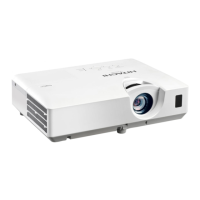
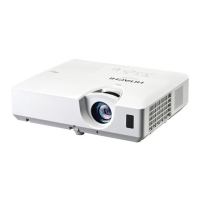
Hitachi CP-EX3051WN
112 pages
Print Icon
To Next Page IconTo Next Page
Loading...
1
LCD Projector
User's Manual (detailed) Network Guide
Thank you for purchasing this product.
This manual is intended to explain only the network function. For proper use of this
product, please refer to this manual and the other manuals for this product.
Features
This projector has the network function that brings you the following main features.
WARNING
The information in this manual is subject to change without notice.
The illustrations in this manual are for illustratiYe purposes. They may differ
slightly from your projector.
The manufacturer assumes no responsibility for any errors that may appear in
this manual.
The reproduction, transfer or copy of all or any part of this document is not
permitted without express written consent.
NOTE
9 Web Control : allows you to monitor and control the projector through a network from a
computer, smartphone and tablet deYice.
35)
9 Network Presentation : allows the projector to project computer, images transmitted
through a network.
76)
9 My Image : allows the projector to store up to four still images and project them.
80)
9 Messenger : allows the projector to display text sent from a computer through a network.
81)
9 Network Bridge : allows you to control an external deYice through the projector from a
computer.
84)
CP-EX3051WN/CP-EX3551WN/CP-EX4551WN
CP-EW3051WN/CP-EW3551WN/CP-EW4051WN
Ź%efore using this product, be sure to read all manuals for this
product. After reading them, store them in a safe place for future reference.

Table of Contents

Other manuals for Hitachi CP-EX3051WN

Questions and Answers

  • R
    Robin PatrickAug 18, 2025
    What to do if my Hitachi CP-EX3051WN Projector cannot communicate with the wireless network?
    • J
      Jeremy MillerAug 18, 2025
      If your Hitachi Projector cannot communicate over a wireless network, start by ensuring that both the projector and the network device are powered on. If the standby mode is set to NETWORK WO/) or SA9IN*, the network function will not be available; set it to NORMA/. Check the wireless network settings in the NETWORK INFORMATION - WIRE/ESS INFORMATION menu, consulting with your network administrator for assistance. Make sure the US% wireless adapter is properly inserted. Note that only the optional US%-W/-5* adapter is compatible with this projector. If the /ED on the adapter doesn't blink after a minute, try reinserting it; if the issue continues, the adapter may be broken, and you should contact your dealer.
  • B
    Brianna HillAug 20, 2025
    What should I do if my Hitachi Projector cannot communicate with the wireless network (continued)?
    • B
      Blake ThompsonAug 20, 2025
      If you are experiencing communication issues with your Hitachi Projector over a wireless network, and the IP address overlaps, try turning off your Wi-Fi® device and then turning it back on. Also, ensure that WIRE/ESS NETWORK is set to ON. Verify that the wireless adapter is correctly inserted into the USB TYPE A port of the projector.
  • K
    Keith ClarkAug 23, 2025
    How to fix 'Cannot communicate with the projector' on my Hitachi CP-EX3051WN (Wired network)?
    • C
      Colin ElliottAug 23, 2025
      If your Hitachi Projector cannot communicate over a wired network, ensure the projector and network device are turned on. If the standby mode is set to NETWORK WO/) or SA9IN*, the network function will not work; set it to NORMA/. Verify the LAN cable is connected and that the MAC address on the projector matches what's displayed in the NETWORK INFORMATION - WIRED INFORMATION menu (if it doesn't, contact your dealer). Review the network settings in the NETWORK INFORMATION - WIRED INFORMATION menu, consulting your network administrator if needed. Note that the same network address cannot be used for both wireless and wired LAN; they must be different. Finally, ensure the wired network adapter is enabled in your computer's settings.
  • M
    Mrs. Chelsea Ford MDAug 26, 2025
    How to correct the time settings on my Hitachi CP-EX3051WN Projector?
    • J
      Jason WelchAug 26, 2025
      If the time settings on your Hitachi Projector are incorrect, you should first check the Date/Time Settings menu in the Projector Web Control or the DATE AND TIME menu on the projector itself. Ensure the projector is connected to the network. Verify the SNTP server settings, consulting with your network administrator if needed. If obtaining the time via the network, ensure the time difference is correctly set.
  • C
    Cole GarciaAug 28, 2025
    Why is the Web Projector Web Control on my Hitachi Projector not displayed correctly?
    • T
      Taylor BurkeAug 28, 2025
      If the Web Projector Web Control is not displaying correctly, first ensure you are entering the correct IP address of the projector in your web browser. Then, enable JaYaScript® in your browser settings. Note that Internet Explorer® 11 and Microsoft® Edge are the recommended web browsers. Clearing your browser's cache may also resolve the issue. Finally, ensure that cookies are enabled in your browser, as the mobile screen cannot be displayed without them.
  • S
    Sandra KellerAug 30, 2025
    What to do if my Hitachi CP-EX3051WN Projector cannot send an email correctly?
    • L
      ljohnsonAug 30, 2025
      If your Hitachi Projector cannot send emails correctly, verify the settings on the Mail Settings screen of the Projector Web Control. Ensure a valid email address is set. Test the email functionality by pressing the [Send Test Mail] button on the Mail Settings screen. Also, confirm that the specific Error/Warning is set to be sent on the Mail Settings screen.
  • P
    pittskaylaSep 2, 2025
    Why is the schedule on my Hitachi CP-EX3051WN not executed correctly?
    • G
      Greg ThompsonSep 2, 2025
      If the schedule on your Hitachi Projector is not executing correctly, first ensure the projector is turned on. Note that the schedule function is unavailable when STAND%Y MODE is set to NETWORK WO/) or SA9IN*; set it to NORMA/. Check the Date and Time settings. Verify that the image and message data to be displayed are registered using the exclusive application software. Events such as My Image, Messenger, and %lank will not execute when the lamp is off, so schedule them when the lamp is on. Review the Schedule Settings in the Projector Web Control. Be aware that some events cannot be executed simultaneously; set them to occur at different times or change the order.
  • J
    Jennifer FergusonSep 4, 2025
    How to troubleshoot continued wireless network communication issues with my Hitachi CP-EX3051WN?
    • H
      hmooreSep 5, 2025
      If your Hitachi Projector is having trouble communicating with a wireless network, consult with your network administrator. Try setting the encryption settings of the projector again and reconnect. Make sure the projector is close to the wireless device and away from any steel doors that might interfere with the signal. There may also be an interfering wireless device; consult with your network administrator. The same network address cannot be used for both wireless /AN and wired /AN; set different network addresses for each.
  • N
    Nicole WallaceSep 7, 2025
    Is it possible to use wireless and wired LAN at the same time on my Hitachi CP-EX3051WN Projector?
    • E
      emilyjenkinsSep 7, 2025
      You cannot use wireless and wired LAN at the same time with your Hitachi Projector if they have the same network address. To resolve this, set different network addresses for wireless and wired LAN. Alternatively, either wired LAN or wireless LAN can access different networks by setting the default gateway of either wired LAN or wireless LAN to 0.0.0.0.
  • M
    manndanielSep 9, 2025
    Why is Crestron e-Control® not displayed on my Hitachi Projector?
    • P
      Patricia RamseySep 10, 2025
      To display Crestron e-Control® on your Hitachi Projector, Adobe® Flash® Player is required. Ensure you have Adobe® Flash® Player installed. Use a web browser that supports Adobe® Flash® Player. Also, enable Crestron e-Control® settings on the Network Settings - Other Setup screen of the Projector Web Control. Finally, set Crestron in Projector Web Control - Network Settings - Common Setup to ON.

Hitachi CP-EX3051WN Specifications

General IconGeneral
BrandHitachi
ModelCP-EX3051WN
CategoryProjector
LanguageEnglish

Related product manuals