78
chapter 3_Recording
AUDIO/VIDEO
EXT.MIC
DIGITAL
S
V
I
D
E
O
Checking white balance mode
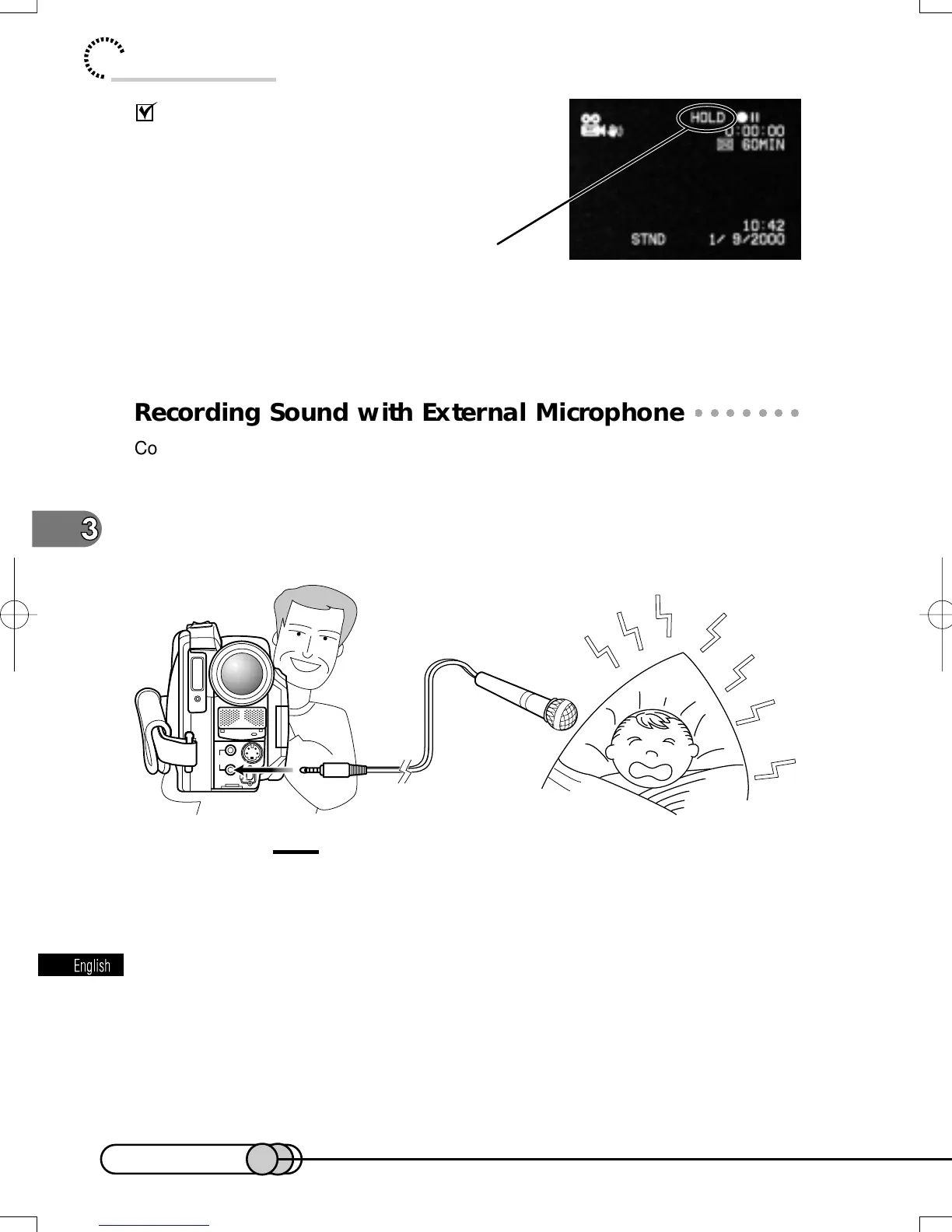
You can check whether white balance mode is AUTO
or HOLD by reviewing the on-screen information: No
indication will appear when AUTO is specified.
The white balance setting will always be “AUTO” when the DVD camera/recorder
is turned off.
○○○○○○○○○○○○○○○○○○○○○○○○○○○○○○○○○○○○○○○○○○
Recording Sound with External Microphone
Connect a high-performance microphone (generally available) to the external micro-
phone jack of this DVD camera/recorder: Clearer sound can be recorded. Turn on
the switch on the external microphone and start recording.
For details on microphone, see “Major Specifications” on page 159.
Cautions:
• Even if "MIC" appears on screen, the microphone filter does not operate
for a microphone connected to the external microphone jack.
• With this DVD camera/recorder, the built-in microphone will pick up and
record any noise that occurs when disc is accessed and data is recorded:
This noise will be quite audible when recording is made in a quiet place.
Therefore, it is recommended that you use external microphone and set the
microphone away from the camera/recorder when recording.
White balance mode
E-P54-88 01.1.29, 3:05 PMPage 78 AdobePageMaker6.5J/PPC







 To Next Page