FAXITRON PATH USER MANUAL | HOLOGIC | REVISION 024
ECTION
ISION
oftware
5
5-2
Vision Software is a complete image acquisition and processing package, designed exclusively
to work with Faxitron X-Ray Generators (such as VersaVision, Faxitron Path, CoreVision and
BioVision Systems.) In addition to the acquisition and processing functions, the software offers
an extensive database module that allows user control and maintenance of image archiving,
storage, filing and retrieval. The software is also Digital Imaging and Communications in
Medicine (DICOM) compliant, allowing saving and printing of Patient images in DICOM format
3.0. The software has been pre-installed on the computer that was packaged with your x-ray
system.
System calibration is required at the beginning of every new day of system use for best image
quality. The system user may also perform calibration at any time to ensure optimum image
quality.
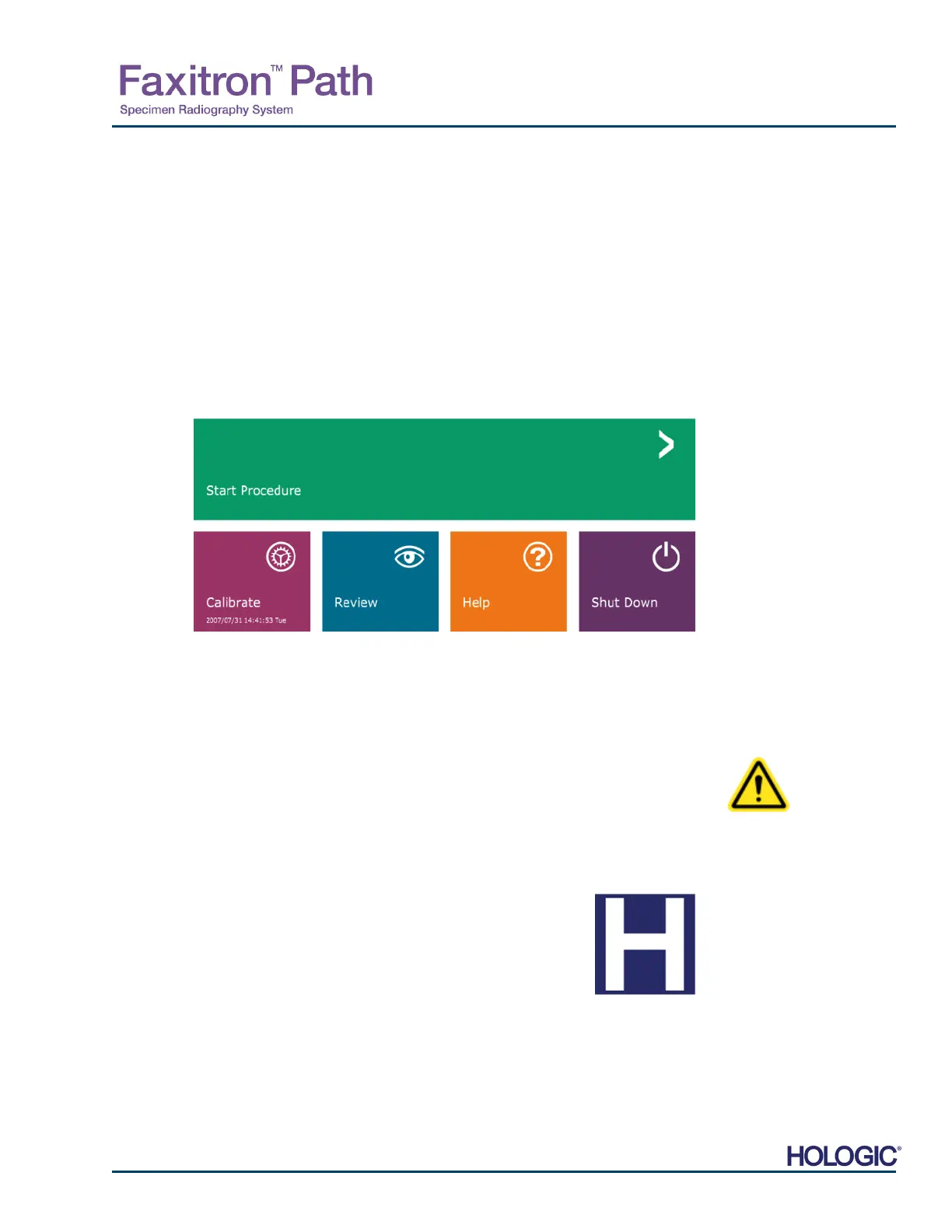
fter calibration, the Home Menu will be displayed, which allows navigation to all other areas o
the software. For ease of use, application buttons are provided, see Figure 5.0.1. These buttons
are in the center of the screen. Button descriptions and definitions are outlined in the following
sections of this manual.
Sequence Protocol
The start-up sequence must be followed to ensure proper system functionality and image
quality.
pply power to the Faxitron Path cabinet using the switch on the back of the cabinet. (The mains
power switch is next to the power cord receptacle). Depress “l” for “Power ON” and “0” fo
“Power OFF”.
Turn the Faxitron Path cabinet “ON” by inserting the Faxitron Path Key into the key lock switch,
located on the front panel, and turning it clockwise to the 3 o’clock position. Note: the key cannot
be removed in this position.
Turn on the computer and monitor.
The Vision software will automatically start when Windows has completed
its’ boot sequence. A Dialog box will appear to indicate the software has
initialized and is loaded. NOTE: Double click the left mouse button on the
Vision Software icon (located on the Windows desktop) if Vision does not
automatically start. See Figure 5.1.1.
Vision software will open to the Home Menu or the Calibration page
depending on elapsed time since the last system Calibration.
Refer to Section 3, “Camera Calibration”, and Section 5.2.1, “Camera Calibration Overview” fo
calibration protocols.
5.0.0
Overview of
Faxitron Vision
Software
Figure 5.0.1
Faxitron Vision Software
Home Menu (Start-up Screen)
5.1.0
Software Start-up
Figure 5.1.1
Vision Software Desktop Icon













 To Next Page