FAXITRON PATH USER MANUAL | HOLOGIC | REVISION 024
ECTION
ISION
oftware
5
5-27
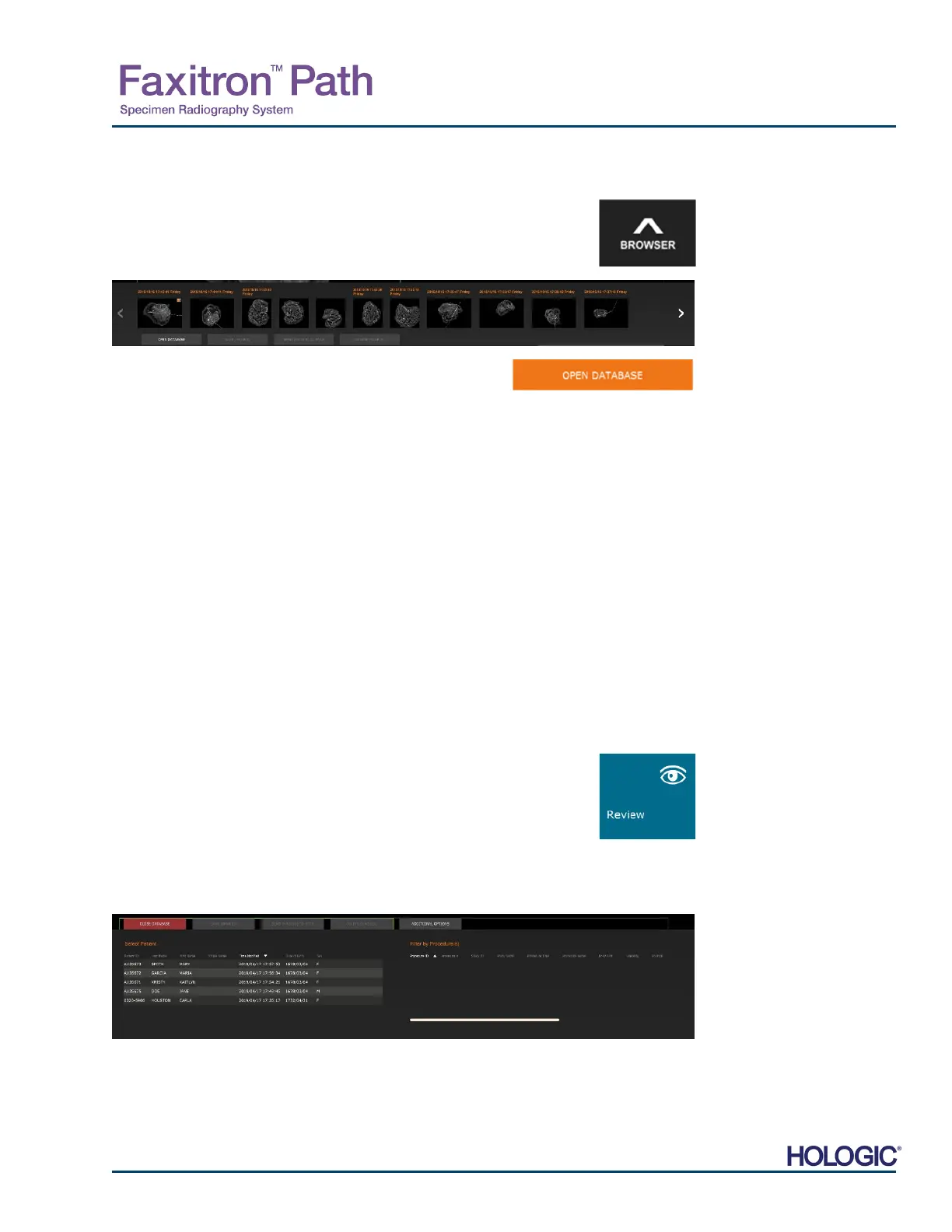
By pressing the button, shown in Figure 5.5.1, located along the bottom of the image acquisition
window, the current patient images thumbnail strip appears. See Figure 5.5.2.
The thumbnail strip displays the Procedure date for each individual image series in orange text
along the top.
The current image displayed in the image acquisition window will be highlighted in green.
The thumbnail strip supports drag and drop operations to place images into the image display
or review panes as necessary.
In addition, with a single click, the user can select multiple images and then select from the
various options to Save the images to a USB drive, send the images to PACS, or delete the
images. Selected images are highlighted in orange.
There are arrows located to the left and to the right. In the event of many images being taken,
the user may traverse the images taken, date ascending, by pressing on the left/right arrows.
There is also an option to Open the Database (see Figure 5.5.3), which enters Review mode.
This same button is the equivalent of pressing Review Mode from the Home Menu. See Figures
5.0.1 and 5.6.1.
Review mode can be entered by clicking the Review button in the Home Menu page, Figure
5.6.1 and 5.0.1, or the Open Database button in the Current Image Browser. See Figure 5.5.3.
Clicking either of these buttons will open the Database as shown in Figure
5.6.2. The system will be in Standby while in review mode.
The Database is basically comprised of three sections or sub-windows. The Patient List Table
section, on the left, the Procedure List Table section, on the top right, and the Image Thumbnail
List/Viewer section, located bottom right.
5.5.0
Current Patient
Images Browser
Figure 5.5.1
Current Patient Images Browser
icon
Figure 5.5.2
Current Patient Images Browser
Figure 5.5.3
Image Database button
5.6.0
Database
Figure 5.6.1
Review Mode icon displayed on
the Home Menu.
Figure 5.6.2
Image Database













 To Next Page