FAXITRON PATH USER MANUAL | HOLOGIC | REVISION 024
ECTION
ISION
oftware
5
5-39
Overview
User Annotations in the Faxitron Vision Software allows one to apply a transparent graphic
“overlay” commonly call “annotations” to an image. These annotations take the form of text,
lines, “free form” lines (Bezier curves), arrows, ellipse and boxes. This allows additional
information and “markers” to be added to the image if desired. Note that all annotations can be
easily turned on or off, in other words they can be shown or hidden at will.
Operations
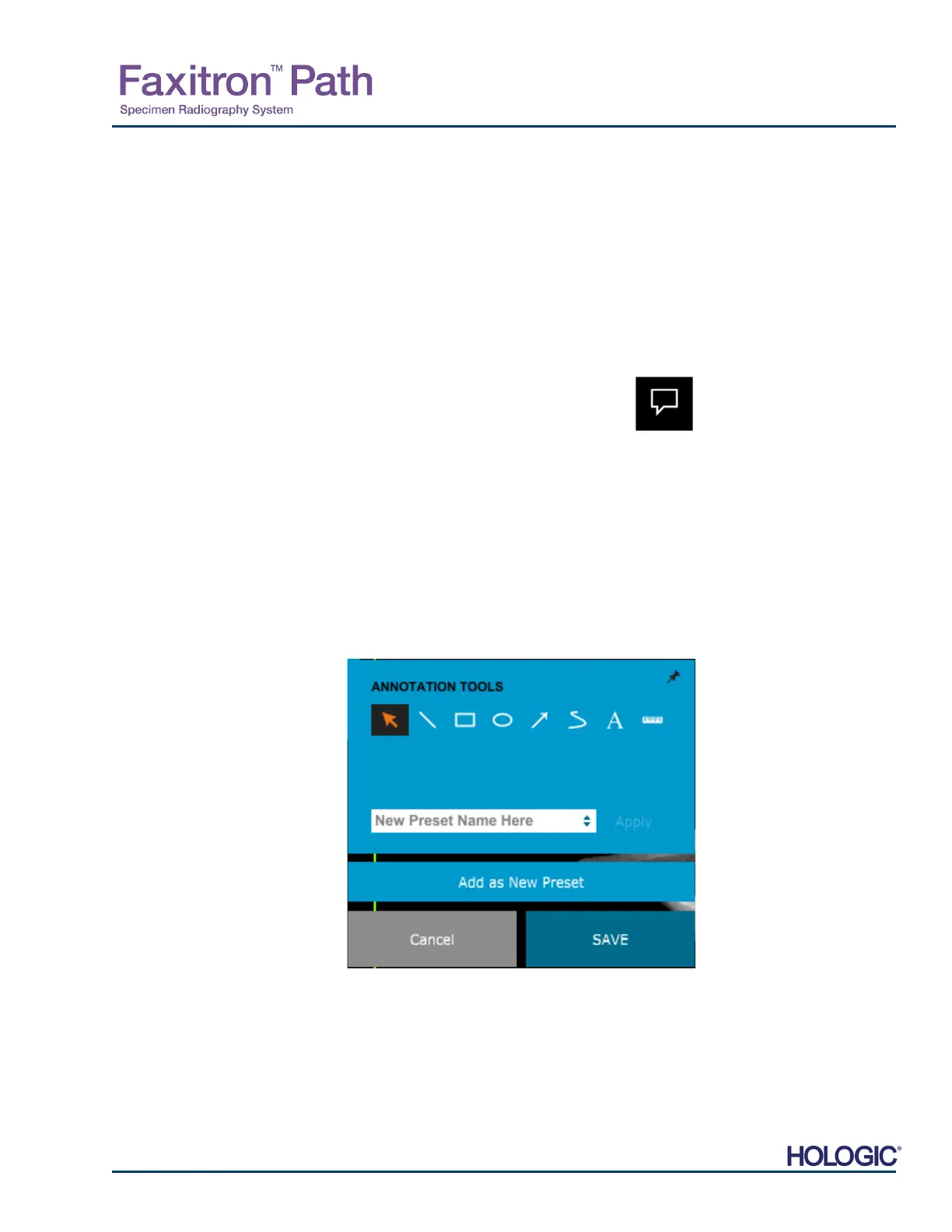
To begin annotating, select the Annotations tool from the left menu. See Figures 5.4.1 and
5.8.1. By opening this dialog, the software will immediately put the user into design mode. It will
also display a “Tool Pallet.” See Figure 5.8.2 below.
Selecting Save or Cancel from this dialog will either cancel the previous annotations or Save
the current annotations to the window. It will also return you to normal imaging mode.
The tool pallet consists of fifteen (15) tool options that follow. However, the tools may be
truncated based on the needs of the user to the most common 8 tools, which are displayed in
the top row of the dialog box.
Note the behaviour of most of these tool options involve using the mouse to guide the on screen
dynamic position and shape. Mouse “clicks” are used to set the final position and shape. The
term “swipe” infers holding down the left-mouse button and moving the object around the
screen. Letting go of the left mouse or clicking the right mouse button will “set” the annotations
into a “permanent” or final position.
Starting from the upper-left of the above figure a description follows of each tool options.
5.8.0
User Annotations
Figure 5.8.1
nnotation Icon
Figure 5.8.2
User Annotation Desing Tool
Pallet













 To Next Page