FAXITRON PATH USER MANUAL | HOLOGIC | REVISION 024
ECTION
ISION
oftware
5
5-16
Back to Procedure
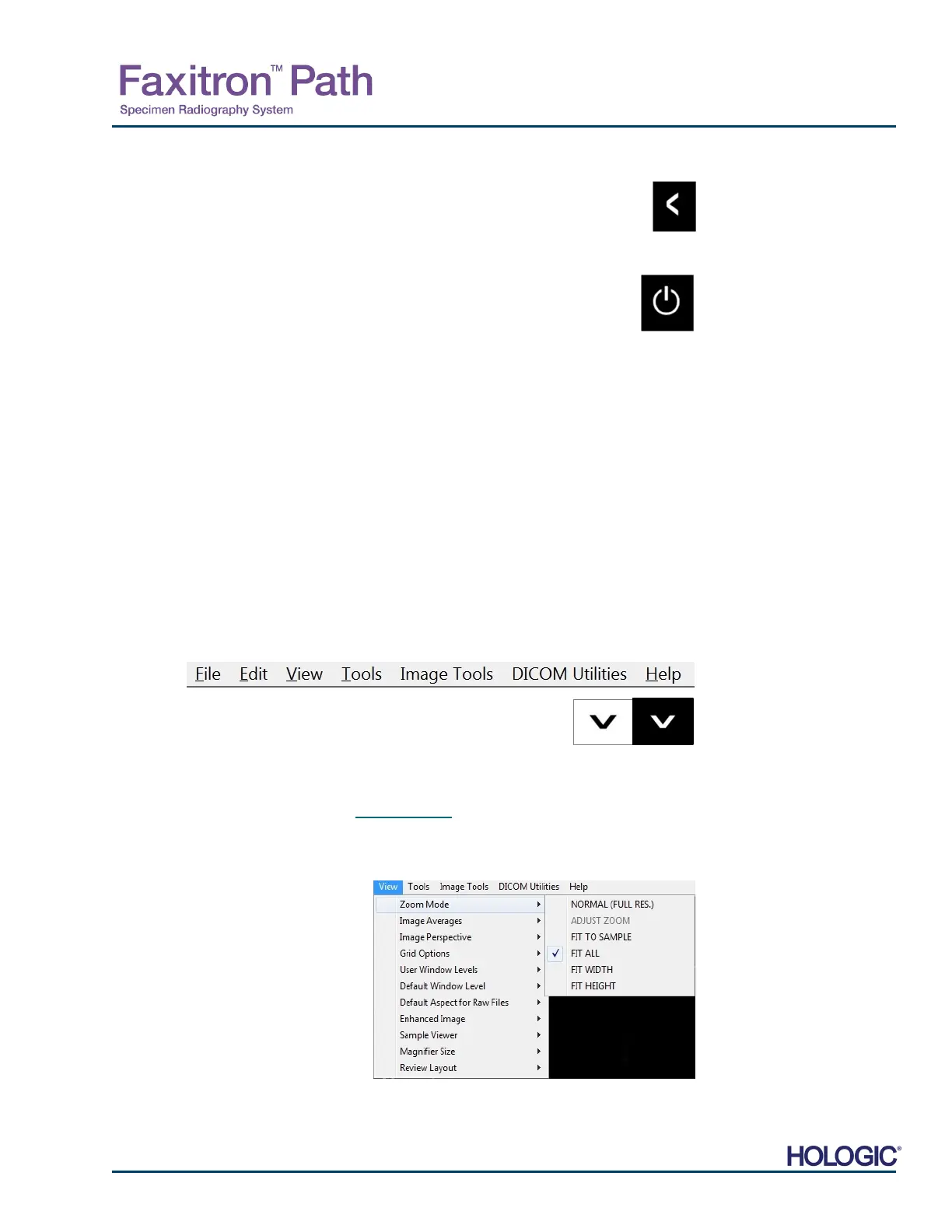
The button shown in Figure 5.4.13 exits the image acquisition mode and returns to the
Main Menu screen.
Shutdown
The button, shown in Figure 5.4.14 will exit the software and shut down the system.
Additional dialog notes
When a dialog is opened, it is “docked” to the left side of the screen. If a user wishes to un-doc
the dialog box, they may click the top-right “Pin” icon to undock the dialog box and be able to
drag the box freely. The “pin” then turns into a “X” icon allowing for quick closing.
Users can also quickly navigate between the various dialogs by clicking through the left menu.
By doing so, the left menu will quickly close and open the applicable dialogs as appropriate.
Top Menu Bar
The software provides access to “View”, “Tools”, “Image Tools”, “DICOM Utilities” and “Help
menus through a Top Menu Bar. See Figure 5.4.15. The Top Menu Bar is hidden by default
and is displayed by clicking on the Arrow button in the top right corner of the screen. See Figure
5.4.16. The Arrow button will be black or white depending on the software page/screen
background. Each menu item is covered in detail in the following pages.
Note: The arrow will point down when the Top Menu is hidden and will
point up when it is displayed.
View Menu
The “View” Menu is located in the top Main Menu and contains the sub0menu items shown in
Figure 5.4.17 below. Each sub-menu item will be described in more detail in the following pages.
5.4.1 Cont.
Figure 5.4.13
Back to Home Menu icon
Figure 5.4.14
Shutdown System icon
5.4.2
Top Menu Bar
Figure 5.4.15
op Menu Bar
Figure 5.4.16
Top Menu Bar buttons
5.4.3
View Menu
Figure 5.4.17
View Menu













 To Next Page