FAXITRON PATH USER MANUAL | HOLOGIC | REVISION 024
ECTION
ISION
oftware
5
5-26
Line Profile
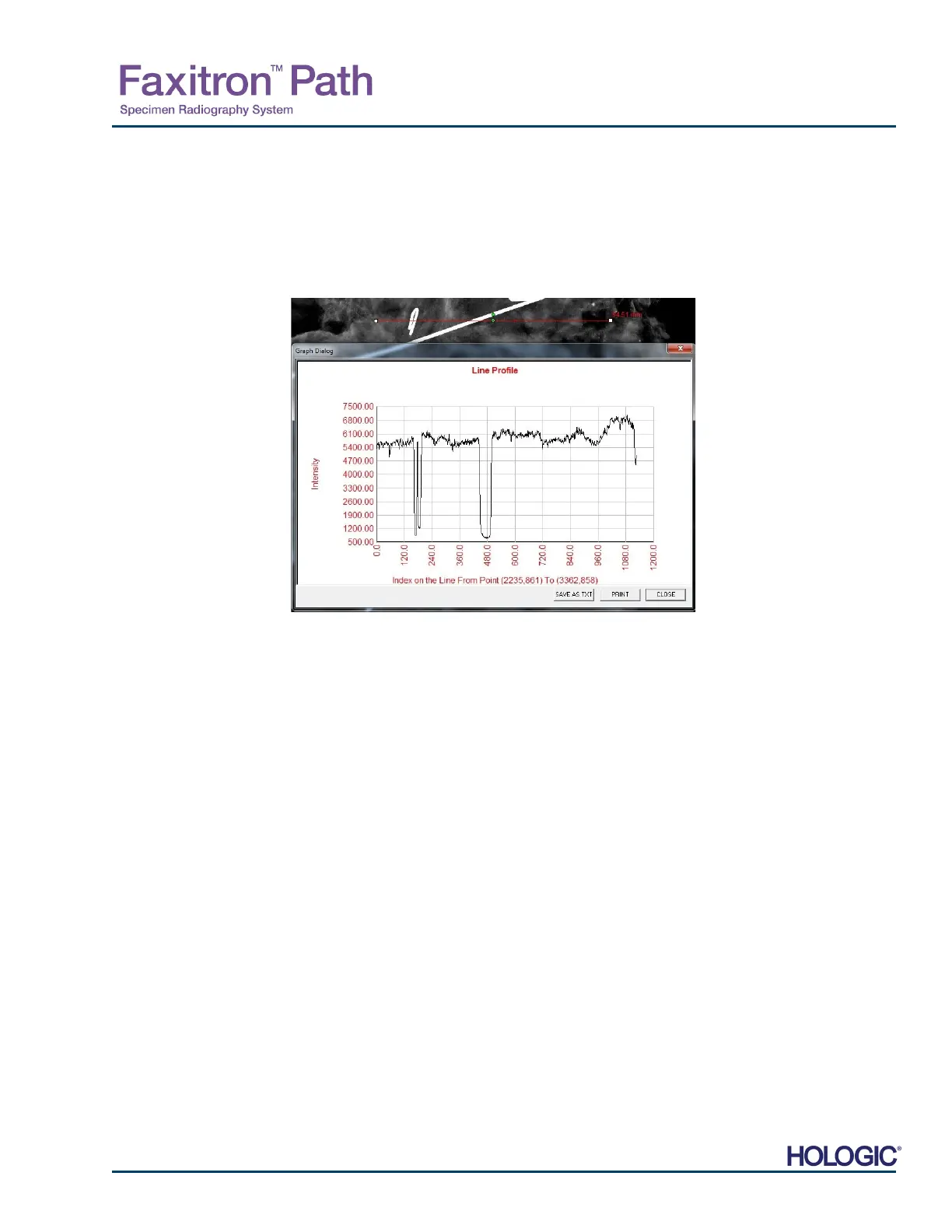
“Line Profile” will display a profile for a user defined line. After selecting “Line Profile” place the
cursor in the displayed image. Hold down the left mouse button and move the cursor across the
image to draw a user-defined line. Release the left mouse button and a profile will be given
showing the individual pixel value of the defined line. See Figure 5.4.28. By default, the first
selected point is always the left most (near origin) portion of the plot (i.e. horizontal axis of the
graph can have increasing or decreasing pixel (i,i) indexes, depending on the selected start/end
points). Click “Line Profile” again to turn off the feature.
Built-In Window Level
Vision Software comes with a “built-in” Window Level feature. There is no button or menu item
to select it. The Window Level feature is automatically activated whenever an image is acquired
or retrieved from the database for review. This feature gives the user the ability to adjust the
image contrast and brightness levels using the mouse/cursor.
Click and hold the left mouse button over the displayed image and move the cursor up and
down for brightness/darkness levels or move the cursor left and right for low/high contrast. Move
the cursor until image is at desired levels.
5.4.5 Cont.
Figure 5.4.28
Line Profile













 To Next Page