Configuring Basic Features
4 - 35
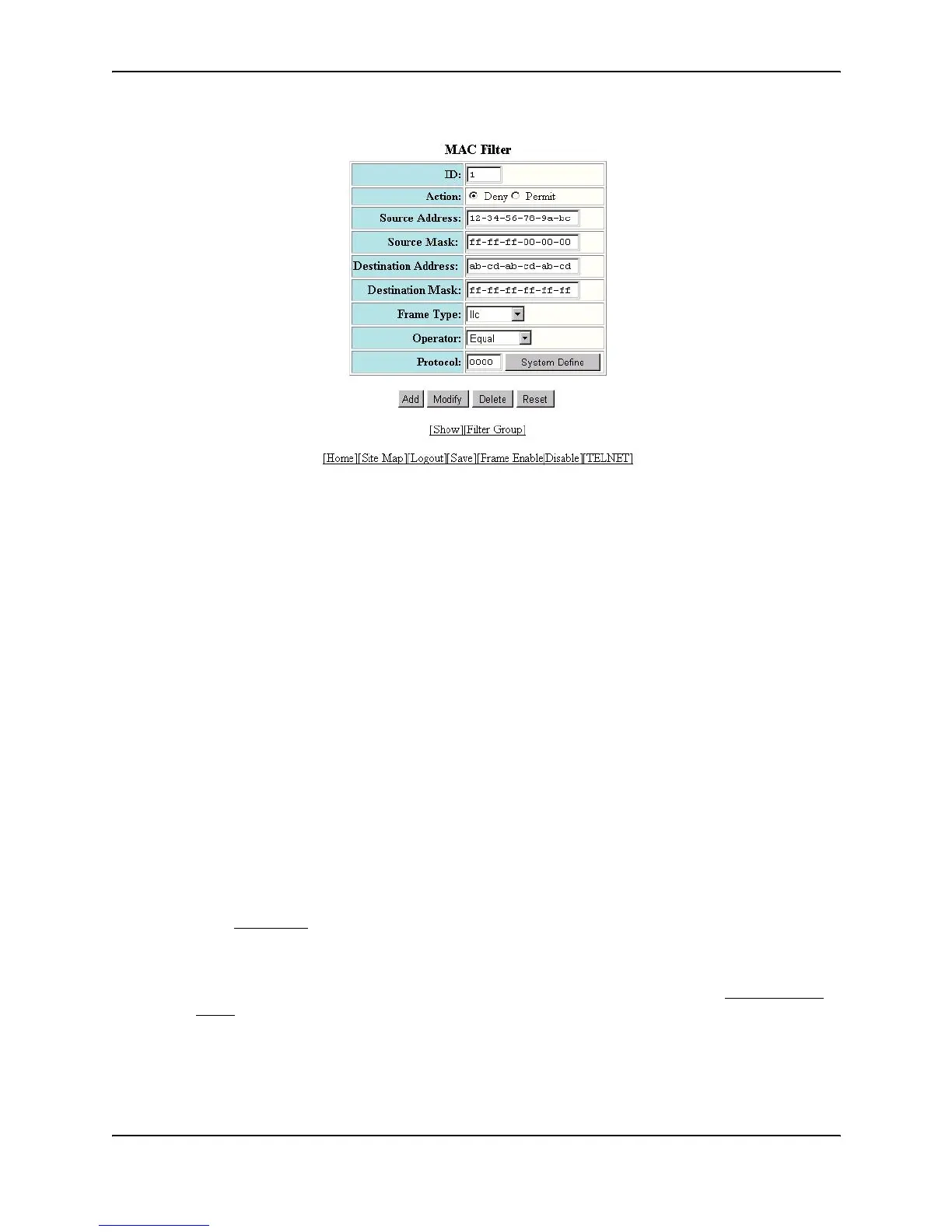
5. Edit the value in the ID field if you want to assign the filter a different ID. The software automatically
increments this field each time you add a MAC filter.
6. Select the filter action by selecting Permit or Deny next to Action.
7. Enter the source MAC address in the Source Address field. Separate the bytes in the address with dashes.
8. Enter the comparison mask for the source address in the Source Mask field. The mask consists of “f”s and
“0”s or the word “any”.
• An “f” indicates a significant bit. The software checks the indicated bit in each packet’s source MAC
address.
• A “0” indicates an insignificant bit. The software does not care what value is in the bit position.
• “any” matches all bits and is equivalent to entering “ff-ff-ff-ff-ff-ff”.
9. Enter the destination MAC address in the Destination Address field. Separate the bytes in the address with
dashes.
10. Enter the comparison mask for the destination address in the Destination Mask field.
11. Select the frame type from the Frame Type field’s pulldown menu.
12. Select an operator from the Operator field’s pulldown menu to filter by protocol type.
13. Enter a protocol in the Protocol field.
14. Click the Add button to save the filter to the device’s running-config file. The filter is now configured in the
software but has not yet been applied to a port.
15. Select the Filter Group
link.
• If the device does not have any MAC filter groups configured, the Filter Group configuration panel is
displayed, as shown in the following example.
• If a MAC filter group is already configured and you are adding a new one, click on the Add MAC Filter
Group link to display the Filter Group configuration panel, as shown in the following example.
• If you are modifying an existing MAC filter group, click on the Modify button to the right of the row
describing the filter group to display the Filter Group configuration panel, as shown in the following
example.


 To Next Page