Installation
2 - 31
NOTE: The tree view is available when you use the Web management interface with Netscape 4.0 or higher
or Internet Explorer 4.0 or higher browsers. If you use the Web management interface with an older browser,
the Web management interface displays the List view only, and the Web Management Preferences panel
does not include an option to display the tree view.
6. When you have finished, click the Apply button on the panel, then click the Refresh button on your browser to
activate the changes.
7. To save the configuration, click the plus sign next to the Command folder, then click the Save to Flash
link.
NOTE: The only changes that become permanent are the settings to the Menu Type and the Front Panel
Frame. Any other elements you enable or disable will go back to their default settings the next time you start
the Web management interface.
Swapping Modules
After you physically insert a module into a Chassis device, you need to enter the location and type of module in the
software, unless you either reboot the device or are replacing one module with another of the same type.
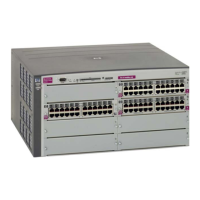
Slots on the HP 9304M are numbered 1 – 4, from top to bottom.
Slots on the HP 9308M are numbered 1 – 8, from left to right.
Slots on the HP 9315M are numbered 1 – 15, from left to right.
See “Slot and Port Numbers” on page 10-7 for more information about slot and port numbering.
NOTE: If the slot has never contained a module or you are swapping in exactly the same type of module, you do
not need to use the module command. The slot requires configuration only if it has already been configured for
another type of module.
USING THE CLI
To add a module to a Chassis device:
HP9300(config)# module 3 24-port-copper-module
Syntax:
module <slot-num> <module-type>
The <slot-num> parameter indicates the Chassis device slot number.
The <module-type> parameter can be one of the following. You can, of course, take advantage of the CLI’s
support for abbreviated command and parameter names.
NOTE: Some module strings apply to more than one module. This is because the slot configuration does not
differ based on the physical layer. For example, a slot does not distinguish between an 8-port LX Fiber module
and 8-port SX Fiber module. However, the software does indicate the physical layer type when you display
module information. For example, the output of the show module command indicates the physical layer types of
each module.


 To Next Page