Installation and Getting Started Guide
2 - 24
appletalk
arp
boot
some lines omitted for brevity...
ipx
lock-address
logging
mac
--More--, next page: Space, next line: Return key, quit: Control-c
The software provides the following scrolling options:
• Press the Space bar to display the next page (one screen at time).
• Press the Return or Enter key to display the next line (one line at a time).
• Press CTRL + C to cancel the display.
Line Editing Commands
The CLI supports the following line editing commands. To enter a line-editing command, use the CTRL-key
combination for the command by pressing and holding the CTRL key, then pressing the letter associated with the
command.
For a complete list of CLI commands and syntax information for each command, see the
Command Line Interface
Reference
.
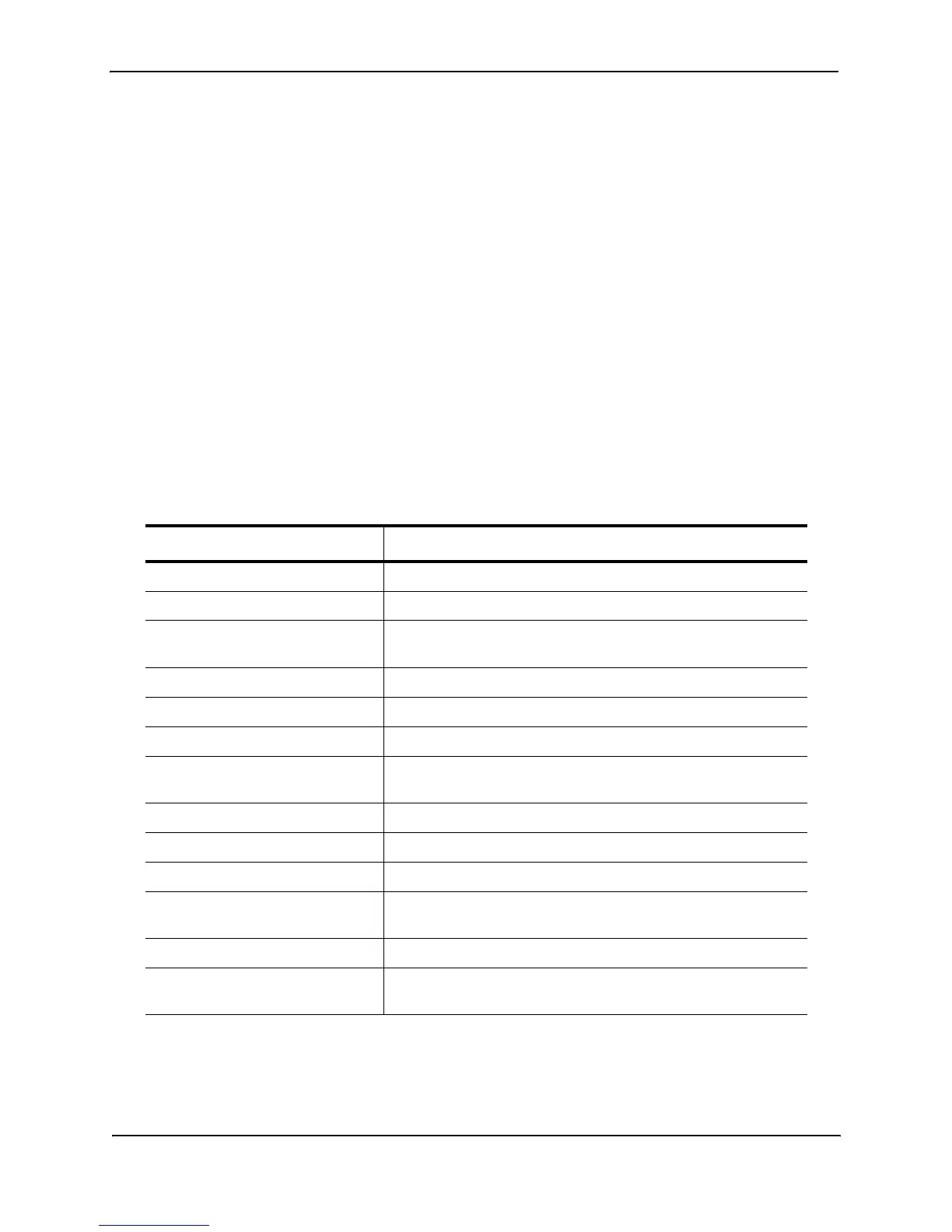
Table 2.3: CLI Line Editing Commands
Ctrl-Key Combination Description
Ctrl-A Moves to the first character on the command line.
Ctrl-B Moves the cursor back one character.
Ctrl-C Escapes and terminates command prompts and ongoing tasks
(such as lengthy displays), and displays a fresh command prompt.
Ctrl-D Deletes the character at the cursor.
Ctrl-E Moves to the end of the current command line.
Ctrl-F Moves the cursor forward one character.
Ctrl-K Deletes all characters from the cursor to the end of the command
line.
Ctrl-L; Ctrl-R Repeats the current command line on a new line.
Ctrl-N Enters the next command line in the history buffer.
Ctrl-P Enters the previous command line in the history buffer.
Ctrl-U; Ctrl-X Deletes all characters from the cursor to the beginning of the
command line.
Ctrl-W Deletes the last word you typed.
Ctrl-Z Moves from any CONFIG level of the CLI to the Privileged EXEC
level; at the Privileged EXEC level, moves to the User EXEC level.


 To Next Page