LTE CPE B2368 User's
Guide 3 connection status and system information
Issue 01 Copyright © Huawei Technologies Co., Ltd. 20
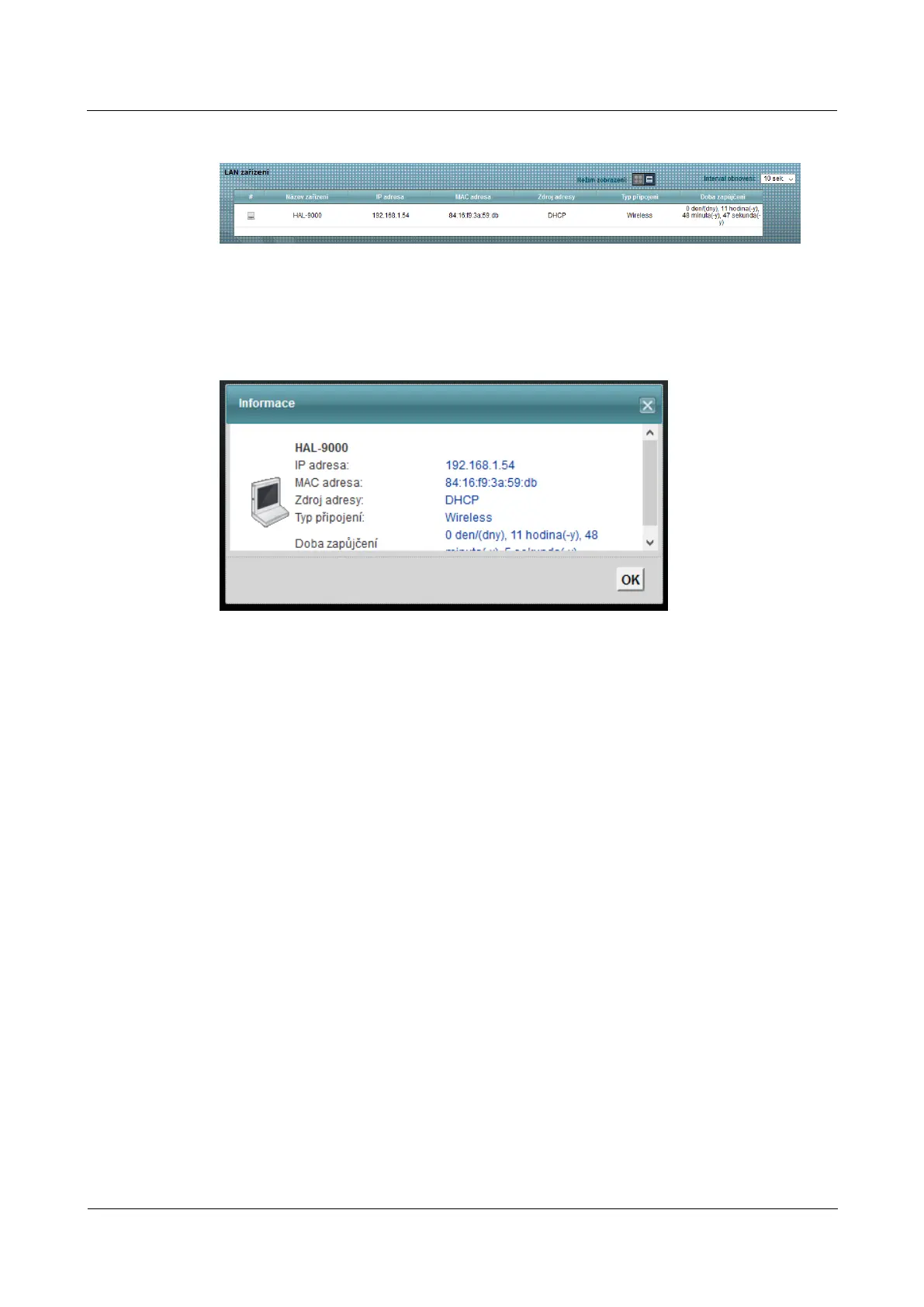
Figure 3-2 Connection status: Display Mode - list Figure 3-2 Connection status: Display Mode - list Figure 3-2 Connection status: Display Mode - list Figure 3-2 Connection status: Display Mode - list
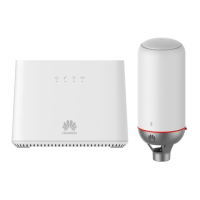
At display mode - icons You can see detailed information about the client device by clicking on its icon and At display mode - icons You can see detailed information about the client device by clicking on its icon and At display mode - icons You can see detailed information about the client device by clicking on its icon and At display mode - icons You can see detailed information about the client device by clicking on its icon and At display mode - icons You can see detailed information about the client device by clicking on its icon and
then on the link Information.then on the link Information.
Figure 3-3 Connection status: Display Mode - List> About Figure 3-3 Connection status: Display Mode - List> About Figure 3-3 Connection status: Display Mode - List> About Figure 3-3 Connection status: Display Mode - List> About
At display mode - list you'll see information about the client device directly. At display mode - list you'll see information about the client device directly. At display mode - list you'll see information about the client device directly. At display mode - list you'll see information about the client device directly. At display mode - list you'll see information about the client device directly.
3.3 Display Information System
Click on Connection Status> System Information for this screen. Click on Connection Status> System Information for this screen. Click on Connection Status> System Information for this screen.



 To Next Page