LTE CPE B2368 User's
Guide Static routing 7
Issue 01 Copyright © Huawei Technologies Co., Ltd. 63
7.2 Configuration of static routing
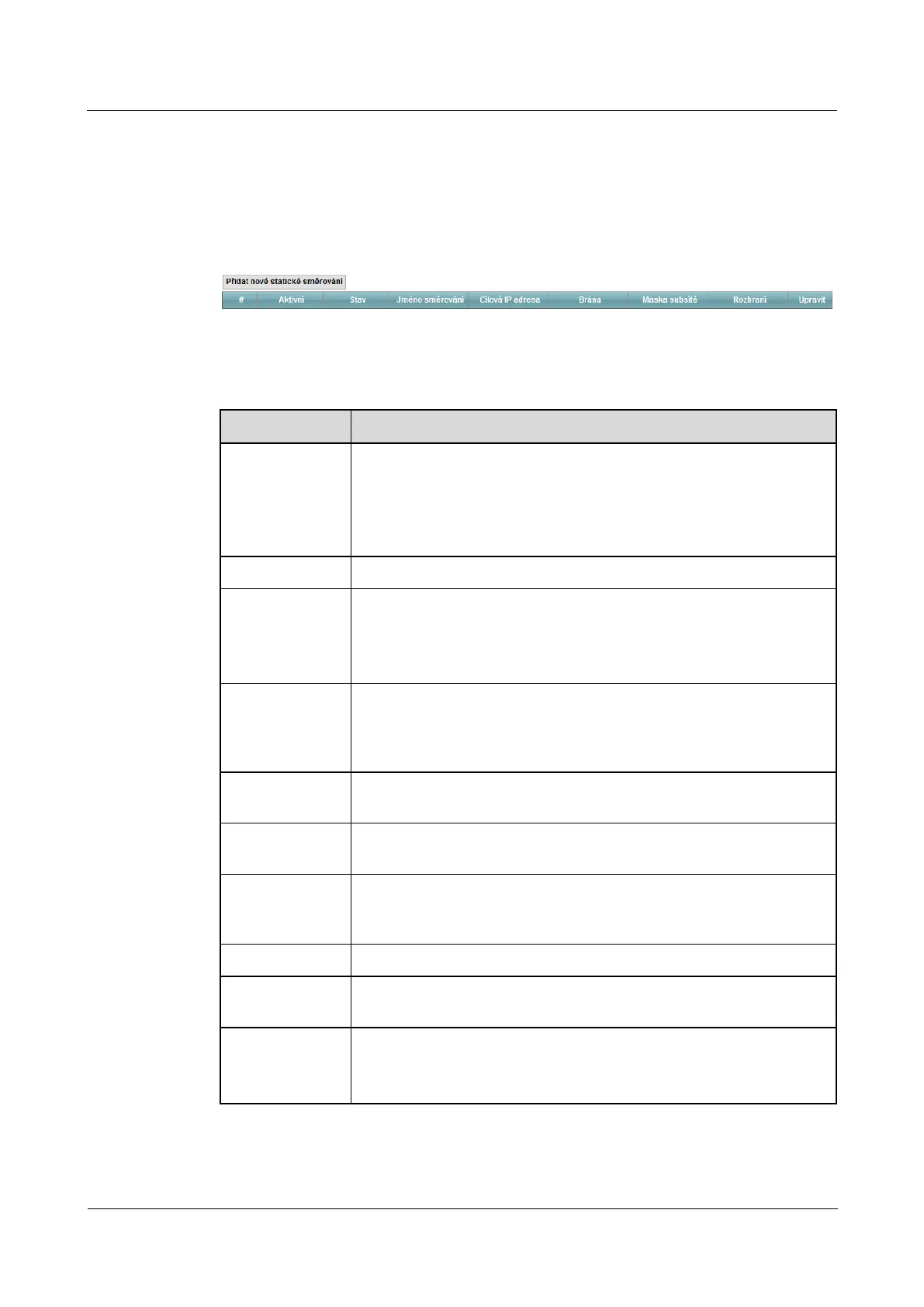
Use this screen to view and configure IPv4 static routing LTE modem. Enter this screen by clicking on Network Use this screen to view and configure IPv4 static routing LTE modem. Enter this screen by clicking on Network
Settings> Static Routing.
Figure 7-2 Network settings> Static Routing Figure 7-2 Network settings> Static Routing
The following table summarizes the available fields on this screen.
Table 7-1 Network settings> Static Routing Table 7-1 Network settings> Static Routing
Item Description
Add new static
routing Static
Routing
Click this button to add a new static IPv4 routing LTE modem.
# Serial number entry.
Active This field indicates whether the static route is active or not. Symbol yellow light bulb
means that the static route is active. Symbol gray bulb means that the static route is
not active.
State
This field indicates whether the corresponding static routing currently used or not.
Symbol yellow light bulb means that the static route is currently used. Symbol gray
bulb means that the static route is currently in use.
name routing This field is the name of the relevant static routing.
Destination IP Address This field specifies an IPv4 network address of the destination routing.
Routing is always based on the numbering on the network.
Gate
IPv4 gateway address. Gateway may be a router (router) or switch (switch) located in the
same network segment as the LAN or WAN interfaces of the modem. Gateway is used to
route packets to their destination.
mask This parameter specifies the subnet mask of destination routing.
Interface
This parameter defines the interface processes the data stream processed by the competent
routing.
adjust
Click on the icon adjust open the dialog for the relevant static routing. Click on Click on the icon adjust open the dialog for the relevant static routing. Click on Click on the icon adjust open the dialog for the relevant static routing. Click on
the icon Remove remove the static routing. the icon Remove remove the static routing. the icon Remove remove the static routing.



 To Next Page