LTE CPE B2368 User's
Guide 8 Network Address Translation (NAT)
Issue 01 Copyright © Huawei Technologies Co., Ltd. 68
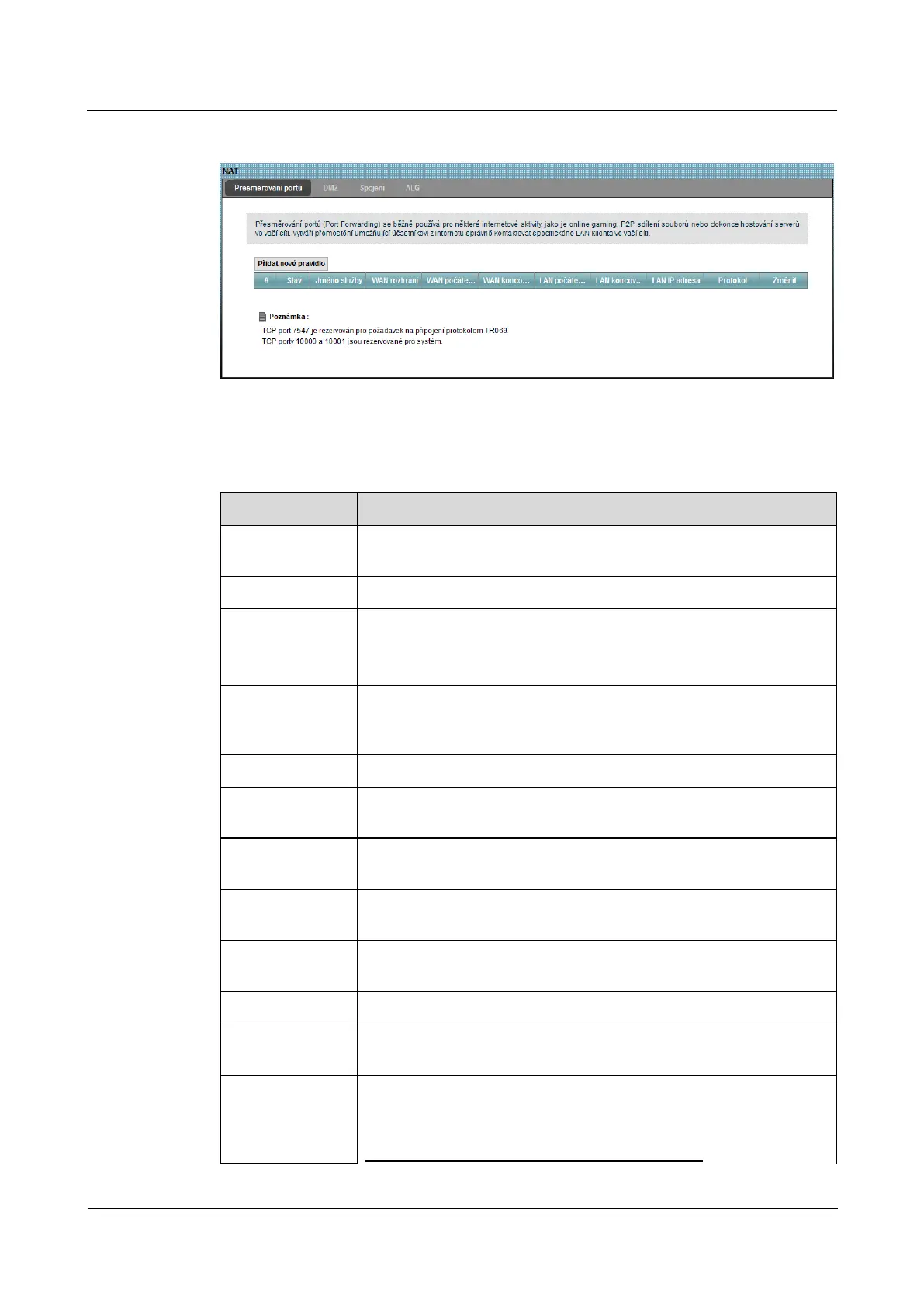
Figure 8-2 Network Settings> NAT> Port Forwarding Figure 8-2 Network Settings> NAT> Port Forwarding
The following table summarizes the available fields on this screen.
Table 8-1 Network Settings> NAT> Port Forwarding Table 8-1 Network Settings> NAT> Port Forwarding
Item Description
Add new rule
Click this button to create a new port forwarding rule.
# This is the serial number.
State This field indicates whether the rule is active or not. Symbol yellow light bulb
means that the rule is active. Symbol gray bulb means that the rule is not active.
name services
This is the name of the service. When the service was added manually, it will be shown
here User Defined. This item can be adjusted by clicking on Change. here User Defined. This item can be adjusted by clicking on Change. here User Defined. This item can be adjusted by clicking on Change.
WAN interface Identification of the WAN interface through which the service is diverted.
Initial WAN port
The first external port number identifying the service.
WAN port terminal
The number of the last external port identifying the service.
LAN start port
Internal Port Number first identifying the service.
LAN port terminal
Last number Internal Port identifying the service.
LAN IP address This is the IP address of the server.
Protocol IP protocol version supported by Virtual Server - TCP, UDP or TCP / UDP. IP protocol version supported by Virtual Server - TCP, UDP or TCP / UDP. IP protocol version supported by Virtual Server - TCP, UDP or TCP / UDP.
change
Click on the icon change You can modify the forwarding rule. Click on the icon ClearClick on the icon change You can modify the forwarding rule. Click on the icon ClearClick on the icon change You can modify the forwarding rule. Click on the icon ClearClick on the icon change You can modify the forwarding rule. Click on the icon Clear
You can redirect the rule
remove. Keep in mind that the following rules redirection after



 To Next Page