NOTE
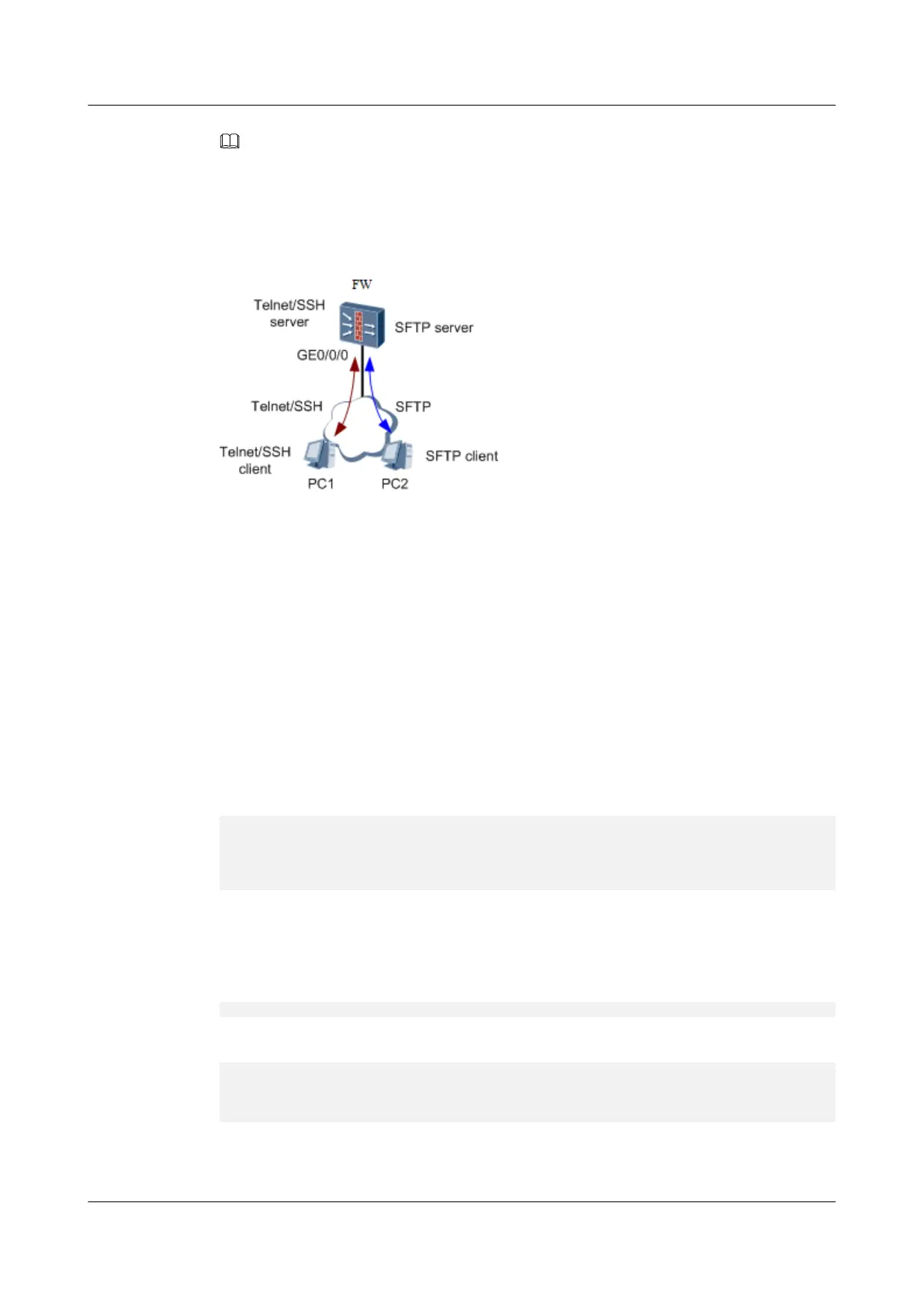
You can also use a PC as both the Telnet/SSH client and the SFTP server. The following example
describes takes the two-PC deployment.
Figure 1-56 Schematic diagram of uploading/downloading files through SFTP and with the
USG6000 serving as the SFTP server
The roadmap for configuring an SFTP client (PC2) to communicate with an SSH server
(USG6000) is as follows (RSA authentication is used):
l Create an SSH user on the USG6000.
l Configure a local key pair for PC2 and the USG6000.
l Copy the public key of PC2 to the USG6000.
l On the USG6000, bind the SSH user to the public key of PC2.
l Enable SFTP services on the USG6000.
l Configure the SSH user to log in to the USG6000 from PC2.
Procedure
Step 1 Enable the SSH service on interface GigabitEthernet 0/0/0.
<NGFW> system-view
[NGFW] interface GigabitEthernet 0/0/0
[NGFW-GigabitEthernet0/0/0] service-manage ssh permit
[NGFW-GigabitEthernet0/0/0] service-manage enable
[NGFW-GigabitEthernet0/0/0] quit
Log in to the USG6000 from PC1 through Telnet/SSH.
Step 2 Create an SSH user on the USG6000.
Enable the SFTP service
[FW] sftp server enable
Configure an authentication mode and a protocol on the VTY interface.
[FW] user-interface vty 0 4
[FW-ui-vty0-4] authentication-mode aaa
[FW-ui-vty0-4] protocol inbound ssh
[FW-ui-vty0-4] quit
Create SSH user client and set the authentication type to rsa, service type to SFTP, and
service directory to hda1:
HUAWEI USG6000&USG9500
Upgrade Guide
1 USG6000
Issue 01 (2018-01-16) Huawei Proprietary and Confidential
Copyright © Huawei Technologies Co., Ltd.
98


 To Next Page