Conn : VTY 4
Version : 2.0
State : started
Username : client
Retry : 1
CTOS Cipher : aes128-cbc
STOC Cipher : aes128-cbc
CTOS Hmac : hmac-sha1-96
STOC Hmac : hmac-sha1-96
Kex : diffie-hellman-group1-sha1
Service Type : sftp
Authentication Type : rsa
1.7.3 Device Serving as the TFTP Client to Upload or Download
Files Through TFTP
Context
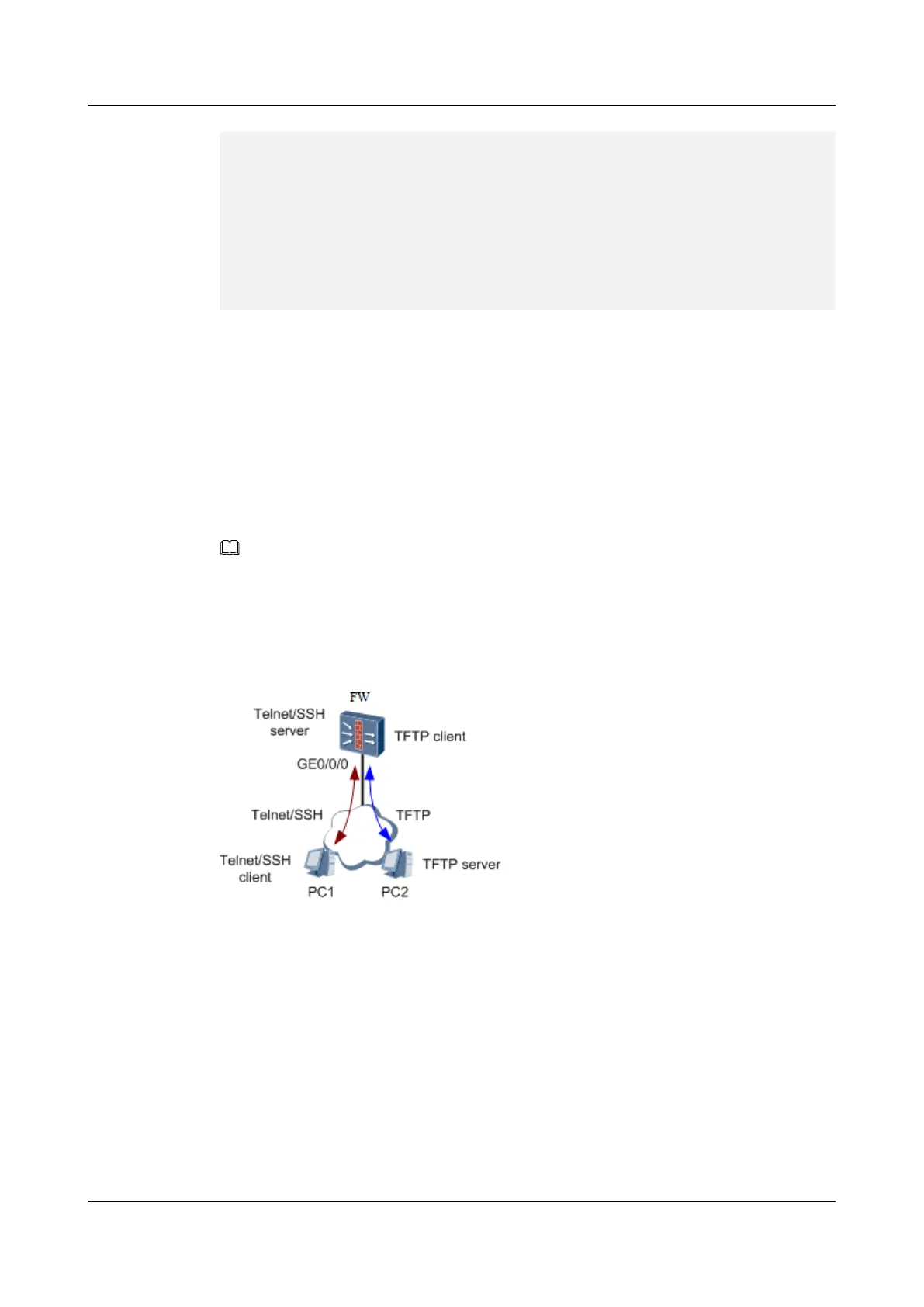
As shown in Figure 1, PC2 serves as the TFTP server. Log in to the TFTP server from the
USG6000 and upload or download files through TFTP. This method requires the third-party
TFTP server software to be installed on the PC2.
NOTE
You can also use a PC as both the Telnet/SSH client and the TFTP server. The following example
describes takes the two-PC deployment.
Figure 1-57 Schematic diagram of uploading/downloading files through TFTP and with the
USG6000 serving as the TFTP client
Procedure
Step 1 Configure the TFTP server.Install the TFTP server program on PC2 and configure the TFTP
server using the document available with the program. Suppose that you obtain the TFTP
server program in a legitimate way and description of the program is beyond the coverage of
this document. The following operation assumes that the root directory of the TFTP server is
set to the storage path of files to be uploaded/downloaded.
Step 2 Log in to the USG6000 from PC1 through Telnet/SSH.
Step 3 Upload files in storage media of the USG6000 to the TFTP server.
HUAWEI USG6000&USG9500
Upgrade Guide
1 USG6000
Issue 01 (2018-01-16) Huawei Proprietary and Confidential
Copyright © Huawei Technologies Co., Ltd.
100


 To Next Page