1. Ensure the stable power supply during the upgrade and avoid power failures. If the
device cannot start normally after a power failure, try to upgrade in BootROM mode. For
details, see section Upgrade Through BootROM.
2. The registration of boards takes a period of time. After the device is restarted, do not
perform any operations until all the boards are registered. When you run the display
device command to display the registration status of a board, Registered is displayed in
the Register field and Normal is displayed in the Status field.
3. Do not use the USB port of the MPU for version upgrade.
4. In case of dual MPUs, if one MPU is faulty and you replace it with a new one, you must
upgrade the new one. For details, see "Appendix: Upgrading the MPU."
2.2.3 Upgrade Flow
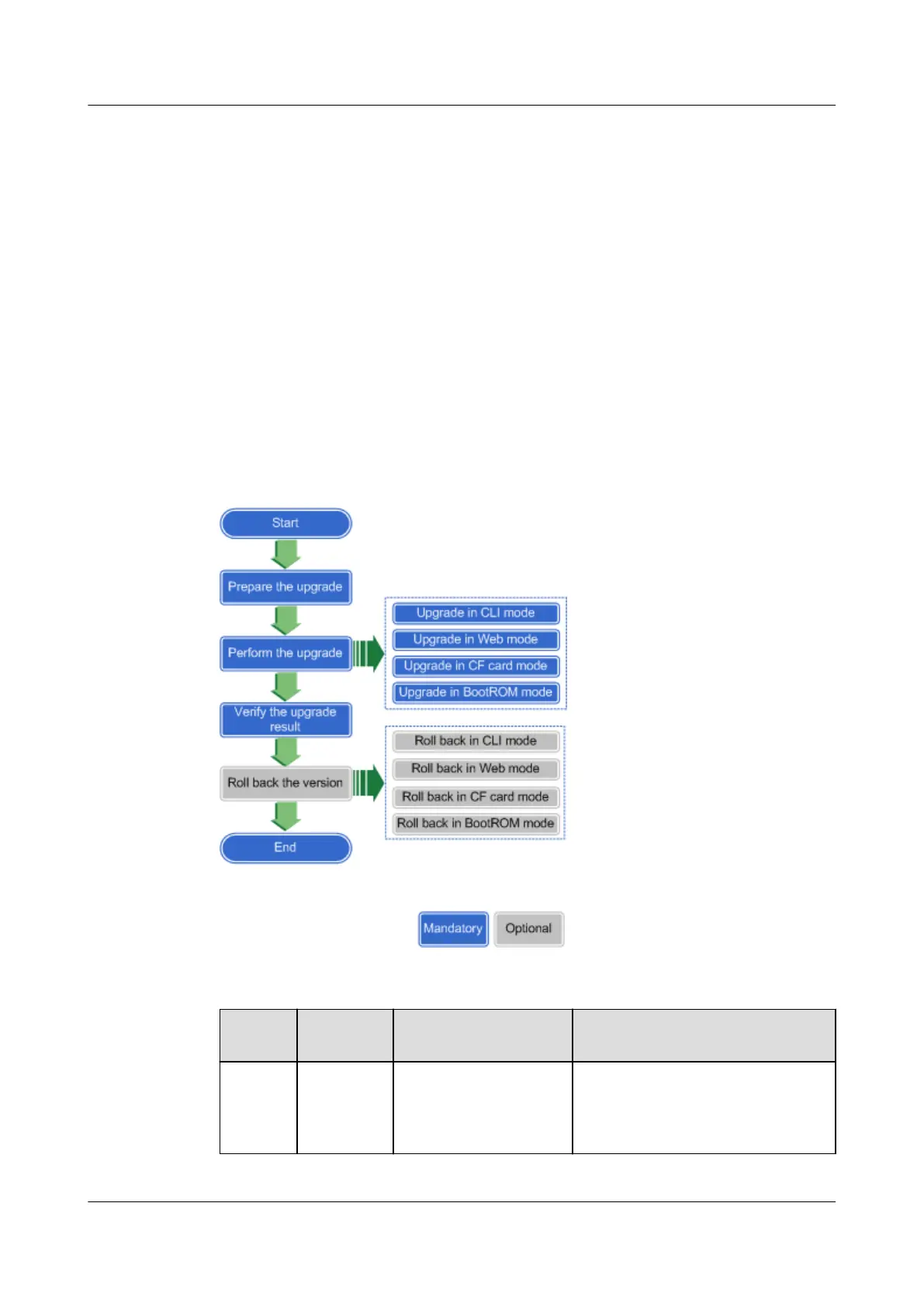
Figure 1 shows the flow for upgrading to V500R001C80SPC100 from an earlier version.
Figure 2-1 Upgrade flowchart
Table 2-2 Upgrade overview
Categor
y
Item Operation Objective
Informat
ion
collectio
n
Part
information
Run the display device
and display esn all
commands.
To collect hardware information and
the device ESN, including the BOM
code.
HUAWEI USG6000&USG9500
Upgrade Guide
2 USG9500
Issue 01 (2018-01-16) Huawei Proprietary and Confidential
Copyright © Huawei Technologies Co., Ltd.
125


 To Next Page