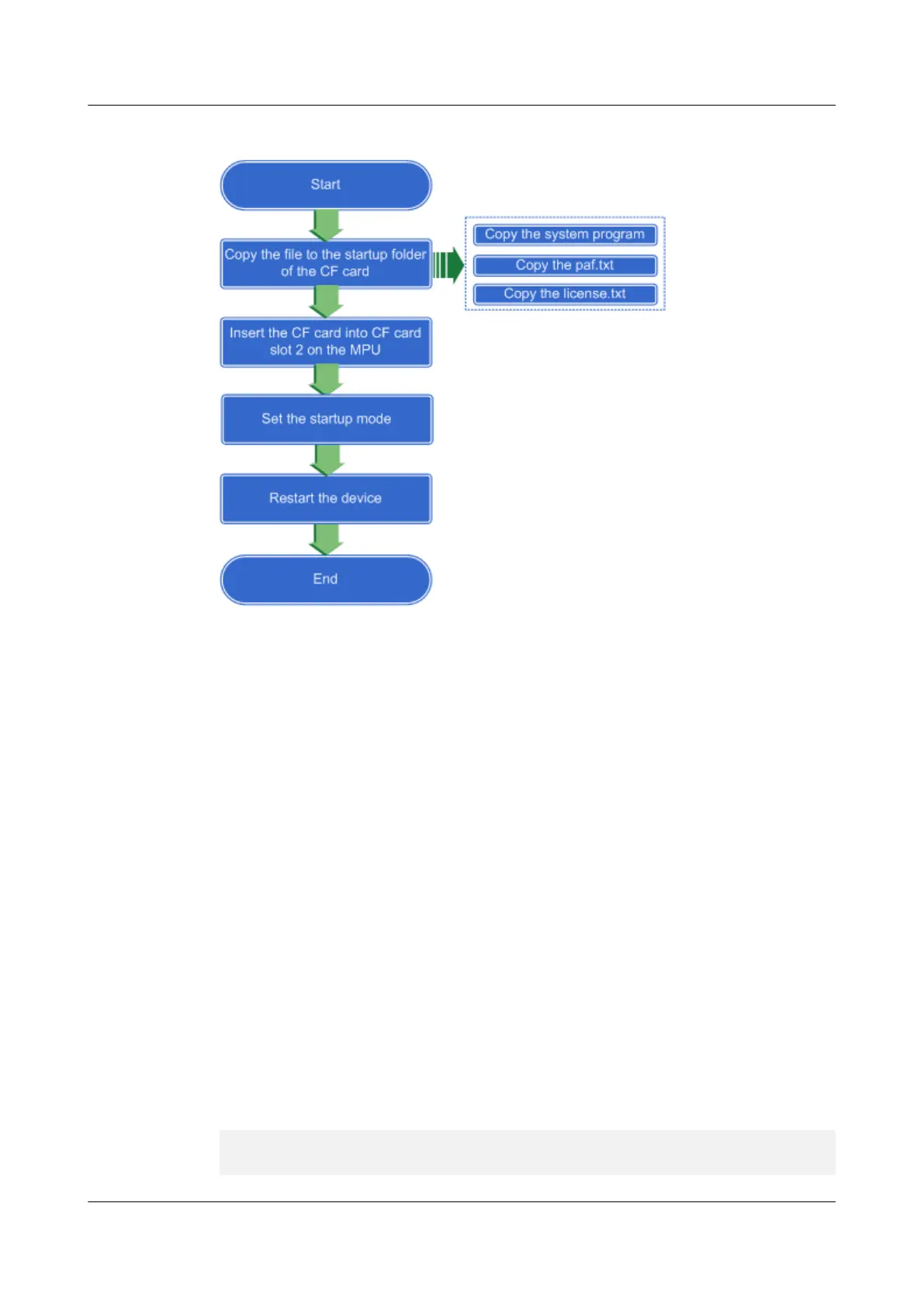
Figure 2-11 Flowchart of the version software upgrade through the CF card
Procedure
Step 1 Copy the files to the startup folder in the CF card.The files related to the upgrade must be
saved in the startup folder in the root directory of the CF card, and their names should satisfy
the following rules:
l The system program must end with suffix .cc and only one can be saved.
l The name of the PAF file must be paf.txt, and that of the license file must be license.txt.
l The name of the configuration file must contain keyword vrpcfg and end with file name
extension .cfg or .zip. In addition, only one configuration file can be saved. It is
recommended that you name the configuration file vrpcfg.cfg or vrpcfg.zip.
One CF card can be used for only one upgrade of one MPU. Therefore, if two MPUs are in
position, two CF cards are required.
Step 2 Insert the CF card into CF card slot 2 of the MPU.
Step 3 Set the startup mode.The MPU of the USG9500 applies fast startup by default. During fast
startup, the device does not read the CF card, and the upgrade using a CF card is therefore
impossible. If you need to upgrade using a CF card, change the startup mode of the MPU
from fast startup to normal startup mode. Run the display bootmode-next command to view
the current startup mode of the MPU.
In system view, run the diagnose command to access the diagnose view. In the diagnose view,
run the undo set bootmode-next fastboot all command. The detailed operations are as
follows:
<USG9500> system-view
[USG9500] diagnose
[USG9500-diagnose] undo set bootmode-next fastboot all
HUAWEI USG6000&USG9500
Upgrade Guide
2 USG9500
Issue 01 (2018-01-16) Huawei Proprietary and Confidential
Copyright © Huawei Technologies Co., Ltd.
153


 To Next Page