Hardware Configuration
Configuring a Controller via the Web Interface
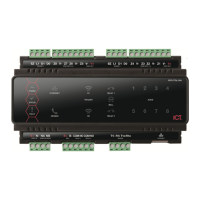
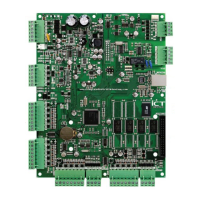
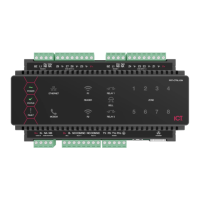
The controller's built-in web interface allows you to configure system communication and security settings,
including login, IP address, subnet mask, gateway and DNS settings, as well as security certificates.
For information on using the controller's web interface to configure IP network and security settings, see the
Protege GX Integrated System Controller Configuration Guide, available from the ICT website.
Setting the IP Address from a Keypad
If the current IP address of the controller is not known it can be viewed and changed using a Protege keypad.
1. Connect the keypad to the module network.
2. Log in to the keypad using any valid installer code. The default installer code is 000000.
If the default code has been overridden and you do not know the new codes you will need to default the
controller (see Defaulting the Controller in this document) to reset the code.
Note that this will erase all existing programming as well as setting up the default installer code.
3. Once logged in select Menu 4 (Install Menu) then Menu 2 (IP Menu) and view or edit the IP address, network
mask, and gateway as required.
Once the settings have been changed you must save the settings by pressing the [Arm] key. You will be
prompted to confirm the changes by pressing [Enter]. You must then restart the controller, either through the
menu [4], [2], [2] or by cycling the power, for the settings to take effect.
PRT-CTRL-DIN | Protege GX DIN Rail Integrated System Controller | Installation Manual 33


 To Next Page