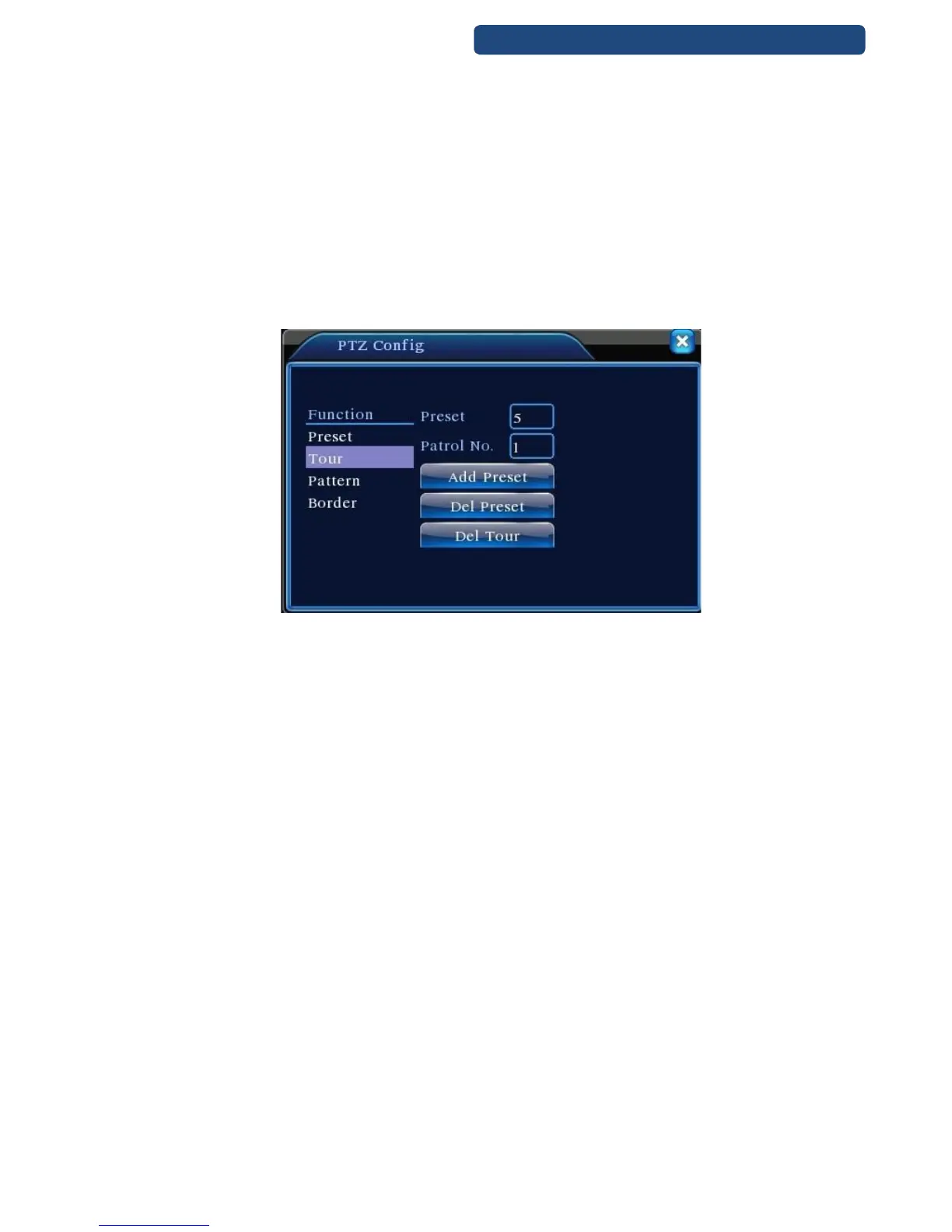
Cruise Between Points Settings
Cruise lines is connected by multiple preset points, setting procedure is as follows:
Step 1. the Direction key will turn PTZ to designated location , click Settings button to enter
Step 2. click Cruise buttons, the write proper value into the Cruise Line and Preset Points
blank,then click Add Preset Points button, complete setting (also can add and delete cruise line
which has been set up)
Step 3. repeat step1 and step2 , until set out all the preset designated cruise lines
Remove Preset:Please input preset value in the blank, click Remove Preset button, then remove the
preset points.
Remove Cruise Line:Input the number of cruise line, click Remove Cruise Lines button, then remove the
cruise lines set
22. picture Cruise Between Points Settings
The Calls of Cruise between Points
Step 1. click Page Shift button, enter PTZ control menu as shown
Step 2. Please input the number of cruise in the value blank, then click Cruise between Points button
Step 3. PTZ begins to work on the cruise line.
Step 4. Click Stop button to stop cruise.
6.11.3 Scan
PTZ also can work on the preset scan line repeatedly.
Scan setup
Step 1. click Setup button, enter
Step 2. Click Scan button,the input proper value in the scan value blank;
Step 3. Click Start button, enterhere you can set the following items:
Zoom、Focus、Aperture、Direction and so on. Click Setup button to go back
Step 4. Click End button to complete setup
Step 5. Click the right button of the mouse to exit.



 To Next Page