Page 38 Operation Manual
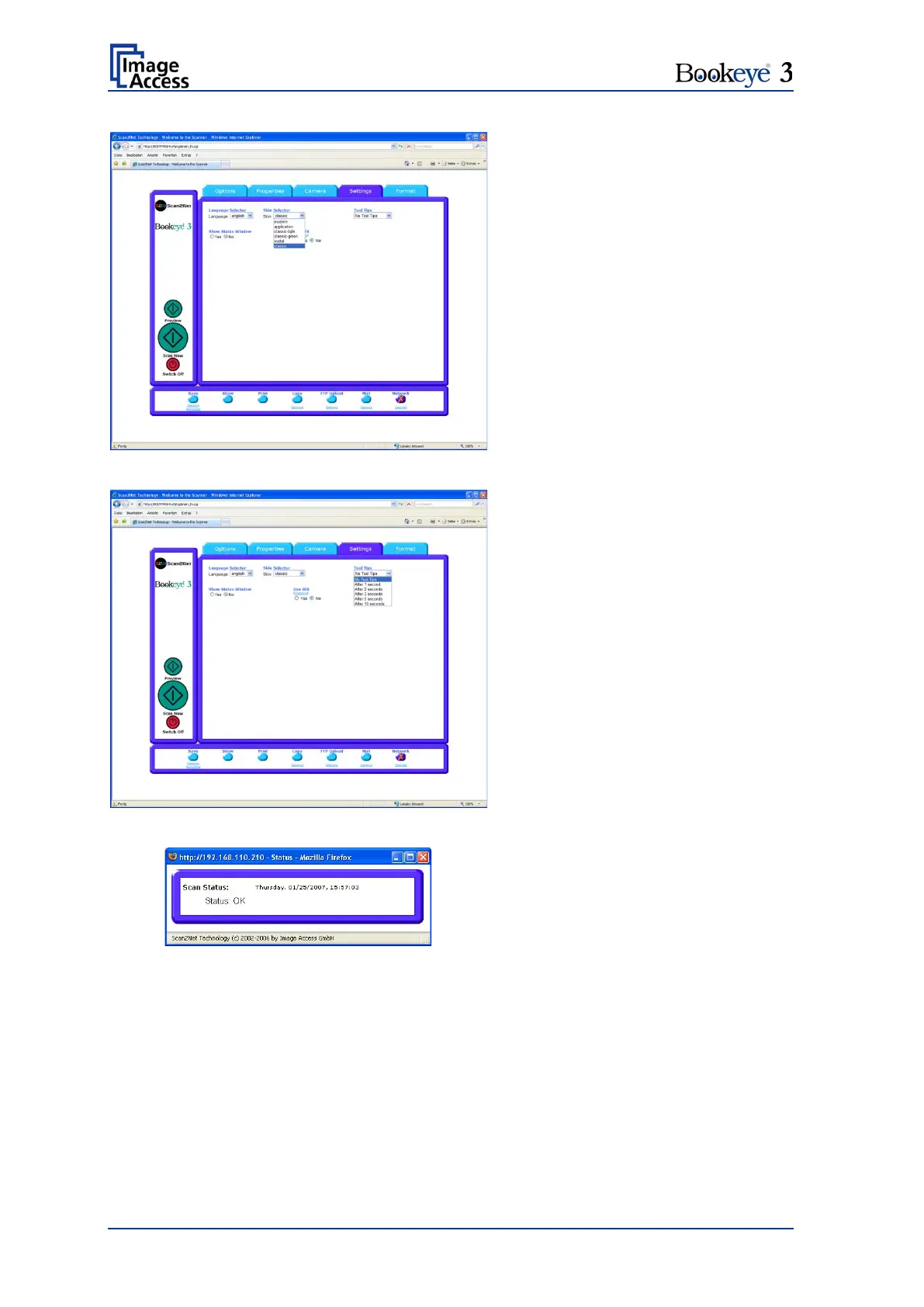
Picture 26: Skin Selector
Skin Selector
The Skin Selector offers different
surfaces (skins) for the user interface.
Currently available surfaces are
modern and application, metal and
classic, classic-green and classic-
light. Other skins can be designed
and integrated by the user.
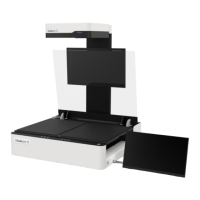
Picture 27: Tool Tips
Tool Tips
Tool Tips can be activated to inform
the user with short texts about the
available functions in each screen.
With the drop down list the delay time
can be defined. Selecting No Tool
Tips switch this function off.
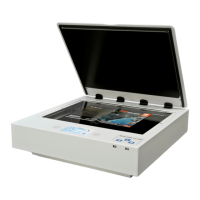
Picture 28: Status window
Show Status Window
Show Status Window turns on and
off the display of a scanner status
window. Click the Yes
activate this window.
Use IES
Use IES opens an additional window to show the demo mode of the Image
Enhancement System. The IES allows to modify specific scan parameters.








 To Next Page