5G INDOOR CPE FX2000 USER GUIDE 11
Connecting Devices with Ethernet
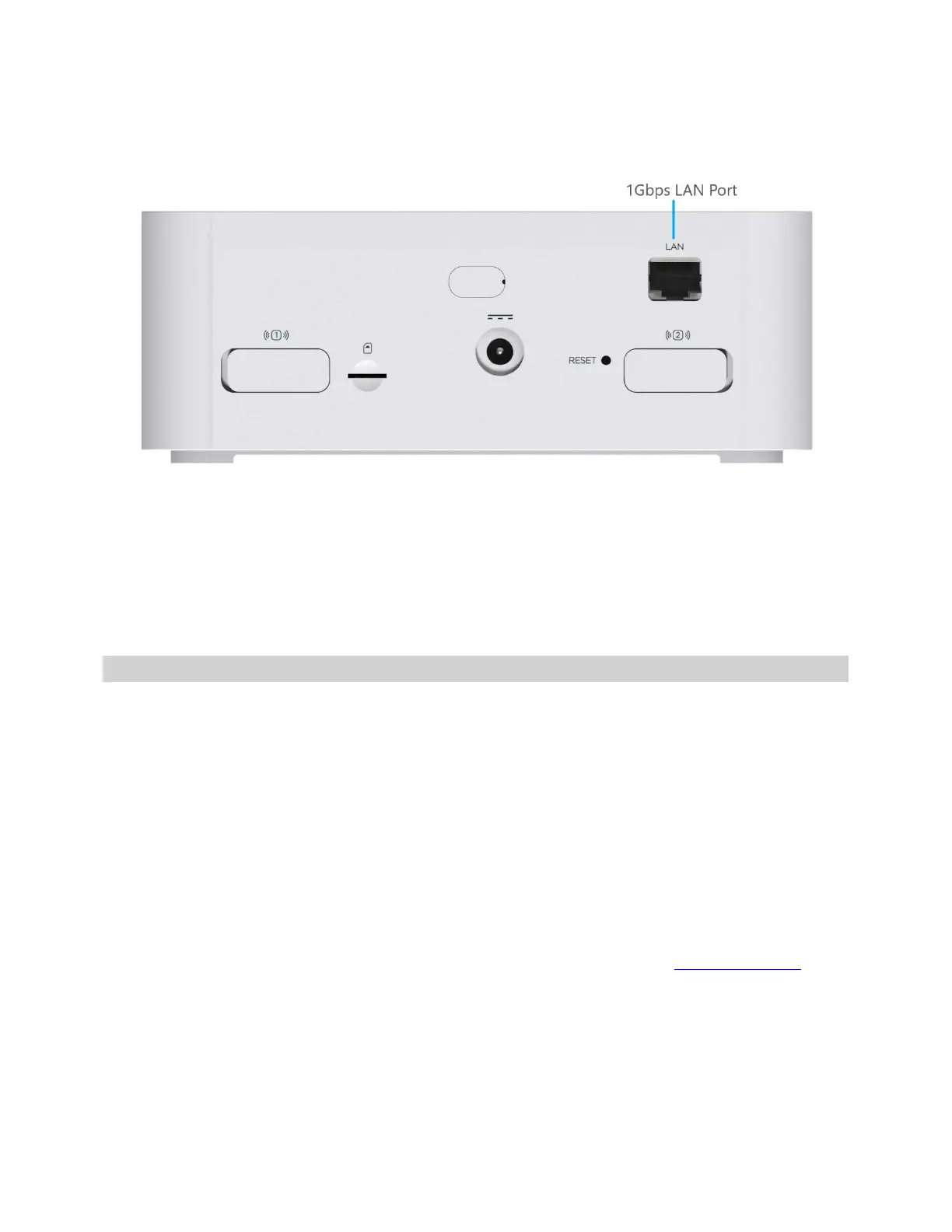
You can connect wired devices such as laptops, printers, and gaming consoles via Ethernet.
To connect Ethernet devices:
1. Plug one end of an Ethernet cable into the LAN port on the FX2000.
2. Plug the other end of the cable into the Ethernet port of the device you wish to connect.
Devices plugged into the FX2000 via Ethernet have instant access to the Internet.
Monitoring and Managing your 5G Indoor CPE
You can use multiple options to monitor and manage your 5G Indoor CPE.
Inseego Mobile App
You can use the same mobile app you used to find a location for your FX2000 to perform basic device
monitoring and management.
Admin Web UI
Once your 5G Indoor CPE is connected to a device that supports Web browsing, you can use the Web
User Interface to customize settings, change your password, and access information.
On a device connected to the 5G Indoor CPE, open any Web browser and go to http://192.168.1.1.
Select Sign In (in the top-right corner of the screen), and enter the Admin Password printed on the
bottom of the FX2000.
Inseego Connect
TM
Go to connect.inseego.com to sign up for a free Inseego Connect account, which provides the fullest
experience for monitoring and managing FX2000 devices from anywhere in the world with access to a
web browser.


 To Next Page