5G INDOOR CPE FX2000 USER GUIDE 12
Caring for your FX2000
This section provides information on general care and restoring your 5G Indoor CPE to factory default
settings.
Resetting your FX2000
You can reset your 5G Indoor CPE to factory settings using the RESET button on the FX2000 or from the
Mobile App, Admin Web UI, or Inseego Connect.
CAUTION! Resetting returns your FX2000 to factory settings, including resetting the Wi-Fi name and
password. This disconnects all devices.
Resetting with the RESET button
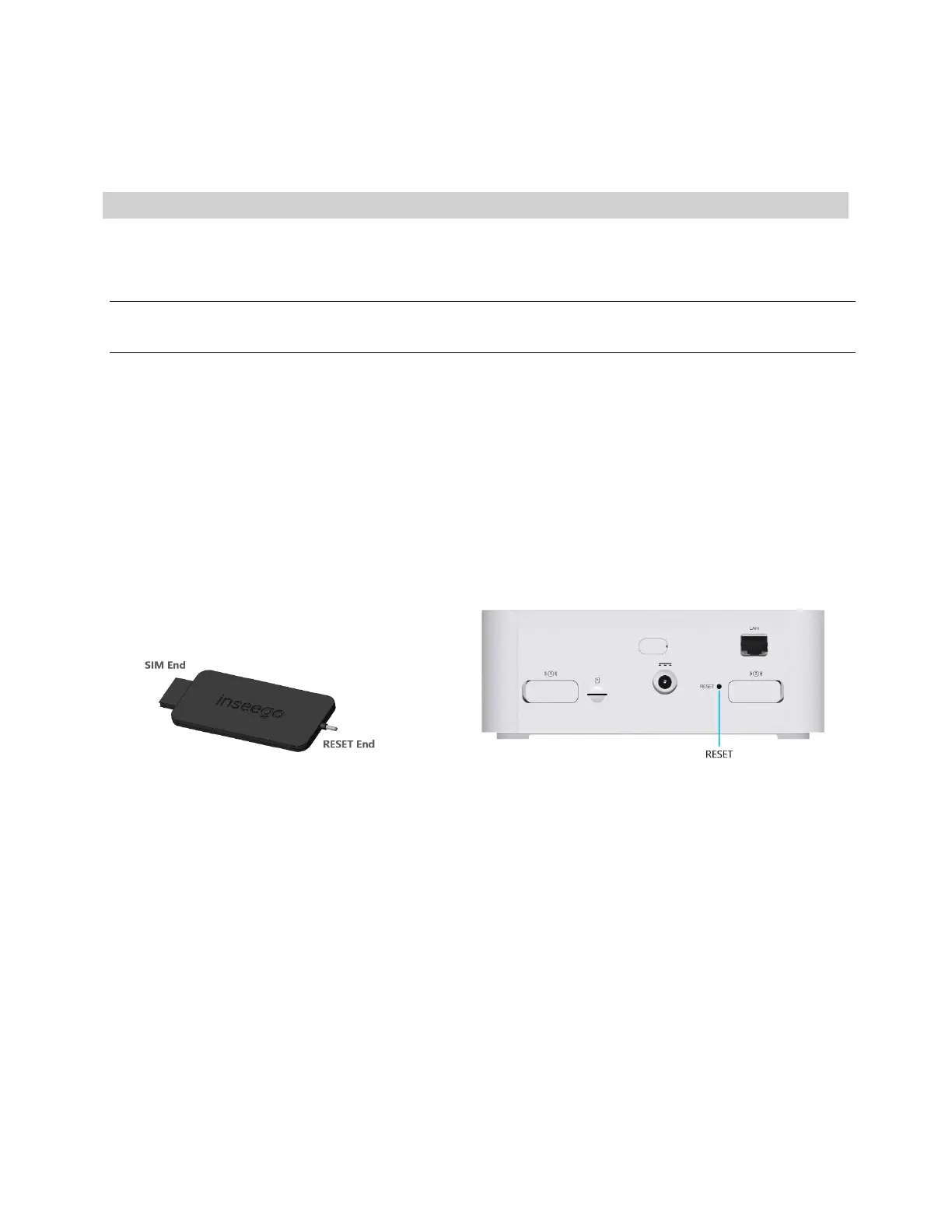
The master reset button is in a small hole located on the back of the
5G Indoor CPE
. This button
returns the device to factory settings, including resetting the Wi-Fi name and password and admin
password
.
To reset the 5G Indoor CPE:
1. Place the RESET end of the provided SIM tool (or one end of an unfolded paper clip) into the
master reset button hole.
2. Press the SIM tool on the button for about five to six seconds, then your 5G Indoor CPE will
restart.
Resetting from the Inseego Mobile App
To reset the FX2000 from the Inseego Mobile App, select Mobile Options, then select Factory Reset.
Resetting from the Admin Web UI
To reset the FX2000 from the Admin Web UI, select Settings > Backup and Restore and select Restore
Factory Defaults.
Resetting from Inseego Connect
To reset the FX2000 from Inseego Connect, on the Devices page, check the box next to the device and
select Factory Reset.


 To Next Page