- 24 - - 25 -
Parts Nomenclature and Functions Parts Nomenclature and Functions
AppendixBefore use
1
Setting Up
2
Printing
3
Basic Device Operations
4
Index
AppendixBefore use
1
Setting Up
2
Printing
3
Basic Device Operations
4
Index
Main Control Panel Features
The control panel can be used to check the device status and implement various device functions.
The toner cartridge can be replaced while viewing the liquid crystal display on the control panel.
Further, you can also perform operations while checking the messages displayed on the liquid crystal
panel if paper jams or device malfunctions occur.
Reference
See the control panel menus table “Table of control panel menu items” (P.119).
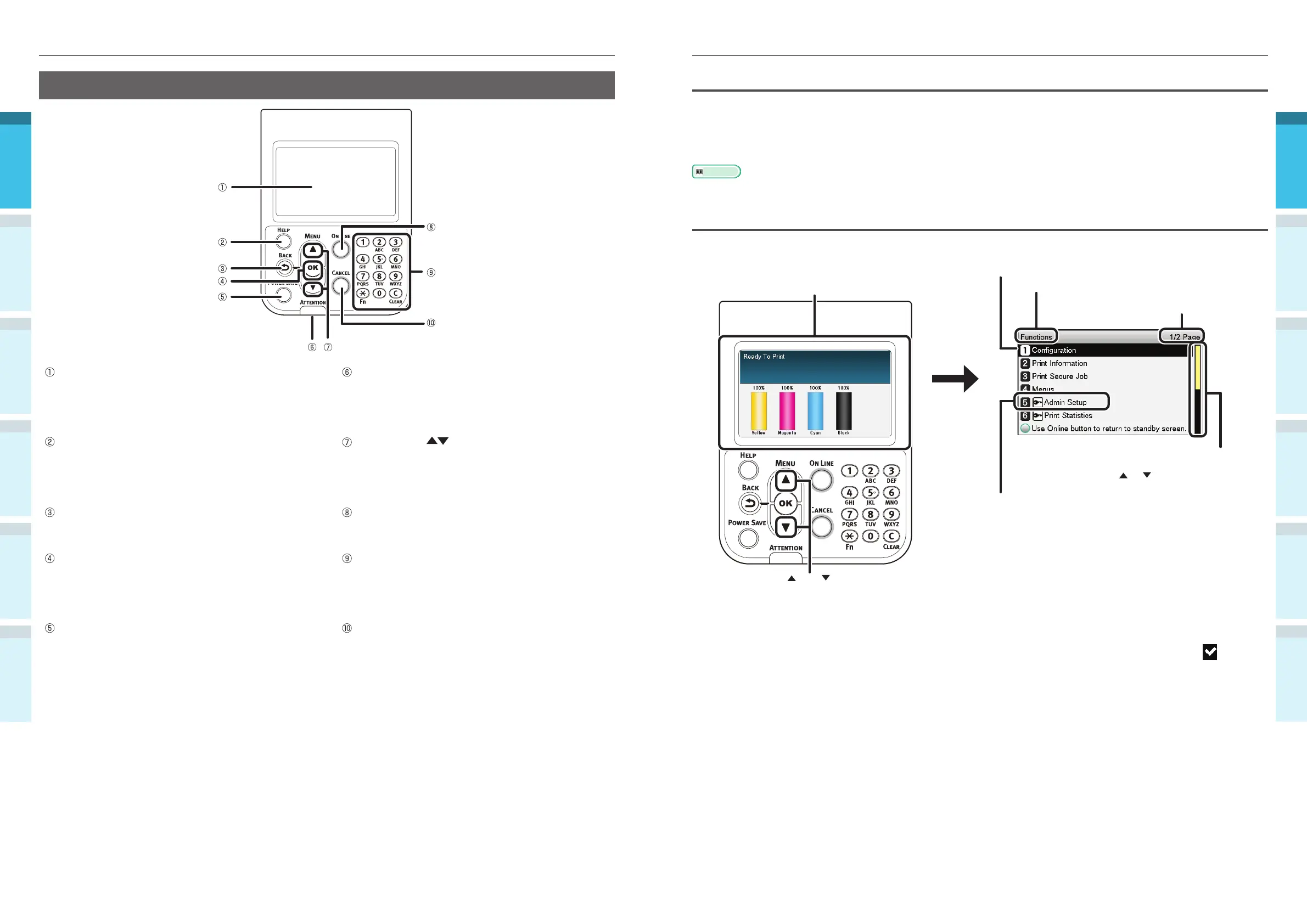
Control Panel Appearance
This section explains the main control panel operations and control panel appearance.
There are two types of standby screen: "Remaining
toner quantity display" and "Tray information display".
Press the scroll button or the to display the "Functions"
menu screen as shown on the right.
The color display of the selected item is inverted.
The name of the menu that is displayed.
Displays the number of pages in the menu
displayed on the liquid crystal panel.
If there is a scroll bar, there are items that are
not displayed in the liquid crystal panel. Press
the scroll button
or to display them.
A password must be entered to display the [Admin
Setup]. Enter the administrator password (factory
setting is "aaaaaa") in the password input screen.
If there is a selection menu at the next level or set values for an item, select the item and press the
[OK] button to display the next screen.
If a set value is displayed, press the [OK] button to confi rm the value that has been set. (
is
displayed to the left of the value.)
Control Panel
Liquid crystal panel
Displays the device status and menus.
There are two types of standby screen: " Remaining
toner quantity display" and " Tray information
display".
ATTENTION lamp
Displays the device status.
Normally OFF.
Lit or fl ashes orange if an error occurs.
[HELP] button
Displays the help screen.
Lit orange when help messages can be referenced,
such as explanations of the error that has occurred
or the cancellation procedure.
Scroll button ( MENU button)
Displays the menu screen to select an item, and
then scrolls up (or down) one page.
Can be used to enter numbers in the numerical
input screen.
[BACK] button
Returns to the previous page.
[ON LINE] button
Switches between online and offl ine.
Lit green when online, and OFF when offl ine.
[OK] button ( MENU button)
Determines the selected item and set values.
Ten-key pad (1 to 0, *, C)
Use to enter numerical values and passwords.
Press the [*] ( [Fn]) key in the standby screen to
display the "function number input" screen, and to
enter menu items directly.
[ POWER SAVE] button
Turns ON and OFF power save mode.
Cancels sleep mode.
[ CANCEL] button
Use to cancel a print, or to cancel the settings.



 To Next Page