- 28 - - 29 -
Parts Nomenclature and Functions Parts Nomenclature and Functions
AppendixBefore use
1
Setting Up
2
Printing
3
Basic Device Operations
4
Index
AppendixBefore use
1
Setting Up
2
Printing
3
Basic Device Operations
4
Index
Using the 10-Key Pad
Use to input alphanumeric characters.
The characters that can be entered when each
key is pressed, and the toggling of the input
characters, are described below.
10-key
[1] 1
[2] a
→
b
→
c
→
2
→
a
[3] d
→
e
→
f
→
3
→
d
[4] g
→
h
→
i
→
4
→
g
[5] j
→
k
→
l
→
5
→
j
[6] m
→
n
→
o
→
6
→
m
[7] p
→
q
→
r
→
s
→
7
→
p
[8] t
→
u
→
v
→
8
→
t
[9] w
→
x
→
y
→
z
→
9
→
w
[0] 0
The following two key functions are as described
below.
[Fn] key:
Use to display the function number shortcut.
(Enabled when the standby screen is displayed.)
[CLEAR] key:
Conceals each character individually when
entering a password.
Memo
If entering "abc", press the buttons in the
following order: [2]
→
[OK] button
→
[2]
→
[2]
→
[OK]
button
→
[2]
→
[2]
→
[2]
→
[OK]
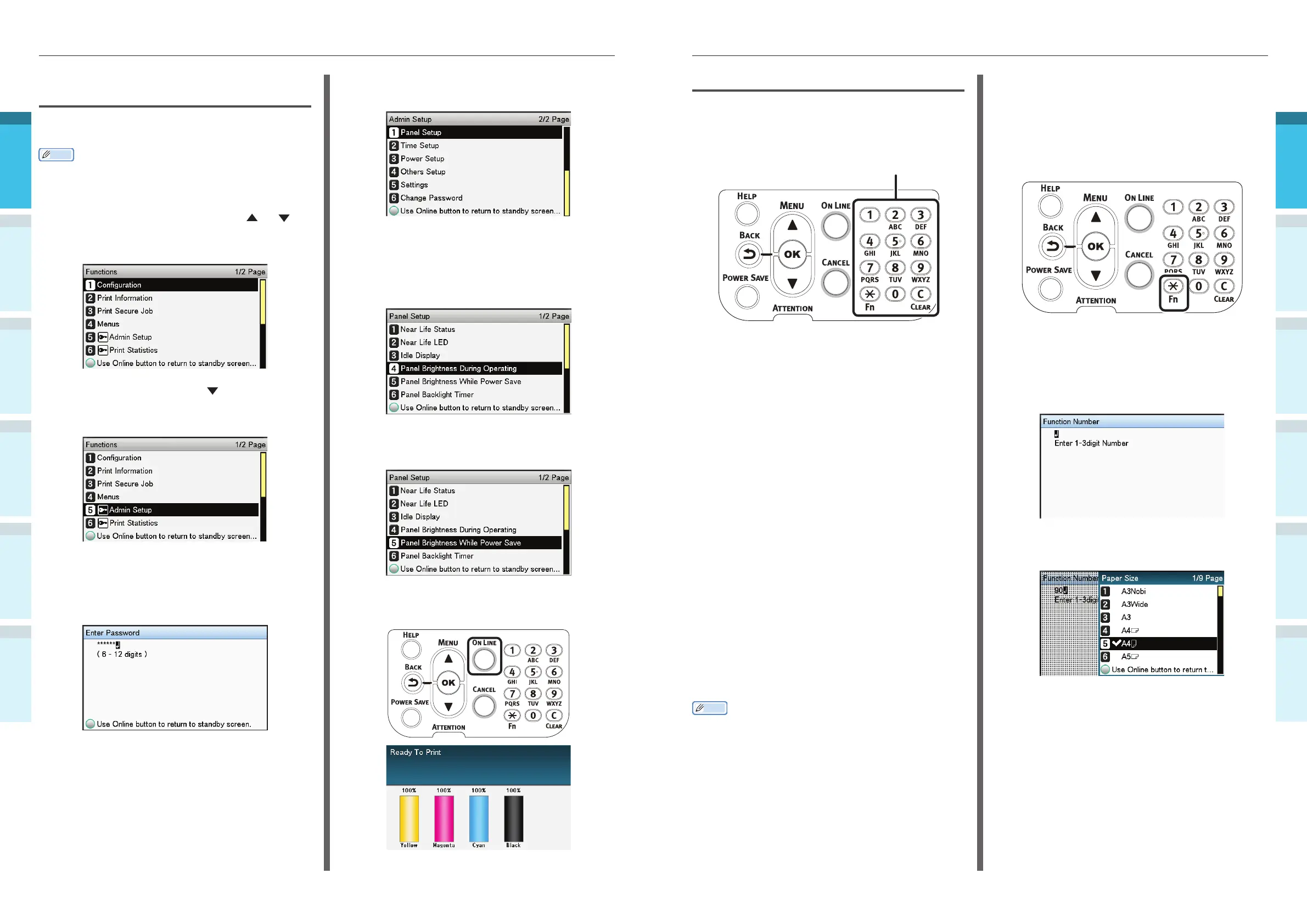
Function Number Input Screen
When "Ready To Print" is displayed in the
standby screen, press the [Fn] key and then
press the desired number to display the relevant
menu item.
1
Press the [Fn] key.
2
The function number input screen will
be displayed, so use the 10-key pad
to enter the (3-digit) menu number to
be displayed, and then press the [OK]
button.
3
The menu will be displayed, so check or
change the set values.
Adjusting the Control Panel
Brightness
Use the following procedure to adjust the
brightness of the liquid crystal panel.
Memo
The brightness (backlight) of the liquid crystal panel can
be set individually for during control panel operations and
when in power save mode.
1
Press either the scroll button or
on the control panel to display the
"Functions" screen.
2
Press the scroll button several times
to select the [Admin Setup], and then
press the [OK] button.
3
Use the 10-key pad to enter the administrator
password. The default factory-set password is
"aaaaaa". Press the [OK] button after entering
each individual character.
4
Select [Panel Setup], and press the [OK]
button.
5
When adjusting the brightness for
during control panel operations, select
[Panel Brightness During Operating],
and press the [OK] button.
When adjusting the brightness for when in
power save, select [Panel Brightness While
Power Save], and press the [OK] button.
6
Press the [ON LINE] button to return to
the standby screen.



 To Next Page