- 68 - - 69 -
Connecting the PC Connecting the PC
AppendixPrinting
3
Setting Up
2
Before use
1
Basic Device Operations
4
Index
AppendixPrinting
3
Setting Up
2
Before use
1
Basic Device Operations
4
Index
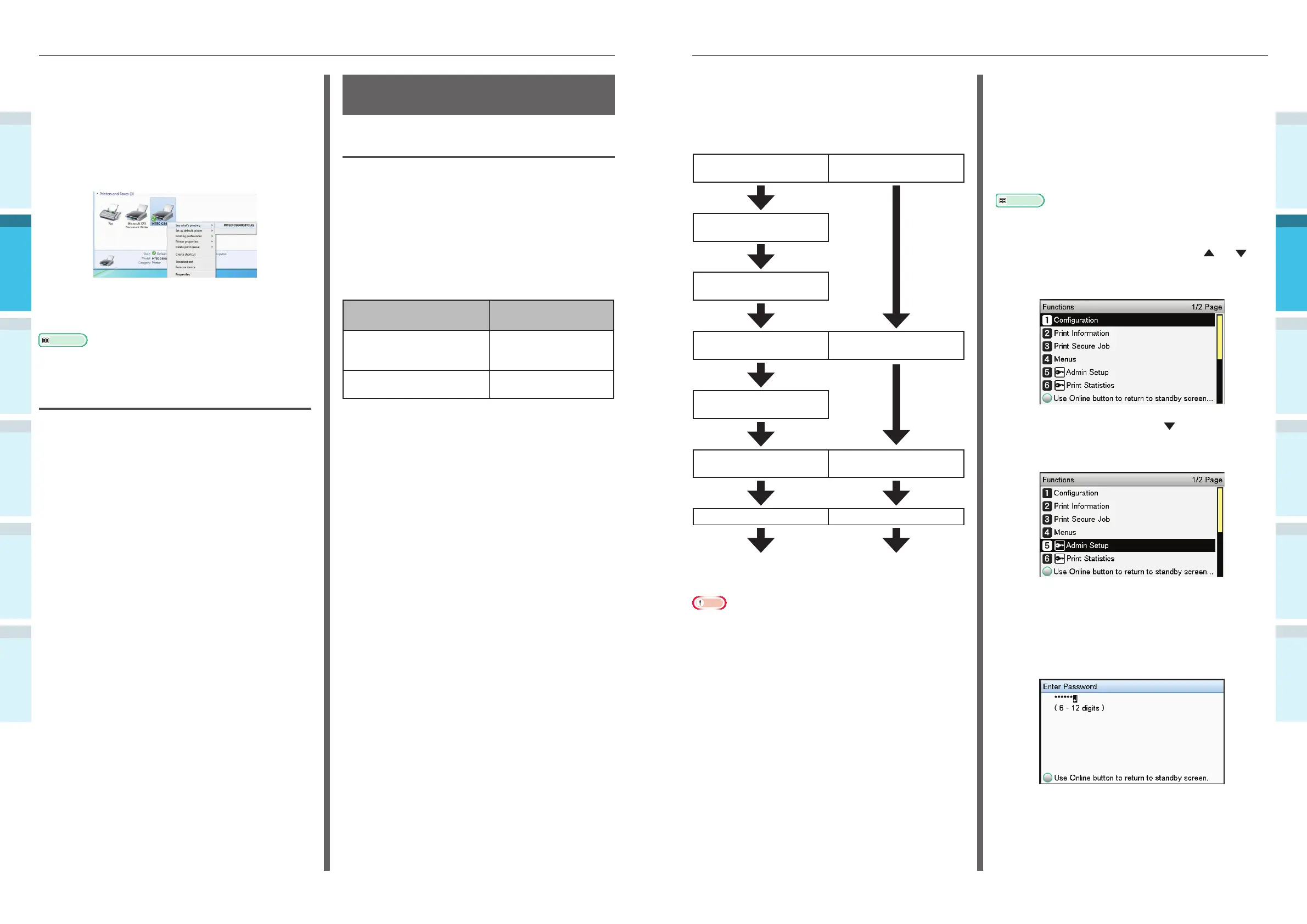
Setup Flow
The setup procedure may differ depending on
the print method.
EtherTalk
Bonjour/
Rendezvous
Turning ON the power
supply
Turning ON the power
supply
Enabling the device
EtherTalk
Disabling device sleep
mode
Turning ON the PC power
supply
Turning ON the PC power
supply
Setting EtherTalk in the
PC
Installing the printer
drivers
Installing the printer
drivers
Adding devices to the PC Adding devices to the PC
Go to “Using EtherTalk”. Go to “Using Bonjour
(Rendezvous)” (P.72).
Note
�
Upgrading the Mac OS X or printer driver version may
result in differences from the description in the manual.
�
Disable all anti-virus software before starting the setup.
Using EtherTalk
Enable EtherTalk using the control panel,
and disable sleep mode
If connecting to a network using EtherTalk, it
is necessary to enable EtherTalk in the printer,
and disable sleep mode. Next, install the printer
drivers in the computer.
Reference
�
People using Bonjour go to “Using Bonjour (Rendezvous)”
(P.72).
1
Press either the scroll button or
on the control panel to display the
"Functions" screen.
2
Press the scroll button several times
to select [Admin Setup], and then press
the [OK] button.
3
Use the 10-key pad to enter the
administrator password.
The default factory-set password is
"aaaaaa". Press the [OK] button after
entering each individual character.
4
Press the [OK] button.
14
Check that the Intec CS5000 icon is
displayed.
Right-click the Intec CS5000 icon and
select and item from the menu, and
check that all the printer drivers that
have been installed are displayed in the
sub-menu.
15
Remove the "Software DVD-ROM" from
the PC.
Reference
�
For how to print from the PC, see “Printing from Trays”
(P.89).
If Setup Fails
If setup fails using either a network or USB
connection, see the enclosed "Troubleshooting/
Daily Maintenance Manual".
This manual explains the possible causes of the
setup trouble and the countermeasures.
Installing Printer Drivers
(Macintosh)
Network Connections
To connect Mac OS X and the device via a
network, install the printer drivers on the
computer, and then set the device as a network
printer.
Deciding the Print Method
(Protocol)
There are two printing methods from Mac OS X:
Using EtherTalk, and using Bonjour/Rendezvous.
Print method
(Protocol)
Features
EtherTalk Uses functions mounted
as standard to OS X
10.5,
Bonjour
Rendezvous
Use this with TCP/IP
networks.



 To Next Page