- 74 - - 75 -
Connecting the PC Connecting the PC
AppendixPrinting
3
Setting Up
2
Before use
1
Basic Device Operations
4
Index
AppendixPrinting
3
Setting Up
2
Before use
1
Basic Device Operations
4
Index
5
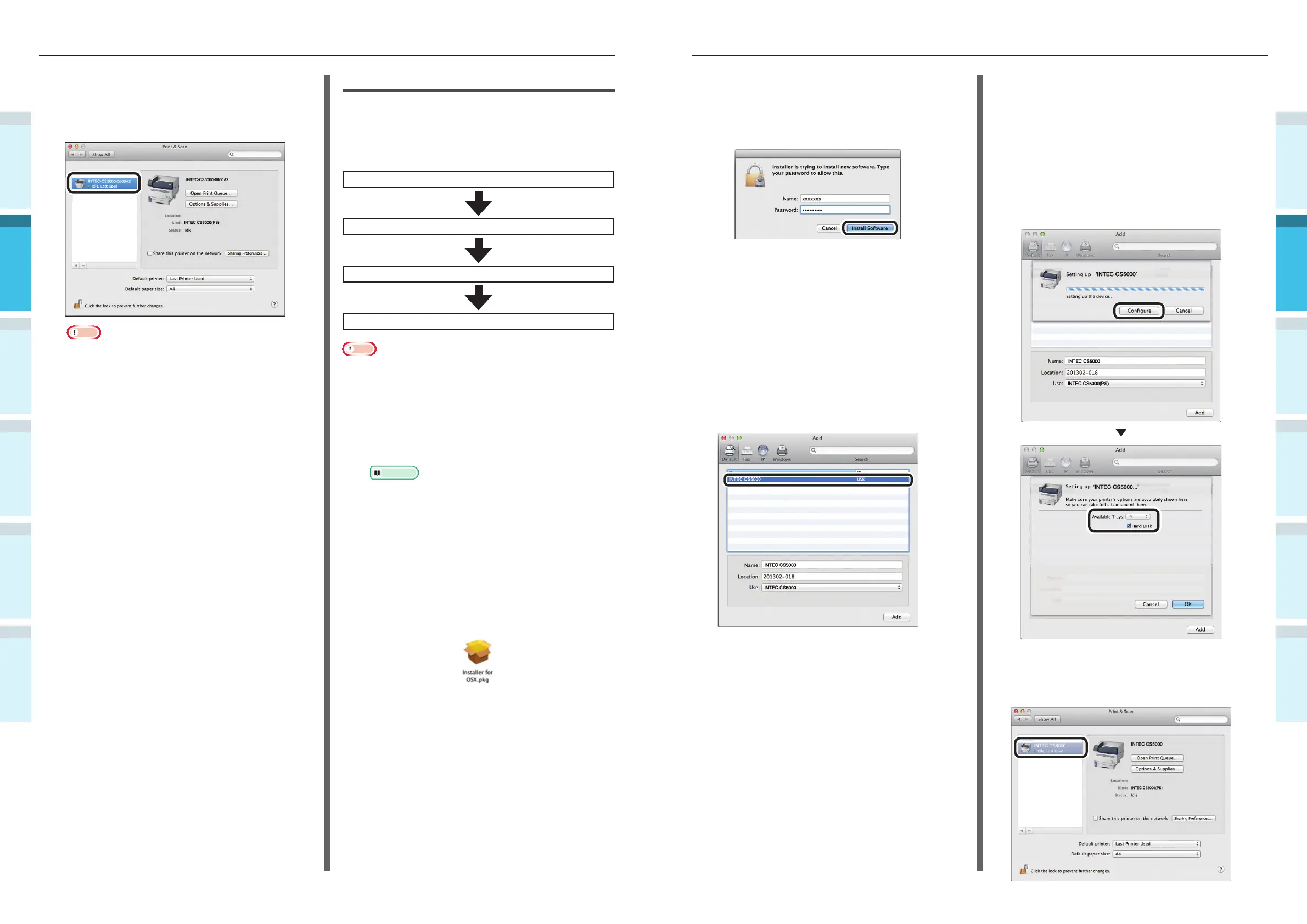
Enter the Mac OS X administrator
password, and click [Install software].
Finish the installation by following the
instructions displayed on the screen.
6
Select [System Preferences] from the
Apple menu.
7
Click [Print & Scan].
8
Click [+].
9
Select the printer displayed as [USB] in
[Kind].
Check that [Intec CS5000] is displayed
in the "Add" screen, and click [Add].
10
Click [Confi gure] in the next screen.
If the optional expansion tray unit has
been mounted to the device, you can
change the number of trays.
If an optional built-in HDD has been
mounted, enable the [Hard Disk] check
box.
11
Check that [Intec CS5000] is displayed
as added to the printer list, and close
the "Print & Scan" screen.
12
Check that [Intec-CS5000-(last 6 digits
of MAC address)] is displayed as added
to the printer list, and close the "Print &
Scan" screen.
Note
�
If [Intec CS5000(PS)] is not displayed correctly in
[Kind], click [-] to delete the device from [Printer],
and then repeat Steps 8 to 11 again.
13
Remove the "Software DVD-ROM" from
the PC.
USB Connections
To connect Mac OS X and the device via USB,
install the printer drivers on the computer, and
then set the device as a USB printer.
Setup Flow
Turning ON the power supply
Turning ON the PC power supply
Installing the printer drivers
Adding devices to the PC
Note
�
Upgrading Mac OS X or the printer driver versions may
cause differences from the description in the manual.
�
Disable all anti-virus software before starting the setup.
1
Check that the device and PC are
connected, and that the power supply is
turned ON.
Reference
�
“Connecting Using USB Cables” (P.58)
2
Insert the "Software DVD-ROM" into the
computer.
3
Double-click the Intec icon on the
desktop.
4
Double-click [Driver]> [Installer for Mac
OS X].



 To Next Page