- 40 - - 41 -
Installing the Device Installing the Device
AppendixPrinting
3
Setting Up
2
Before use
1
Basic Device Operations
4
Index
AppendixPrinting
3
Setting Up
2
Before use
1
Basic Device Operations
4
Index
Setting Paper
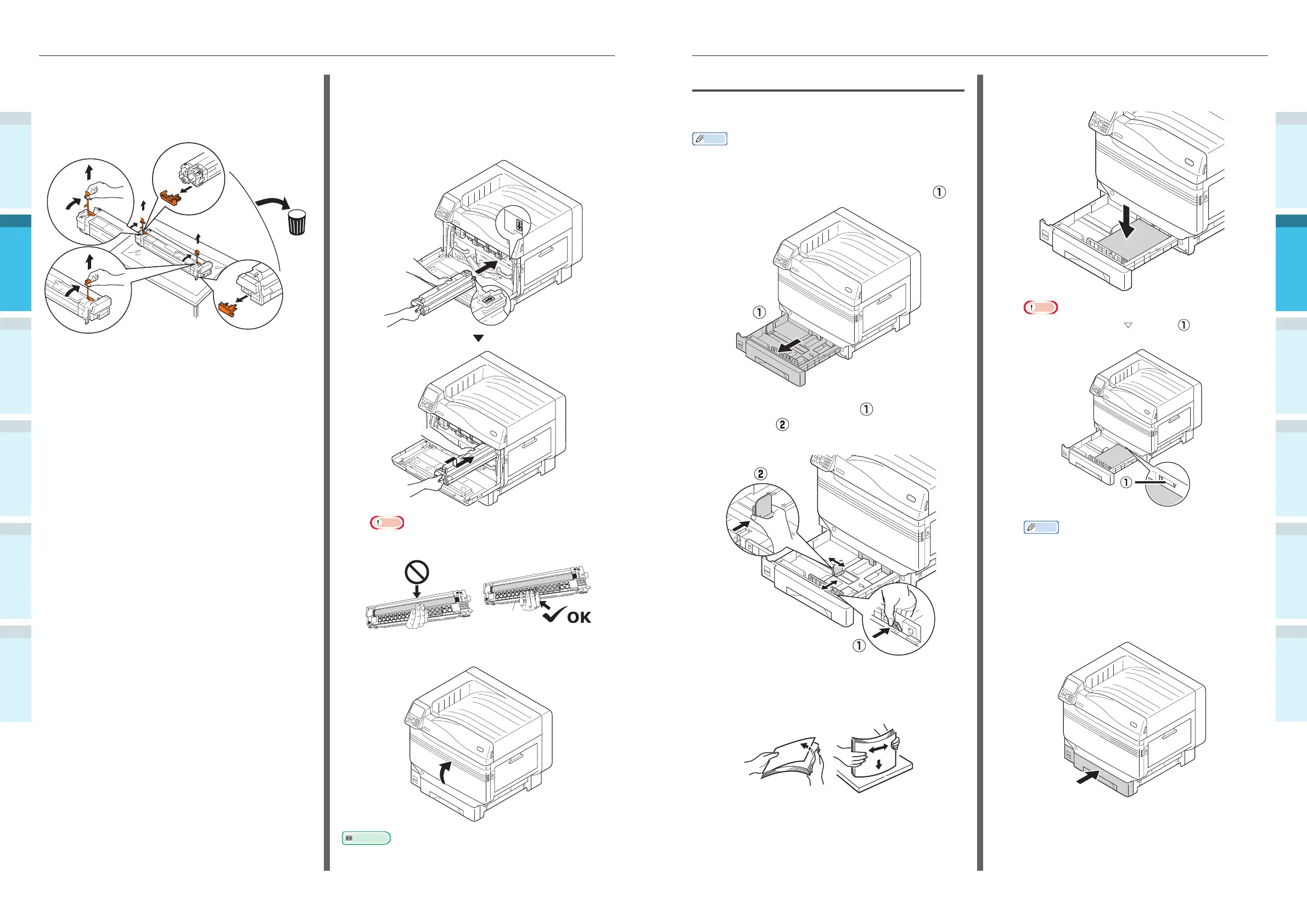
This section explains how to set the paper in tray
1 or trays 2/3/4/5.
Memo
�
In this section, setting paper in tray 1 is used as an
example. Set trays 2 to 5 using the same procedure.
1
Pull out the tray 1 paper cassette ( ).
2
Slide the paper guide ( ) and paper
stopper (
) to align to the size of the
paper that has been set.
3
Thoroughly sort the paper. Carefully
align the edges of the paper
horizontally.
4
Set the paper with the print surface
face-down.
Note
�
Do not exceed the " " symbol ( ) on the paper
guide when setting the paper.
Memo
�
Set so there is no gap between the paper and the
paper guide or paper stopper.
5
Use the paper guide to secure the
paper.
6
Return the paper cassette to the tray.
3
Place the image drum that has been
removed onto a fl at surface covered
with paper, and remove 4 stoppers
(orange) in the direction of the arrows.
4
Align the (red) arrow labels on the
image drum with the arrows on the
device, and gently insert into the slot
and push in fi rmly all the way while
being careful not to touch the green
cylinder with your hands.
Note
�
Be careful not to touch or scratch the image drum
(green cylinder).
5
Close the front cover.
Reference
�
Model CS5000 requires the Spot Color kit to be set. For
details, see the "Separate Volume Spot Color Guide".



 To Next Page